


Best Docking Stations of 2026
Seven docks we'd actually buy – from a $50 travel hub to a Thunderbolt 5 flagship, one for every laptop and desk.
Modern laptops keep getting thinner, and the first thing to go is ports. A MacBook Air gives you two USB-C jacks; plenty of Windows ultrabooks are not much better. A good docking station fixes that in one move: a single cable turns your laptop into a full desktop – dual monitors, wired ethernet, an SD reader, every USB device you own – and charges the laptop while it does it.
2026 is an interesting moment to buy. Thunderbolt 5 docks have finally landed, pushing 80Gbps and dual 8K displays, but for most people Thunderbolt 4 is still the sweet spot – cheaper, proven, and plenty fast. Meanwhile USB-C hubs have gotten genuinely good, and DisplayLink docks solve the one problem that stumps base MacBooks: running more than one external screen. We sorted through the field and picked seven docks that each win for a specific person and laptop, from a $50 travel hub to a $500 Thunderbolt 5 monster.
Building out the rest of the desk too? Pair any dock here with our Best Home Office Monitors for 2026 picks and the right machine from our Best Desktop Computers or Best Business Laptops guides. Running dual monitors off a single dock? Get both screens up to eye level and reclaim the desk with our best monitor arms and mounts guide. A dock and a good keyboard and mouse combo are the two upgrades that make a laptop feel like a real workstation.
QUICK PICKS – BEST DOCKING STATIONS 2026
- Best overall: CalDigit TS4 – 18 ports, 98W, rock-solid on Mac and Windows
- Best premium (Thunderbolt 5): CalDigit TS5 Plus – 20 ports, dual 8K, 140W, 10GbE
- Best value Thunderbolt: Plugable Thunderbolt 4 Dock – dual 4K, 100W and 13 ports for around $200
- Best for business: Dell Pro SD25TB4 Thunderbolt 4 Dock – 11 ports, dual 4K, cables included
- Best for dual 4K: WAVLINK Thunderbolt 5 Dock – Thunderbolt 5, dual 8K capable, 13 ports
- Best for MacBook multi-monitor: Plugable UD-ULTC4K – DisplayLink triple display on any Mac
- Best budget: Anker 555 8-in-1 – compact hub, 4K HDMI, around $50
Which is the best docking station for you?
| If you… | Get this | Why |
|---|---|---|
| Want the most reliable single-cable desktop on Mac or Windows | CalDigit TS4 | 18 ports, 98W, never sells you short |
| Have a Thunderbolt 5 laptop and want to future-proof | CalDigit TS5 Plus | 80Gbps, dual 8K, 10GbE, 140W |
| Want real Thunderbolt 4 without the flagship price | Plugable Thunderbolt 4 Dock | Dual 4K, 100W, 13 ports |
| Want one cable to carry everything, with no adapters to buy | Dell Pro SD25TB4 Thunderbolt 4 Dock | 11 ports, dual 4K, 130W |
| Want two high-resolution screens with room to spare | WAVLINK Thunderbolt 5 Dock | Thunderbolt 5, dual 8K capable, 140W |
| Have a base MacBook and need two or three monitors | Plugable UD-ULTC4K | DisplayLink runs displays Macs cannot |
| Want a cheap, pocketable single-monitor setup | Anker 555 8-in-1 | 4K HDMI and ethernet for around $50 |
All seven of the best docking stations compared
Star ratings reflect our editorial take for everyday work, multi-monitor, and creative use. Prices move around a lot on Amazon, so tap through on any pick to see the current price before you buy.
| # | Photo | Dock | Key features | Our rating | Price |
|---|---|---|---|---|---|
| 1 |  | CalDigit TS4Best Overall | Thunderbolt 4 · 18 ports · 98W · 2.5GbE · dual 6K / single 8K | ★★★★★ | Check price ↗ |
| 2 |  | CalDigit TS5 PlusBest Premium | Thunderbolt 5 · 20 ports · 10GbE · 140W · dual 8K | ★★★★★ | Check price ↗ |
| 3 | 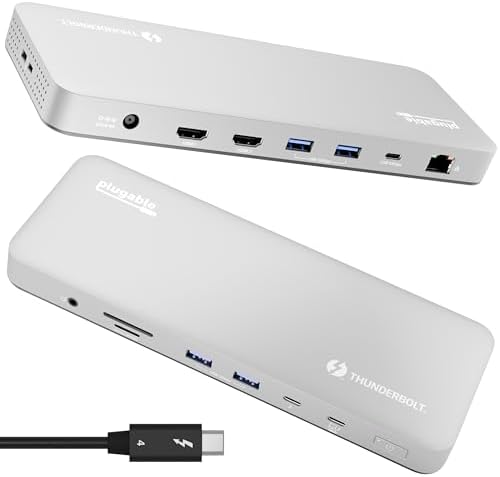 | Plugable Thunderbolt 4 DockBest Value | Thunderbolt 4 · dual 4K / single 6K · 100W · 13 ports · driverless | ★★★★★ | Check price ↗ |
| 4 |  | Dell Pro SD25TB4 TB4 DockBest for Business | Thunderbolt 4 · dual 4K · 130W · HDMI 2.0 · 11 ports | ★★★★★ | Check price ↗ |
| 5 |  | WAVLINK Thunderbolt 5 DockBest for Dual 4K | Thunderbolt 5 · dual 8K capable · 140W · 2.5GbE · SD 4.0 | ★★★★★ | Check price ↗ |
| 6 | 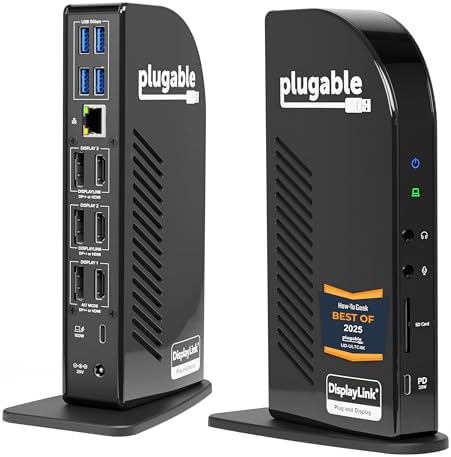 | Plugable UD-ULTC4KBest for MacBook | USB-C DisplayLink · triple 4K · 100W · 3x HDMI + 3x DP · GbE | ★★★★★ | Check price ↗ |
| 7 | 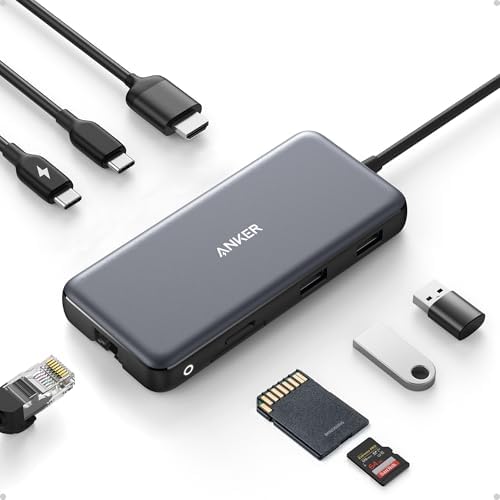 | Anker 555 8-in-1Best Budget | USB-C hub · 4K 60Hz HDMI · GbE · SD/microSD · 85W | ★★★★★ | Check price ↗ |
The best docking stations of 2026 – full reviews
1. CalDigit TS4 – Best Overall
- 18 Ports of Extreme Connectivity – Featuring an impressive 18 ports, the TS4 has enough connectivity for even the most d…
- Powerful 98W Charging – The TS4’s power delivery is ideal for any Thunderbolt or USB-C (with data, video, and power supp…
- Single 8K or Dual 6K 60Hz Displays – Windows users can connect a single monitor up to 8K resolution. macOS users can con…
Buy it if you want the most reliable single-cable desktop setup and 18 ports you will never outgrow, on either Mac or Windows. Skip it if you have a Thunderbolt 5 laptop and want to future-proof – step up to the TS5 Plus – or if you only need a screen and a couple of USB ports, in which case you are overpaying.
Why we picked it: the TS4 is the dock reviewers keep crowning year after year, and it earns it – 18 ports including three Thunderbolt 4, a genuine 98W of sustained charging that never sags when you plug more in, and 2.5GbE wired networking built in. It behaves identically on a MacBook Pro and a Dell XPS, which is rarer than it should be. Key strength: unmatched port count and bulletproof reliability. The catch: at around $380 it is an investment, the USB ports are data-only (monitors go on the Thunderbolt ports), and it sells out constantly.
✓ Pros
- 18 ports, the most on any Thunderbolt 4 dock
- True 98W sustained charging
- 2.5GbE ethernet built in
- Flawless on both Mac and Windows
- Premium aluminum, runs cool
✗ Cons
- Premium price
- USB ports are data-only
- Frequently out of stock
2. CalDigit TS5 Plus – Best Premium (Thunderbolt 5)

- 20 Ports of Extreme Connectivity – The TS5 Plus includes 3x 80Gb/s Thunderbolt 5 ports, 5x USB-A 10Gb/s ports, 5x USB-C …
- More Power than Ever – The TS5 Plus host charging port provides up to 140W of dedicated power delivery, ideal for laptop…
- Flexible Display Configurations – The TS5 Plus on macOS devices can connect up to Dual 6K 60Hz displays, or even Dual 8K…
Buy it if you have (or are about to buy) a Thunderbolt 5 laptop and want the most capable dock on the market – dual 8K, 10-gigabit ethernet, 140W charging. Skip it if your laptop is Thunderbolt 4 or USB-C only; you will pay for headroom you cannot use yet, and the TS4 covers you for less.
Why we picked it: this is the new ceiling. Twenty ports, three Thunderbolt 5 ports at 80Gbps, dual USB controllers so your drives do not fight for bandwidth, a built-in 10GbE port (a feature that used to mean buying a separate adapter), and a 330W supply that delivers a full 140W to the laptop without throttling. Key strength: future-proof bandwidth with the best charging and networking of any dock here. The catch: $500, it is overkill on anything short of an M4/M5 Pro/Max or a Thunderbolt 5 PC, and it runs warm under load.
✓ Pros
- Thunderbolt 5, 80Gbps, dual 8K
- 10GbE ethernet built in
- 140W sustained charging
- Dual USB controllers for full speed
- 20 ports, all usable at once
✗ Cons
- Expensive at around $500
- Wasted on Thunderbolt 4 / USB-C laptops
- Runs warm under load
3. Plugable Thunderbolt 4 Dock – Best Value Thunderbolt
- 13-in-1 Thunderbolt Performance: Need a high-performance Mac docking station? The Plugable TBT-UDM laptop docking statio…
- Dual 4K Display: Want dual monitors without driver downloads or a dongle mess? This docking station for laptop supports …
- Make a Connection: Tired of slow docks and cable chaos? Get 13 streamlined ports, including 1x downstream Thunderbolt 4 …
Buy it if you want certified Thunderbolt 4 – dual 4K HDMI or a single 6K screen, 100W charging and nothing to install – without paying CalDigit money. Skip it if you have a base M1 or M2 MacBook, which drives only one external display no matter what you plug it into.
Worth knowing: this dock sits at 4.1 stars across 170 owner ratings on Amazon. It is our value pick on hardware — certified Thunderbolt 4, dual 4K, 100W charging and a UHS-II card reader for roughly half what the CalDigit costs — though that is still a modest sample next to the older docks here.
Why we picked it: it is the value sweet spot in Plugable's range. You get certified Thunderbolt 4 at 40Gbps, thirteen ports in a space-gray aluminum body, dual 4K 60Hz across two HDMI outputs or a single 6K display, 100W host charging, ethernet, a UHS-II SD and microSD reader and a 3.5mm audio jack – with no drivers to install on either Mac or Windows. Key strength: flagship Thunderbolt features and a proper card reader at a midrange price. The catch: only one downstream Thunderbolt port, and Apple's base silicon caps how many screens you get.
✓ Pros
- Certified Thunderbolt 4, 40Gbps
- Dual 4K 60Hz HDMI or single 6K
- 100W laptop charging
- UHS-II SD and microSD reader
- Driverless on Mac and Windows
✗ Cons
- Only one downstream Thunderbolt port
- Base M1 and M2 Macs drive one screen
- Base M3 Macs need clamshell mode for two
4. Dell Pro SD25TB4 Thunderbolt 4 Smart Dock – Best for Business

- Modular Dell Dock Design – Upgrade Your dell docking station effortlessly with dell thunderbolt dock SD25TB4 swappable m…
- Multiply Productivity – Simplify your setup and power through tasks with dual 4K display support and seamless Thunderbol…
- [Ports] – 2 x Thunderbolt-4 ports / 1 x USB-C 3.2 Gen 2 / 1 x USB-A 3.2 Gen 1 with PowerShare / 2 x DisplayPort 1.4 / 1 …
Buy it if you want one cable to carry everything to a work laptop and you would rather not buy adapters – the HDMI, DisplayPort and Thunderbolt cables are in the box, and it is supported on Windows, macOS and Ubuntu. Skip it if you need three or more screens from one dock, or you want the dock to charge a 140W-class laptop at full speed.
Why we picked it: this is the dock that empties the adapter drawer. Eleven ports cover two Thunderbolt 4, two DisplayPort 1.4, HDMI 2.0, a USB-C multifunction DisplayPort, a USB-C 3.2 Gen 2, three USB-A 3.2 Gen 1 with one carrying PowerShare for charging a phone, and Gigabit Ethernet, with 40Gbps of Thunderbolt bandwidth behind them. Dell rates it for dual 4K displays and 130W of charging to the laptop, drawn from a 180W adapter, and the module is swappable so the dock can be upgraded rather than replaced. Key strength: every cable you need is in the box, and it is supported on macOS and Ubuntu as well as Windows 10 and 11. The catch: dual 4K is the display ceiling, so it is the wrong dock if you run three or more panels, and its review record is younger than the older docks here.
✓ Pros
- HDMI, DisplayPort and Thunderbolt cables included
- Eleven ports, including Gigabit Ethernet
- 130W to the laptop from a 180W adapter
- Swappable module, so it can be upgraded
- Windows, macOS and Ubuntu supported
✗ Cons
- Dual 4K is the display ceiling
- Thunderbolt 4, not Thunderbolt 5
- A younger review record than the older docks here
5. WAVLINK Thunderbolt 5 Dock 13-in-1 – Best for Dual 4K Displays

- Professional assistant for business office – This 13-in-1 TB5 docking station is equipped with 1x Upstream Thunderbolt 5…
- Love letter for film and video creators – what if your computer’s memory and read/write speeds are insufficient? It can …
- The ultimate solution for local high-speed caching – This thunderbolt 5 dock supports high-performance PCIe Gen 4 x4 M.2…
Buy it if you want two high-resolution screens driven properly, with Thunderbolt 5 headroom and 140W of charging so the dock is never the bottleneck. Skip it if you have a base M1, M2 or M3 MacBook or a DisplayPort Alt Mode laptop – those drive a single external display whatever the dock offers – or if you want HDMI sockets on the dock itself.
Why we picked it: it drives two screens with room to spare. WAVLINK lists dual 8K at 60Hz, or triple 4K at 144Hz on a Windows 11 machine with a Thunderbolt 5 port, which puts a pair of 4K monitors comfortably inside its range rather than at its limit; on macOS the dock supports two external displays. Thirteen ports surround that: one upstream Thunderbolt 5 at 120Gbps carrying 140W, three downstream Thunderbolt 5, four USB-A 3.2, 2.5G ethernet, an SD 4.0 reader, a 3.5mm audio jack and a Kensington lock slot, plus a PCIe Gen 4 M.2 slot you can drop an SSD into for up to 64Gbps of local storage. Key strength: Thunderbolt 5 bandwidth, 140W charging and an SSD bay in one box. The catch: there are no HDMI or DisplayPort sockets on the dock – monitors connect over Thunderbolt or USB-C, and those cables are not included, nor is the M.2 drive.
✓ Pros
- Thunderbolt 5, up to 120Gbps
- Dual 8K 60Hz, or triple 4K 144Hz on Windows 11
- 140W charging over the upstream port
- PCIe Gen 4 M.2 slot at up to 64Gbps
- Thirteen ports, 2.5G ethernet and SD 4.0
✗ Cons
- No HDMI or DisplayPort sockets on the dock
- Monitor cables and the M.2 drive are not included
- Triple display needs Windows 11 and Thunderbolt 5
6. Plugable UD-ULTC4K – Best for MacBook Multi-Monitor
- Award-Winning 13-in-1 Dock for Complete Workstations: Named “Best Docking Station 2025” by How-To Geek, the Plugable UD-…
- Triple 4K Display Support: Drive up to three 4K 60Hz monitors – ideal for IT deployments, financial analysts, and develo…
- 100W Laptop Charging + 20W Accessory Charging: Charge your laptop through the rear USB-C host connection with up to 100W…
Buy it if you have a base MacBook Air or M-series MacBook that natively drives only one external screen, and you want two or three. DisplayLink is the only way to get there. Skip it if you have a Thunderbolt laptop that already does dual displays natively, or you do color-critical work or gaming, where native output is better.
Why we picked it: base MacBooks famously refuse to run more than one external monitor – DisplayLink is the workaround, and this 13-in-1 Plugable is the cleanest version, with three HDMI and three DisplayPort outputs (How-To Geek named it a best dock for 2025). It adds 100W charging, gigabit ethernet, and a stack of USB. Key strength: triple-monitor support on laptops that cannot do it any other way. The catch: it needs the DisplayLink driver on macOS (and a Screen Recording permission that sounds scarier than it is), it is not for gaming or HDR video, and the third screen caps at 4K 30Hz.
✓ Pros
- Triple display on any USB-C laptop
- The fix for base MacBooks
- 100W laptop charging
- 3x HDMI plus 3x DisplayPort
- How-To Geek pick
✗ Cons
- Requires DisplayLink driver on Mac
- Not for gaming or HDR
- One output caps at 4K 30Hz
7. Anker 555 8-in-1 – Best Budget
- Flawless 4K Video via HDMI: Enjoy crystal-clear visuals with 4K@60Hz output when using a DP 1.4 laptop, or 4K@30Hz with …
- Massive Expansion: Equipped with a USB-C Power Delivery input port, a built-in 7.48″ USB-C cable, a USB-C data port, 2 U…
- High-Speed, High-Def: USB-C and USB-A data ports provide file transfer at speeds up to 10 Gbps, while an HDMI port suppo…
Buy it if you want to add a 4K monitor, ethernet, card readers and USB for around $50, in something that drops in a bag. Skip it if you need to run two monitors or want Thunderbolt speed; this is a hub, not a full dock.
Why we picked it: not everyone needs a $300 dock. The Anker 555 is an 8-in-1 hub with a built-in USB-C cable, a 4K 60Hz HDMI output, gigabit ethernet, SD and microSD readers, two 10Gbps USB-A ports and a USB-C data port, plus up to 85W pass-through charging – for the price of a nice dinner. Key strength: genuinely useful connectivity in a pocketable hub for around $50. The catch: a single display only (the USB-C port is data, not video), 85W charging rather than 100W, and it is a hub, so do not expect dock-grade port counts.
✓ Pros
- Cheapest pick here
- 4K 60Hz HDMI output
- Gigabit ethernet plus SD/microSD
- 10Gbps USB data
- Pocketable, built-in cable
✗ Cons
- Single display only
- 85W charging, not 100W
- A hub, not a full dock
How to choose the best docking station
Five questions get you to the best docking station for your desk, without overpaying for ports you will never plug into.
Start with your laptop’s port
Picking the best docking station starts at your laptop: look for the lightning-bolt icon next to your USB-C port. Thunderbolt 4 and 5 (and USB4) give you the most – dual displays, 40 to 80Gbps, no drivers. A plain USB-C port still works with USB-C docks and hubs, but you may be limited to a single display unless the dock uses DisplayLink. And do not pay for a Thunderbolt 5 dock unless you have a Thunderbolt 5 laptop; it is backward compatible, but you will not see the benefit.
Displays and resolution
Decide how many monitors you want and at what resolution. A Thunderbolt 4 dock handles dual 4K 60Hz on most laptops. Want dual 8K or triple high-refresh displays? That is Thunderbolt 5 territory. Running a base MacBook (M1/M2/M3 Air or base M3)? It natively drives only one external display, so you will need a DisplayLink dock like the Plugable UD-ULTC4K to add a second or third.
Power delivery
A good dock charges your laptop over the same cable. Match the wattage to your machine: 60 to 65W for an ultrabook, 90 to 100W for a 14-inch pro laptop, 140W for a 16-inch MacBook Pro. Watch for docks that quietly share power across devices – the best ones (CalDigit, Plugable) deliver their rated wattage no matter how much you plug in.
Ports and networking
Count what you actually plug in – USB-A and USB-C devices, an SD card, audio, ethernet. 2.5GbE is becoming standard and is worth having if your router supports it. If you live on wired networks, the TS5 Plus’s 10GbE is a luxury; for most people gigabit or 2.5GbE is plenty.
Mac vs Windows
Most docks work on both, but the details differ. Base MacBooks need DisplayLink for multiple monitors, and some business docks (like Dell’s) reserve their best tricks for their own laptops. If you are on a Mac, confirm display support for your exact chip before buying.
Budget
Spend to your needs. Under $50 gets a capable single-display hub. Around $200 buys a real Thunderbolt 4 dock. $350 to $500 gets you maximum ports, charging and future-proofing. Buy from a seller with an easy return policy and test everything in the first week – dock compatibility can be finicky between laptop models.
Best docking station FAQ
What’s the difference between a Thunderbolt dock and a USB-C dock?
Thunderbolt 4 delivers 40Gbps and native dual-4K display support with no drivers; Thunderbolt 5 doubles that to 80Gbps. A plain USB-C dock is cheaper and works with almost any laptop, but typically offers 5 to 10Gbps and may be limited to a single display unless it uses DisplayLink. If your laptop has a Thunderbolt port (look for the lightning bolt) and you want dual monitors, get Thunderbolt. For one screen and some peripherals, USB-C saves money.
Will a dock let my MacBook Air run two monitors?
Only a DisplayLink dock will. Base Apple Silicon MacBooks (the M1/M2/M3 Air and base M3) drive just one external display natively, and no ordinary Thunderbolt dock changes that. A DisplayLink dock like the Plugable UD-ULTC4K bypasses the limit in software and runs two or three screens – you install the free DisplayLink Manager app on macOS. MacBook Pro models with Pro and Max chips, and the M4/M5 generation, can already do multiple displays natively.
How many monitors can a docking station run?
It depends on your laptop, not just the dock. A Thunderbolt 4 dock supports dual 4K 60Hz on most Thunderbolt laptops; Thunderbolt 5 can push dual 8K or triple 4K on supported machines. DisplayLink docks can add three or more displays even to laptops that natively support one. Always check your laptop’s chip limits – the dock cannot exceed them on native connections.
Do docking stations need drivers?
Thunderbolt and most USB-C docks are driverless – plug and play on Windows and macOS. The exception is DisplayLink docks, which need the free DisplayLink driver installed (automatic on Windows, a manual install plus a Screen Recording permission on macOS). Some business docks also offer optional management software, but it is not required to use the dock.
Is a Thunderbolt 5 dock worth it in 2026?
Only if you have a Thunderbolt 5 laptop. TB5 docks like the CalDigit TS5 Plus are backward compatible, so they run on a Thunderbolt 4 machine – but you will not get the 80Gbps bandwidth, dual-8K, or top-tier charging unless the laptop supports it. If you are buying a new high-end machine or want to future-proof, TB5 makes sense. For everyone else in 2026, a good Thunderbolt 4 dock is the smarter buy.
How we select products
We build every guide around one question: what is the best docking station for each kind of buyer? For this guide we researched the docking stations and hubs that are actually available on Amazon right now, weighing connection type, display and charging capability, port selection, real-world reliability, and price – drawing on professional testing from outlets like PCWorld, Tom’s Hardware, Windows Central and Wirecutter alongside verified owner feedback. Every pick is one we would be comfortable putting on our own desk, and every product was in stock and Prime-eligible at the time of writing. We update this guide as new docks ship and prices change. Prices shift often on Amazon, so tap through to confirm the current price before you buy.
What we left out. Two docks came off this guide on their listings rather than their hardware. The Lenovo ThinkPad Universal Thunderbolt 4 Dock sits below the 4.0-star minimum we hold every pick to. The Anker Prime TB5 shows a Prime member price rather than Prime delivery – a discount for members, not free shipping – so it no longer clears our Prime standard. Both are capable docks; it is the listings that fell short.
Related SmartTechBuying guides
- Docking Station vs USB-C Hub: Which Do You Need?
- Best Home Office Monitors for 2026
- Best Desktop Computers of 2026
- Best Business Laptops 2026
- Best Mini PCs of 2026
- Best Keyboard and Mouse Combo for 2026
- Best Webcams for 2026
Coming soon: we are also working on dedicated Best Thunderbolt 5 Docks and Best USB-C Hubs for Travel guides – check back shortly.
Why You Can Trust Smart Tech Buying
Every recommendation is based on extensive product research, manufacturer specifications, customer feedback, long-term reliability, value, and suitability for real-world use. When we have personal experience with a product, we include those insights. We regularly review our guides to keep recommendations current as new products are released.