

Best Home Office Monitors of 2026
Six screens we'd actually buy – for single-cable laptop docks, 4K sharpness, ultrawide multitasking, and tight budgets.
Choosing the best home office monitor in 2026 comes down to three decisions: how much screen real estate you need, whether you want 4K sharpness or ultrawide width, and how you plan to connect. For laptop users, a USB-C monitor that charges your MacBook or Windows laptop through a single cable changes the game entirely. For desktop setups, a 32-inch 4K display transforms how much you can see at once. For multitaskers, an ultrawide eliminates the gap between two separate screens.
We researched and compared the top home office monitors available on Amazon right now across six categories to give you one clear recommendation for every type of home office setup. Every monitor below is available on Amazon with verified listings and affiliate-tagged Buy buttons.
Upgrading your full home office setup? See our Best Business Laptops for 2026 and Best Home Office Printers for 2026 guides for recommendations that pair perfectly with any monitor on this list. And once you have chosen your screen, get it off the desk and up to eye level with one of our best monitor arms and mounts.
QUICK PICKS – BEST HOME OFFICE MONITORS 2026
- Best overall: Dell S2725DSM 27″ QHD – 2560×1440, 144Hz, built-in speakers, full ergonomics
- Best for MacBook and laptops: ASUS ProArt PA278CV 27″ QHD USB-C – single-cable connection, 65W charging, 100% sRGB
- Best 4K monitor: LG 27UP850K-W 27″ 4K – 3840×2160, 90W USB-C, HDR400, Ethernet
- Best ultrawide: Philips 346E2CUAE 34″ Ultrawide – 3440×1440, USB-C docking, 100Hz, built-in speakers
- Best large screen: LG 32UP83AK-W 32″ 4K – 3840×2160 at 32 inches, 60W USB-C, HDR10
- Best budget: Dell S2425HSM 24″ FHD – 1920×1080, 144Hz, built-in speakers, entry-level price
All 6 monitors compared at a glance

| Resolution | 2560×1440 QHD |
| Size | 27 inch |
| Refresh | 144Hz |
| Panel | IPS |
| USB-C | No |

| Resolution | 2560×1440 QHD |
| Size | 27 inch |
| Color | 100% sRGB |
| Panel | IPS |
| USB-C | 65W charging |

| Resolution | 3840×2160 4K |
| Size | 27 inch |
| Refresh | 60Hz |
| Panel | IPS |
| USB-C | 90W charging |

| Resolution | 3440×1440 WQHD |
| Size | 34 inch |
| Refresh | 100Hz |
| Panel | VA Curved |
| USB-C | Power Delivery |

| Resolution | 3840×2160 4K |
| Size | 32 inch |
| Refresh | 60Hz |
| Panel | IPS |
| USB-C | 60W charging |

| Resolution | 1920×1080 FHD |
| Size | 24 inch |
| Refresh | 144Hz |
| Panel | IPS |
| USB-C | No |
Best home office monitors 2026 – full reviews
1. Dell S2725DSM – Best Overall Home Office Monitor 2026

- Elevated entertainment: The QHD resolution and 1500:1 contrast ratio bring astounding depth and vivid detail, while a 14…
- Hear the audio difference: Immerse yourself in sound with integrated dual 3W speakers delivering a wider range of freque…
- Eye comfort: Prioritize visual comfort with this 4-star TÜV-certified display. Reduce harmful blue light emissions while…
The Dell S2725DSM is the best home office monitor for most people in 2026. The 27-inch QHD panel at 2560×1440 hits the sweet spot between screen size and pixel density – everything is sharp and readable without needing to scale text up the way you do on a smaller 1080p display. The 144Hz refresh rate keeps scrolling and multitasking smooth. Built-in 2x3W speakers mean you do not need a separate audio solution on your desk. Full ergonomics – height, tilt, swivel, and pivot – let you position the screen exactly where you need it, and TUV Rheinland Eye Comfort certification means it is built for long work sessions.
Who should buy it: Home office users who want the best all-around 27-inch monitor for productivity – documents, spreadsheets, video calls, and multitasking. Anyone who wants built-in speakers and a full ergonomic stand without buying a premium display.
Who should skip it: MacBook and laptop users who want a single USB-C cable connection – the S2725DSM does not have USB-C. See the ASUS ProArt PA278CV below for that. Users who want 4K resolution or an ultrawide layout.
Pros
- Sharp QHD 2560×1440 at 27 inches
- Built-in 2x3W speakers – no separate audio needed
- Full ergonomic stand – height, tilt, swivel, pivot
- 144Hz for smooth multitasking and scrolling
- TUV Eye Comfort certified for long sessions
Cons
- No USB-C – requires HDMI or DisplayPort
- Speakers are a basic 2x3W pair – fine for calls, light for media
- Not 4K – step up to the LG 27UP850K for ultra-sharp
2. ASUS ProArt PA278CV – Best Monitor for MacBook and Laptop Users

- Calman Verified Delta E < 2 & 100% sRGB: Ensure true-to-life colors for professional creative artwork with this highly a...
- USB-C Port with 65W Power Delivery: Declutter your desk by charging your laptop and transferring data via a single cable…
- 27-inch QHD (2560 x 1440) IPS Panel: Enjoy a sharp, spacious workspace for multitasking and detailed video editing on th…
The ASUS ProArt PA278CV pairs the same 27-inch QHD size with USB-C Power Delivery – and for MacBook and Windows laptop users, that single addition changes everything. One USB-C cable connects your laptop, delivers 65W of charging power, sends the 2560×1440 video signal, and passes through data. Your entire cable clutter on the desk reduces to a single connection. At 144Hz and 1ms response time, the panel is also faster than the base S2725DSM, making this the stronger choice even if you do not care about USB-C. Built-in 2x3W speakers, full ergonomics, and AMD FreeSync are all included.
Who should buy it: MacBook Air and MacBook Pro users who want a clean single-cable desk setup. Anyone with a USB-C or Thunderbolt laptop who wants video, charging, and data through one cable. Remote workers who move between desk and travel regularly.
Who should skip it: Desktop PC users without a USB-C port – the S2725DSM is a better value choice. Users who need 4K resolution at 27 inches – see the LG 27UP850K.
Pros
- Single USB-C cable for video, charging, and data
- 65W laptop charging – sufficient for MacBook Air and most laptops
- 144Hz at QHD – faster than the base S2725DSM
- Built-in speakers and full ergonomic stand
- AMD FreeSync included
Cons
- 65W may not fully charge 16-inch MacBook Pro under full load
- QHD not 4K – pixel density is lower than LG 4K options
- Premium over the non-USB-C S2725DSM
3. LG 27UP850K-W – Best 4K Monitor for Home Office

- Stunning Image Quality in 4K Display – The 27-inch UHD 4K (3840 x 2160) display reproduces clear images and vibrant colo…
- 4K UHD HDR – To more fully realize content creators vision, this monitor is compatible with VESA DisplayHDR 400 high dyn…
- Color Your World – Explore HDR content the way it was meant to be seen with up to 95% DCI-P3 color gamut expression—an e…
The LG 27UP850K-W delivers genuine 4K UHD resolution at 27 inches – the same pixel density Apple uses in its Pro Display XDR, packed into a monitor that charges your laptop at up to 90W over USB-C. At 3840×2160, every pixel is sharp. Fine text is crisp. Spreadsheets with dozens of columns become readable without scrolling. Photos and graphics are rendered accurately with DisplayHDR 400 and a wide color gamut. The 90W USB-C Power Delivery charges MacBook Pros and demanding Windows laptops at full speed. HDMI, DisplayPort, and Ethernet round out connectivity.
Who should buy it: MacBook users and power users who want razor-sharp 4K text and graphics with fast USB-C charging. Designers, developers, content creators, and anyone working with detailed documents or visual content all day.
Who should skip it: Users who want a larger screen – the 32-inch LG 32UP83AK gives you more real estate. Users who do not need 4K – the ASUS ProArt PA278CV is sharper per pound for productivity.
Pros
- 3840×2160 4K – sharpest text and images on this list
- 90W USB-C charging – charges MacBook Pro at full speed
- DisplayHDR 400 and wide color gamut
- Ethernet port built in
- Height, tilt, and pivot stand included
Cons
- 60Hz only – not ideal for fast video or gaming
- Premium price for a 27-inch panel
- Smaller screen than the LG 32-inch option
4. Philips 346E2CUAE – Best Ultrawide Monitor for Home Office

- Philips E-Line 34″ LCD Monitor delivers CrystalClear, UltraWide Quad HD 3440 x 1440 resolution for an expanded workspace…
- 1500 CURVATURE: Curved VA panel for wide-viewing angles and immersive viewing experience
- ONE USB-C CABLE DOES IT ALL : Power and recharge your notebook on a single USB-C cable with USB Power Delivery, Compatib…
The Philips 346E2CUAE is the best ultrawide monitor for home office productivity in 2026. The 21:9 aspect ratio at 3440×1440 gives you the equivalent of two 27-inch monitors side by side – without a gap in the middle. Windows snap lets you park email on one side, a browser in the center, and your task manager on the right without any dead space. One USB-C cable carries video, data and Power Delivery charging to a laptop, so the desk stays clean. The 1500R curved VA panel runs at 100Hz with a 1ms response, and built-in speakers, a USB 3.2 hub and a height-adjustable stand are included.
Who should buy it: Multitaskers who want to run multiple apps side by side without a bezel gap. Laptop users who want a single-cable dock that also charges. Anyone replacing two separate monitors with a cleaner single-screen setup.
Who should skip it: Users who primarily use full-screen applications – ultrawide width is wasted if you only ever maximize one window. Users who need 4K resolution – ultrawide WQHD has fewer pixels per inch than 4K at the same size.
Pros
- 3440×1440 ultrawide – replaces two monitors with one
- USB-C Power Delivery – one cable for video, data and charging
- 1500R curved VA panel at 100Hz
- Built-in speakers and a USB 3.2 hub
- Height-adjustable stand and a four-year warranty
Cons
- Large footprint – needs a wide desk
- Not 4K – lower pixels per inch than the LG 4K options
- Philips does not publish the USB-C charging wattage
- Some apps and video content do not fill the ultrawide ratio
5. LG 32UP83AK-W – Best Large Screen 4K Monitor
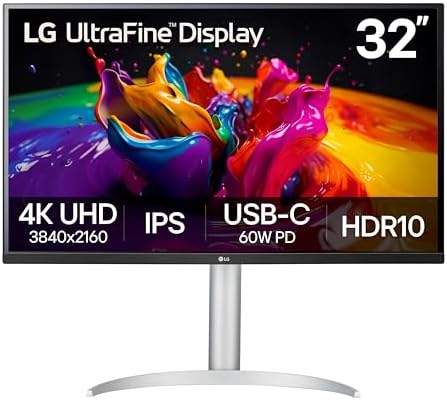
- Details Mastered – Experience the brilliance of Ultra HD with 4K UHD resolution (3840×2160), delivering over 8 million p…
- Enjoy the Latest HDR Videos and Games – HDR10 elevates picture quality for a more dynamic visual immersion experience an…
- Immersive Gaming Experience – 32UP83AK-W boosts the new era of 4K HDR console gaming experience, not only bringing unpre…
The LG 32UP83AK-W is the best 32-inch 4K monitor for home office use. Moving from 27 to 32 inches at the same 4K resolution means every pixel is slightly larger – which actually makes 4K more comfortable at normal desk distances without needing to scale the UI. Spreadsheets, design files, code editors, and multi-window layouts all benefit from the extra real estate. USB-C at 60W charges most MacBook Air models and mid-range Windows laptops. Built-in speakers, Reader Mode for reduced blue light, HDMI, and DisplayPort are all included. The fully adjustable stand handles height, tilt, and pivot.
Who should buy it: Home office users who want the most immersive single-screen experience – designers, architects, financial analysts, and anyone working with large documents, spreadsheets, or detailed visuals. Users who want 4K but find 27-inch 4K too demanding on scaling.
Who should skip it: MacBook Pro users who need more than 60W charging – the LG 27UP850K delivers 90W. Users who want ultrawide layout rather than larger 16:9.
Pros
- 32 inches of 4K – most immersive on this list
- More comfortable 4K pixel density than 27-inch
- USB-C 60W charging included
- Built-in speakers and Reader Mode
- Height, tilt, and pivot stand
Cons
- 60Hz only – not for fast-paced video or gaming
- 60W USB-C may not fully charge 16-inch MacBook Pro under load
- Larger footprint needs a spacious desk
6. Dell S2425HSM – Best Budget Home Office Monitor

- Elevated entertainment: The FHD resolution and 1500:1 contrast ratio bring clarity, while a 144Hz refresh rate, and 1ms …
- Hear the audio difference: Immerse yourself in sound with integrated dual 3W speakers delivering a wider range of freque…
- Eye comfort: Prioritize visual comfort with this 4-star TÜV-certified display. Reduce harmful blue light emissions while…
The Dell S2425HSM is the most affordable monitor on this list that does not ask you to compromise on build quality. Dell’s Ash White design, full ergonomic stand with height, tilt, pivot and swivel, and built-in 2x3W speakers are all included at an entry-level price. The 1920×1080 FHD panel runs at 144Hz with 1ms response time – faster than every other monitor on this list for smooth, responsive everyday use. AMD FreeSync support and ENERGY STAR certification round out the package. For a first monitor, a second screen, or a home office on a tight budget, this is the pick.
Who should buy it: Home office users on a budget who still want a quality monitor with a proper ergonomic stand. Students, first-time home office setups, and anyone adding a second screen to a laptop setup.
Who should skip it: Users who need higher resolution for detailed work – 1080p at 24 inches is fine for everyday tasks but starts to look less sharp in demanding applications. Step up to the Dell S2725DSM for QHD sharpness.
Pros
- Most affordable monitor on this list
- 144Hz – fastest refresh rate on this list
- Full ergonomic stand – height, tilt, swivel, pivot
- Built-in 2x3W speakers
- Dell build quality at entry-level price
Cons
- 1080p resolution – lower pixel density than QHD or 4K
- No USB-C
- 24 inches – smaller than other picks on this list
How to choose the best home office monitor in 2026
Monitor size and resolution are one choice, not two
Choosing the best home office monitor starts here, because size and resolution are not separate decisions. The right resolution depends entirely on how big the screen is, because what your eye actually reads is pixel density — how tightly the pixels are packed, measured in pixels per inch. Spread too few pixels across too much glass and text looks soft. Match them properly and you stop noticing the monitor at all, which is the goal.
24-inch is the compact standard. It fits any desk, sits comfortably at arm’s length, and is the cheapest route to a sharp full-size display. It is the natural choice for a shallow desk or for two screens side by side. Pair it with 1080p.
27-inch is the home office sweet spot and the size most people should buy. It gives genuine room for two documents, or a browser beside a video call, without dominating the desk. Pair it with QHD (2560 x 1440). If you remember one pairing from this guide, make it this one.
32-inch is a small command center for large spreadsheets, code or editing timelines. It wants a deeper desk, roughly 70 to 80 cm of viewing distance, and it really wants 4K to look its best. A 34-inch ultrawide is a different shape again: think of it as two 24-inch screens fused together with no bezel down the middle.
Aim for roughly 100 to 140 pixels per inch and your eyes will be happy. Here is how the common pairings land:
| Size | Best resolution | Approx. PPI | Verdict |
|---|---|---|---|
| 24-inch | 1080p (Full HD) | ~92 PPI | Sharp and affordable |
| 24-inch | 1440p (QHD) | ~122 PPI | Very crisp, a nice bonus |
| 27-inch | 1080p (Full HD) | ~82 PPI | Soft — avoid this pairing |
| 27-inch | 1440p (QHD) | ~109 PPI | The sweet spot |
| 32-inch | 1440p (QHD) | ~92 PPI | Usable but a little soft |
| 32-inch | 4K (Ultra HD) | ~138 PPI | Excellent, the right match |
| 34-inch ultrawide | 3440 x 1440 | ~110 PPI | Great for multitasking |
The cheat sheet: 24-inch wants 1080p. 27-inch wants QHD. 32-inch wants 4K. Match those and you have the pairing right for the best home office monitor in your price range. The single most common buying mistake is 1080p on a 27-inch panel, which lands at about 82 PPI and looks visibly grainy next to a QHD screen of the same size.
What resolution do you actually need?
For most home office users, QHD (2560×1440) at 27 inches is the best balance of sharpness and cost. Text is noticeably crisper than 1080p without demanding a powerful graphics card. 4K (3840×2160) is the step up for detailed visual work, large spreadsheets, or the sharpest possible text, and it belongs on a 32-inch panel. Ultrawide (3440×1440) trades vertical height for horizontal space, which suits multitasking but is less useful for tall documents.
For most home office users, QHD (2560×1440) at 27 inches is the best balance of sharpness and performance. Text is noticeably crisper than 1080p without needing to run demanding GPU-heavy applications. 4K (3840×2160) is the step up for users who work with detailed visual content, large spreadsheets, or want the sharpest possible text. Ultrawide (3440×1440) offers more horizontal space than 4K at the expense of vertical height – ideal for multitasking but less effective for tall documents.
Does USB-C matter for your setup?
If you use a MacBook Air, MacBook Pro, or a USB-C Windows laptop, a monitor with USB-C Power Delivery transforms your desk. One cable handles video, data, and charging. The ASUS ProArt PA278CV delivers 65W which is sufficient for MacBook Air and most 13-15 inch laptops. The LG 27UP850K delivers 90W which charges the MacBook Pro 14 at full speed. The Philips 346E2CUAE ultrawide also charges over USB-C, though Philips does not publish its wattage. If you use a desktop PC, USB-C charging is less relevant and the Dell S2725DSM is the stronger value choice. Pairing your monitor with the right laptop matters – see our Best Business Laptops for 2026 guide for laptop recommendations optimized for USB-C monitor setups. A docking station is the other way to drive multiple displays from one laptop cable – our Best Docking Stations for 2026 guide covers the top Thunderbolt and USB-C picks.
Match the screen to the work you actually do
Spreadsheets, data and code. You live by screen real estate. A 27-inch QHD is the sensible minimum and a 32-inch 4K is the goal, letting you see dozens of rows and several windows at once.
Writing and everyday office work. The best home office monitor here is a 24 to 27-inch QHD, and that is plenty. Crisp text matters more than raw size here, so prioritize resolution over inches.
Design, photo and video. Go 32-inch 4K. The detail and workspace are worth it, and color accuracy becomes the next thing to look at after resolution.
Dual-monitor setups. Two 24-inch or two 27-inch screens are the classic combination. If you would rather have one seamless surface with no bezel down the middle, a 34-inch ultrawide does a similar job.
Video calls all day. Any 27-inch screen works well. The bigger factor is your camera rather than the panel.
Ultrawide or two monitors?
An ultrawide gives you one seamless, bezel-free surface, which is excellent for wide spreadsheets and editing timelines. The trade-off is that some applications do not use the extra width gracefully, and you lose the clean ability to maximize one app per screen. Two separate monitors keep that discipline and usually cost less.
Yes, you will use scaling on 4K
On a 32-inch 4K screen you typically set display scaling to around 150 percent so text sits at a comfortable size. That is normal and expected rather than a workaround: you keep the razor-sharp clarity and simply render everything larger. Do not let it put you off 4K.
Refresh rate for productivity work
For home office work, anything from 60Hz to 100Hz is perfectly smooth for documents, emails, video calls, and web browsing. The 144Hz monitors on this list – the Dell S2725DSM and Dell S2425HSM – offer noticeably more fluid scrolling and window dragging that many users find reduces eye fatigue over long sessions. 60Hz at 4K is the norm for the LG 4K monitors due to the bandwidth demands of 4K resolution.
Building a complete home office?
A great monitor pairs best with the right laptop and printer. See our complete guides to the best business laptops and home office printers for 2026.
Best Business Laptops for 2026 – Top 5 Picks
Best Home Office Printers for 2026 – Top 6 Picks
Frequently asked questions about home office monitors
What is the best home office monitor in 2026?
The Dell S2725DSM 27-inch QHD is the best home office monitor for most users – sharp QHD resolution, 144Hz, built-in speakers, and a full ergonomic stand. For MacBook and USB-C laptop users, the ASUS ProArt PA278CV adds 65W single-cable charging. For the sharpest 4K, the LG 27UP850K-W with 90W USB-C is the top pick.
What is the best monitor for remote work?
For remote workers using a laptop, the ASUS ProArt PA278CV or LG 27UP850K-W are ideal – both use a single USB-C cable to connect and charge your laptop while delivering a sharp display. For remote workers on a desktop or with a budget setup, the Dell S2725DSM or Dell S2425HSM offer excellent value with built-in speakers for video calls.
What is the best monitor for MacBook?
The LG 27UP850K-W is the best monitor for MacBook users who want 4K and need 90W USB-C charging to power a MacBook Pro at full speed. The ASUS ProArt PA278CV is the best option for MacBook Air users who want QHD with 65W charging through a single cable. Both work seamlessly with macOS Retina scaling.
Is QHD or 4K better for home office?
For most home office tasks – documents, emails, spreadsheets, and video calls – QHD at 27 inches is the better value choice. Text is noticeably sharper than 1080p and GPU demands are much lower than 4K. For detailed creative work, large spreadsheets, or photography and design, 4K delivers meaningfully better clarity and more screen space at the same physical size.
What is the best ultrawide monitor for home office?
The Philips 346E2CUAE is the best ultrawide monitor for home office use in 2026. The 34-inch 3440×1440 curved VA panel with USB-C docking, 100Hz, built-in speakers, and a height-adjustable stand covers every use case for productivity multitasking.
What is the best budget monitor for home office?
The Dell S2425HSM is the most affordable monitor on this list – it delivers 144Hz, built-in speakers, and a full ergonomic stand at an entry-level price. It is the best starting point for a first home office monitor or a second screen without compromising on build quality.
What is the best 32-inch monitor for home office?
The LG 32UP83AK-W is the best 32-inch monitor for home office use. It delivers 4K UHD at 32 inches – a more comfortable 4K experience than 27-inch 4K at typical desk distances – with USB-C 60W charging, built-in speakers, Reader Mode, and a full adjustable stand.
Why does 1080p look bad on a 27-inch monitor?
Because the pixels get spread too thin. A 27-inch 1080p panel lands at roughly 82 pixels per inch, well below the 100 to 140 PPI range where text looks crisp. The same 1080p resolution on a 24-inch screen is about 92 PPI and looks fine. This is the single most common monitor buying mistake.
Is a 27-inch monitor too big for a desk?
No, for most desks it is ideal. You want roughly 60 to 70 cm of viewing distance, which a standard desk provides. 32 inches is where desk depth genuinely starts to matter, and you want to sit around 70 to 80 cm back.
Is 4K worth it for office work?
On a 32-inch screen, yes. The sharpness and the extra workspace are both real. On a 27-inch screen QHD already looks excellent at about 109 PPI, so 4K becomes a smaller optional upgrade rather than a necessary one.
Should I buy 1440p or 4K?
Match it to the screen size. For a 27-inch monitor, 1440p (QHD) is the value pick and looks superb. For a 32-inch monitor, go 4K, because 1440p stretched over 32 inches drops to about 92 PPI and looks a little soft.
Can I use a TV as a monitor?
You can, and a 4K TV makes a good big-screen display for some tasks, but check input lag and text clarity first. Televisions use subpixel layouts and processing tuned for video rather than text, so small type can look softer than it does on a monitor of the same resolution.
Related buying guides
- Best Business Laptops for 2026
- Best Home Office Printers for 2026
- Best MacBook Air M5 for Business in 2026
- Best Docking Stations for 2026
- Best Webcams for 2026
- Best Smart TVs for Home Offices
Smart Tech Buying participates in the Amazon Services LLC Associates Program. As an Amazon Associate we earn from qualifying purchases at no additional cost to you. Current pricing is displayed live from Amazon on each product above.
Why You Can Trust Smart Tech Buying
Every recommendation is based on extensive product research, manufacturer specifications, customer feedback, long-term reliability, value, and suitability for real-world use. When we have personal experience with a product, we include those insights. We regularly review our guides to keep recommendations current as new products are released.