


2026 Explainer
How to Choose a Business Tablet
The decisions that actually decide it — software compatibility, Windows on ARM, fleet enrollment, update windows and the real cost after accessories. Work through them in order and the shortlist builds itself.
- 8 decisions
- 3 platforms
- 7 reference tablets
How to choose a business tablet in 2026: start with your software, not the spec sheet. The platform decides what you can run; the chip only decides how fast it runs it. Once the platform is settled, the decisions that actually change your day are memory, keyboard quality, the software update window, and the true cost of a business tablet after accessories.
By Authur C. Art, Founder & Lead Reviewer — Smart Tech Buying.
Disclosure: Smart Tech Buying is reader-supported. As an Amazon Associate we earn from qualifying purchases. This does not affect our recommendations or the price you pay.
Every tablet review eventually reaches the same sentence: it can replace your laptop. Some can. The ones that cannot do not announce themselves on the spec sheet, and that is the whole problem with buying a work tablet from a comparison table.
A business tablet fails for boring reasons. The keyboard hinge collapses on your lap. Your expense system has a web page instead of an app. The device runs out of memory and reloads the tab you were reading. IT cannot enroll it. The warranty routes through a channel your finance team does not have an account with. None of that shows up next to a core count.
This guide covers how to choose a business tablet by decision, not by device. Work through the eight decisions below in order and the shortlist builds itself — and when you want the shortlist already built, our Best Tablets for Remote Work & Home Office 2026 does exactly that with six current picks.
The eight decisions
How to choose a business tablet: start with software, not specs
Write down the three or four applications you cannot do your job without. For each one, answer a single question: does it have a real native app on this platform, or only a browser tab?
That question settles more purchases than any benchmark. A slower tablet that runs your actual tools beats a faster one that makes you squint at a responsive web layout. The gap is widest in the unglamorous corners of business software — ERP clients, expense systems, CRM tools, VPN clients, industry-specific apps that were written for Windows a decade ago and have been quietly maintained ever since.
Check it before you buy, not after. Every platform’s app store is free to browse.
iPad vs Android vs Windows: which business tablet platform?
iPadOS
The deepest and most polished tablet app library, the best resale value, and the longest practical support life. The overlapping-windows work in iPadOS 26 closed much of the multitasking gap that used to be the standard objection.
What it costs you: it is still a mobile operating system. File handling is better than it was and still not a desktop’s. Accessories are Apple-priced, and a keyboard plus a pen can add several hundred dollars to a device that already is not cheap.
Right when your work is app- and web-based, your firm is already Apple-managed, or you need the creative apps that ship on iPad first.
The one to benchmark against: the iPad Pro (M5) is the ceiling of what iPadOS can do for work — tandem OLED, desktop-class chip, and the deepest business app library of any tablet. Use it as your reference point even if you end up buying the cheaper iPad 11.
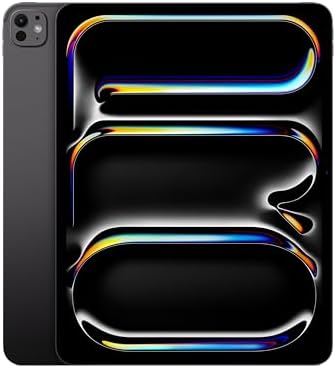
- WHY IPAD PRO — iPad Pro with the Apple M5 chip delivers extraordinary performance for effortless productivity on a stunn…
- PERFORMANCE AND STORAGE — iPad Pro with M5 brings next-generation speed and the power of on-device AI to all your tasks….
- IPADOS — Run pro apps and get more done with iPadOS 26 with Liquid Glass design and game-changing capabilities.* With an…
Android
The best big screens on the market, the most flexible multitasking through desktop modes like Samsung DeX, pens included in the box on Samsung, expandable storage, and generally better value at the same spec.
What it costs you: a handful of specialist business and creative apps still ship on iPad and not here. Update windows vary enormously by manufacturer — Samsung’s seven years is an outlier, not the norm.
Right when you take a lot of handwritten notes, you want a desktop mode without leaving a tablet, or you want the most screen and support per dollar.
The one to benchmark against: the Galaxy Tab S10 Lite is the clearest statement of what Android does that the other two platforms do not. The S Pen is in the box, not $130 extra. Storage expands to 2TB on a card, so you are not buying capacity up front and hoping. And Amazon sells it directly with a warranty behind it — which, as the warranty section below explains, is not something every big-screen Android tablet can say. The Exynos 1380 is mid-range silicon and the panel is LCD rather than AMOLED; if your day is note-taking, reading and email, neither is the constraint you think it is.

- DIVE INTO THIS DISPLAY: All of your fun content pops on the 10.9″ screen. Catch up on plans for the day while you cook b…
- BATTERY FOR LONG-LASTING ENTERTAINMENT: Enjoy long-lasting fun. Finish your favorite series or book with a battery that …
- WRITE, DRAW, DO IT ALL: S Pen is mightier than your average writing tool. The responsive design and intuitive integratio…
And the other end of the range, which is the real Android argument: no other platform gives you a warrantied, well-reviewed work tablet for the price of an iPad keyboard. The Lenovo Idea Tab Pro is not a flagship and does not pretend to be, but it clears the memory floor we set later in this guide with 8GB, and it arrives with a pen and folio case already in the box. What it has beyond that is the shortest possible distance between you and a working tablet: sold and shipped by Amazon, a 12.7-inch 3K screen, and several hundred reviews behind it. For check-in desks, shared kiosks, field forms, reading and email, that combination is difficult to argue with.

- LEVEL UP – Synergize your work and play with the Lenovo Idea Tab Pro. It’s lightweight, jam-packed with battery life, an…
- NEXT-GEN PERFORMANCE – Perform at your best with the super-efficient MediaTek Dimensity 8300 processor. Supported by Wi-…
- IMMERSIVE VISUALS AND RICH SOUND – Whether you’re streaming lectures or decompressing after class, the glittering 12.7” …
Windows
The only option that runs your real desktop software and is managed exactly like every other PC in the building. For an IT department that is not a small thing — one image, one policy set, one support process.
What it costs you: the tablet experience is the weakest of the three. Touch-optimized apps are thin on the ground, and you will spend time in interfaces designed for a mouse. There is also a compatibility question that deserves its own section.
Right when desktop software is non-negotiable, or IT manages Windows and will not take on a second platform.
The one to benchmark against: the Surface Pro (2024, Snapdragon X Elite, OLED) is the Windows tablet to check your stack against. Read the ARM section below before you commit a team to it — that is the decision, not the spec sheet.

- [This is a Copilot+ PC] — A new AI era begins. Experience enhanced performance and AI capabilities with Copilot+ PC, boo…
- [13″ OLED Touch Screen Display] — Cinematic display on-the-go. 1M:1 contrast ratio delivers a wider range of colors.
- [All day battery life] — 14 hours of battery life[5], fast charging with 65W PSU via Surface Connect or USB-C.
Platform decision matrix
What each business tablet platform is actually good at
Green is the platform to beat on that row. Gray is where it costs you. Read down your must-haves, not across.
| What you need | iPadOS | Android | Windows |
|---|---|---|---|
| Native business apps | Best | Good | Poor |
| Full desktop software | No | No | Yes |
| Fleet / zero-touch enrollment | Strong | Workable | Strong |
| Large screen options | Up to 13″ | Up to 11″ | Up to 13″ |
| Pen included in box | No, $129 | Samsung, yes | No, extra |
| Expandable storage | Never | Usually | No |
| Longest update window | Many years | 7 years | Windows cycle |
| Feels like a tablet | Best | Good | Worst |
| Accessory cost | Highest | Lowest | Middle |
Relative and directional, not lab benchmarks. Ratings reflect our editorial assessment of each platform as it stands in 2026 for business use, and assume a current flagship device from each camp. Android ratings vary considerably by manufacturer — Samsung sits at the top of the range on updates and pen support.
The current field
Business tablets worth benchmarking against in 2026
Not a ranking — one reference device per platform and price tier, so the decisions above have something concrete to sit against. Every one is currently buyable from a seller we would use ourselves. Check live pricing before you buy.
| Tablet | Platform | Screen | What it is here for | Price |
|---|---|---|---|---|
| Lenovo Idea Tab Pro | Android | 12.7″ 3K LCD | The floor with a safety net. Sold by Amazon, 8GB so it clears our memory floor, pen and folio in the box. | Check price |
| Apple iPad (11″, A16) | iPadOS | 11″ Liquid Retina | The value case for iPadOS. Same app library as the Pro, a fraction of the money. | Check price |
| Samsung Galaxy Tab S10+ | Android | 12.4″ AMOLED 2X | Tab S series update window on flagship hardware, S Pen in the box. The cost-per-year argument in practice. | Check price |
| Samsung Galaxy Tab S10 Lite | Android | 10.9″ LCD | S Pen in the box at a mid-range price, storage to 2TB on a card, sold by Amazon with a warranty. | Check price |
| Microsoft Surface Pro 13″ (2024) | Windows | 13″ OLED | The only one that runs desktop software. Pilot your ARM compatibility first. | Check price |
| Apple iPad Pro 13″ (M5) | iPadOS | 13″ tandem OLED | The ceiling, full stop. Best screen and chip on any tablet, priced accordingly. | Check price |
What we left out: the Lenovo Idea Tab (non-Pro). Its 8GB configuration is sold by a third party without Prime delivery, and the configuration Amazon sells has 4GB — under the 8GB memory floor this guide tells you to hold. The Lenovo Idea Tab Pro is the budget option that clears it.
Reference devices, not recommendations — this is an explainer, and the right tablet is whichever one clears your software list. For picks with reasoning and live pricing, see Best Tablets for Remote Work & Home Office 2026. As an Amazon Associate we earn from qualifying purchases.
Windows on ARM: what to check before buying a Surface for business
Every current Surface Pro runs an ARM processor, not the Intel or AMD chip in the desktop under someone’s desk. Windows 11 on ARM runs the large majority of business software through emulation, and for mainstream work — Office, browsers, Teams — you will not notice.
You will notice at the edges, and the edges are where business software lives.
- Drivers do not emulate. A label printer, a signature pad, a scanner, a lab instrument — anything with a Windows driver needs an ARM64 driver specifically. There is no fallback.
- VPN and security clients are frequently the sticking point. They hook deep into the operating system and often need a native build.
- Older x86 software usually runs, sometimes slowly, occasionally not at all.
- Anything with a kernel-level component — some DRM, some monitoring agents, some legacy line-of-business tools.
Get one unit and test your actual stack before you buy fifteen. This is the single most expensive mistake available in this category, and a two-week pilot avoids all of it.
Business tablet fleet deployment and MDM enrollment
Buying a personal tablet and buying twenty are different purchases with different criteria, and the difference is almost entirely invisible on a retail listing.
Zero-touch enrollment is the thing to look for. It means a device ships to the employee, they turn it on, and it configures itself against your policies without IT touching it. Apple Business Manager, Android Enterprise and Windows Autopilot all do this.
Here is the part that catches people: a tablet bought at retail may not be enrollable in these programs at all. Enrollment usually has to be established at the point of purchase, through an authorized reseller. The device is fine. Your MDM simply cannot claim it. That is a purchasing-channel limitation, not a hardware one, and no spec sheet mentions it.
Also worth checking:
- Does your existing MDM support the platform? Most support all three, but the depth varies.
- Can you enforce what compliance requires — encryption, passcode policy, remote wipe, app allowlisting?
- Fire OS tablets are the common trap. Amazon’s Fire line is excellent value hardware with no Google Play, which rules out most standard Android management approaches.
Business tablet security features for professionals
Consumer reviews mention biometrics and stop. Business buyers need a longer list.
- Biometric unlock — fingerprint or face. The floor, not the ceiling. Some otherwise-excellent value tablets omit a fingerprint sensor entirely.
- Hardware-backed encryption — a secure element or TPM, not just software encryption. Premium tablets have this; budget tablets often do not.
- Remote wipe — non-negotiable for anything that leaves the building.
- Platform security layers — Samsung Knox, Apple’s Secure Enclave and Data Protection, Windows secured-core with TPM 2.0 and virtualization-based security.
- The update window, which is a security question wearing a longevity costume.
If your industry has a compliance regime — HIPAA, PCI DSS, SOC 2 — this list stops being a preference and starts being an audit finding.
Software update windows: the most underrated business tablet spec
A tablet stops being a business device the day it stops getting security patches. Not the day it feels slow.
The spread is enormous, and it is the single biggest driver of real cost over time.
- Samsung Galaxy Tab S series: seven years of OS and security updates.
- Apple iPads: not formally promised, but the practical record runs many years.
- Most other Android tablets: around three years of OS and five to six of security, sometimes less.
- Surface: follows the Windows lifecycle, plus a firmware support window.
Do the arithmetic before you compare prices. A tablet supported for seven years costs less per supported year than a cheaper one supported for three. On a fleet, that difference compounds into a refresh cycle nobody budgeted for. Samsung’s Galaxy Tab S line is the only one currently putting seven years in writing, which is why it keeps winning a sum it looks like it should lose.
Cost per supported year
The cheapest tablet is rarely the cheapest tablet
Purchase price divided by the years the manufacturer will keep patching it. Lower is better.
Illustrative figures, not live prices — the point is the arithmetic, not the specific tablets. The pattern holds in the real market: the most expensive tablet on this chart is the cheapest one to own, and the cheapest is not the best value. Run the same sum on the two devices you are actually deciding between.
How much RAM does a business tablet need?
- 4GB — light, single-task use only. Email, a browser, a document. It will reload tabs.
- 6GB — the budget tier’s usual number. Fine for one job at a time and a second app alongside it; it starts dropping background tabs when you push. Worth taking knowingly on a cheap tablet, never worth paying up for.
- 8GB — the comfortable minimum for business multitasking.
- 12GB — now standard on flagship tablets, and what makes desktop modes and external displays feel steady rather than fragile.
- 16GB — media editing, many simultaneous windows, or a device you intend to keep a long time.
Tablet memory is soldered. Every one of them. Whatever you buy is what you have for the life of the device, so this is the spec to over-buy rather than right-size.
Business tablet storage requirements
128GB is the floor for real work. 256GB is the sensible default once offline files, apps and cached media accumulate.
The structural difference that matters: iPads cannot expand. Buy the capacity up front or buy a new tablet later. Most Android tablets take a microSD card, which makes a cheaper 128GB model a reasonable purchase in a way it never is on an iPad — the microSD-equipped Galaxy Tab and a memory card is a different proposition to a 128GB iPad you are stuck with.
Business tablet battery life and charging speed
Rated battery figures are best-case local video playback. Real mixed-use work days run meaningfully shorter — assume roughly 60 to 70 per cent of the rating for a day of documents, calls and browsing.
Charging speed matters more than the last two rated hours. A tablet that refills to half in half an hour at an airport gate is more useful than one with two extra hours of runway and a slow brick. Check whether a charger is included at all; on premium tablets it frequently is not.
Keyboard accessories: what turns a business tablet into a work device
A tablet without a keyboard is not a work device. It is a screen. And the keyboard is almost always sold separately, which means the price on the listing is not the price of the thing you are buying.
What separates a good one:
- A hinge that works on a lap. Kickstand designs need a surface. If you work on trains and planes, this is the whole decision.
- A trackpad. Reaching for the screen all day is slower than it sounds.
- Backlighting, if you ever work in a dim room.
- Weight. The best keyboards are heavy. A tablet plus its keyboard can approach a light laptop — worth knowing before you frame the purchase as saving weight.
Type on one before committing a team to it.
Stylus and note-taking features on a business tablet
Pen quality and latency matter far more than the chip for anyone whose day involves markup and signatures.
The cost difference is real and rarely mentioned: Samsung includes the S Pen in the box; Apple and Microsoft charge extra. On a fleet purchase, that is a line item. Across twenty devices, the pen alone is a four-figure line item — which is why a Galaxy Tab S10 Lite deployment and an iPad Pro one are not the same purchase even before anyone opens a box.
If handwriting is the primary use rather than an occasional one, it is worth asking whether a general-purpose tablet is the right tool at all — a dedicated E-Ink device does the writing better and the everything-else worse. Our reMarkable Paper Pro review covers that trade in detail.
Do you need a cellular business tablet?
Only worth the cost if you regularly work where Wi-Fi is not. Client sites with guest networks you cannot join, transit, field work.
It adds meaningfully to the price, and a data plan on top. If your work happens where Wi-Fi exists, Wi-Fi-only is the correct call and the money is better spent on memory. Note that some tablets offer no cellular variant at all — a hard filter worth applying early rather than late.
The real cost of a business tablet after accessories
The sticker price is the start. A realistic business tablet budget has to include the keyboard, the pen, a charger if one is not in the box, a case if the keyboard is not also a case, the cellular premium and its plan if you need it, and an extended warranty if you are deploying a fleet.
Configured properly, a mid-priced tablet routinely lands around half again its headline price by the time it does the job you bought it for. Compare configured prices, not headline prices — it reorders the shortlist more often than not, and it is the single easiest way to stop overpaying for the wrong device.
Business tablet warranty and support channels
This is the section that does not exist in consumer reviews, and it is the one that generates the angriest emails.
Manufacturers sell business variants through business channels. The same product name, sometimes the same hardware, routed through a different purchasing path — and those variants frequently are not sold at retail at all. Not out of stock. Not available. You will find listings that show a product and a price with no seller behind them.
What that means in practice:
- A business-channel device usually cannot be bought at retail, and a retail device usually cannot get business-channel support.
- Next-business-day replacement, advance exchange and dedicated support lines are business-channel features. Consumer warranty means mailing it away and waiting.
- Volume pricing and zero-touch enrollment live on the business channel too.
And the version that matters even for a single unit: check who is actually selling it. A listing fulfilled by a third-party seller can vanish when that seller runs out — the price does not drop, the buy button disappears. For a one-off purchase that is an annoyance. For a fleet you intend to expand in six months, it is a sourcing problem you have built into your standard.
If you are buying more than a handful, talk to a reseller before you talk to a retail listing.
How to choose a business tablet: the decision order
- Software — what must run natively? This eliminates platforms.
- Fleet or personal? If fleet, MDM and channel constraints eliminate more.
- Security floor — compliance requirements eliminate the rest.
- Screen size — portability against workspace.
- Memory — 8GB floor, 12GB if you can.
- Update window — divide price by supported years.
- Keyboard — type on it.
- Configured total — compare the real numbers.
By step eight there are usually two candidates left, and the choice between them is a preference rather than a mistake waiting to happen.
Where the decisions land
Which business tablet for which need
Work the eight decisions above and you end up in one of these six places. Find the row that sounds like your job.
Your software only runs on desktop Windows
Surface Pro 13″ (2024)
The only tablet here that runs your real applications. Pilot one against your drivers and VPN client before you buy fifteen.
Check priceYou handwrite and mark up all day
Galaxy Tab S10 Lite
S Pen in the box rather than a surcharge, 8GB, storage to 2TB on a card, and Amazon behind the warranty. LCD, not AMOLED — for writing, that is not the constraint.
Check priceYou need the deepest app library, cost aside
iPad Pro 13″ (M5)
The ceiling. Best screen and chip on any tablet, and the app catalog nothing else matches. Budget for the keyboard.
Check priceYou are buying twenty and keeping them
Galaxy Tab S10+
Seven years of updates in writing. Divide by supported years and it beats devices that undercut it on sticker price.
Check priceYou want iPadOS without flagship money
iPad 11″ (A16)
Same app library and accessories as the Pro. You give up the OLED and the headroom, not the ecosystem.
Check priceBudget, and it has to be supported
Lenovo Idea Tab Pro
Sold by Amazon, 8GB so it clears our memory floor, and a pen and folio case in the box at the price of an iPad keyboard.
Check priceOne device per need, not a ranking — several of these would be a poor choice for the row above or below them. If none of the six rows sounds like your job, the software question in step one is where to start again. Full picks with live pricing: Best Tablets for Remote Work & Home Office 2026.
Quick reference
The spec floor for a business tablet
What to refuse to go below, what to aim for, and why each one matters more than it looks.
| What | Floor | Aim for | Why it matters |
|---|---|---|---|
| Memory | 8GB | 12GB | Soldered on every tablet made. You cannot add it later, so this is the one to over-buy. 6GB is survivable on a sub-$300 tablet you are buying with open eyes; it is not survivable at $800. |
| Storage | 128GB | 256GB | iPads cannot expand at all. Most Android tablets take a microSD card, which changes the maths. |
| Update window | 3 years | 7 years | Decides when you are forced into a refresh. Divide price by supported years before comparing prices. |
| Battery (real) | 8 hours | 10+ hours | Rated figures are video playback. Assume 60-70% of the rating for a day of documents and calls. |
| Charging | 30W | 45W+ | Half a tank in thirty minutes at a gate beats two extra hours of rated runway. |
| Keyboard | Any | Lap-stable hinge + trackpad | Sold separately, always. Kickstands need a desk. If you work on planes, this is the whole decision. |
| Security | Biometric unlock | Hardware encryption + remote wipe | Under a compliance regime this stops being a preference and becomes an audit finding. |
| Cellular | Wi-Fi only | 5G if you work off-network | Device premium plus a monthly plan. Skip it unless you genuinely work where Wi-Fi is not. |
Floors are our editorial minimum for business use in 2026, not manufacturer guidance. Every row assumes you have already settled the platform question – a tablet that clears every floor here and cannot run your software is still the wrong tablet.
Frequently asked questions
Can a tablet replace a laptop for business?
For many roles, with a keyboard and the right apps. Email, documents, web work, calls and note-taking are all well covered. It struggles when you depend on specialist desktop software, heavy multi-window workflows or sustained processing. A Windows tablet comes closest because it runs the same software as a desktop, at the cost of the weakest touch experience.
Is an iPad or a Surface better for business?
An iPad for app- and web-based work, a better display and battery, and a genuinely good tablet experience. A Surface when desktop software is mandatory or IT manages Windows and will not add a platform. They answer different questions rather than one being better.
How much RAM does a business tablet need?
8GB is the comfortable minimum; 12GB makes external displays and desktop modes reliable rather than fragile; 16GB suits media work. 4GB is light single-task use only. Tablet memory is soldered, so buy it up front.
Are Android tablets good for business?
Yes. Desktop modes like Samsung DeX, strong multitasking, included pens, big screens, expandable storage and the longest update window available on any tablet. The gap versus iPad is a handful of specialist apps that ship there first.
What should I check before buying a Windows tablet?
Whether your software runs on ARM — drivers especially. Label printers, signature pads, scanners and VPN clients are the usual casualties. Emulation covers most applications and no drivers at all. Pilot one unit before committing a team.
Does the software update window really matter?
It is the difference between a four-year device and a seven-year one, and it decides when you are forced into a refresh. Divide the price by the supported years before comparing prices — it changes the ranking.
Do I need a cellular tablet for business?
Only if you regularly work where Wi-Fi is not available. It is a device premium plus a monthly plan. Otherwise the money is better spent on memory.
What is the real cost of a business tablet?
Roughly half again the listed price by the time you add the keyboard and pen you need to do the work. Compare configured totals, not headline prices.
Why can I not find some business tablets on Amazon?
Manufacturers route business variants through business channels — authorized resellers and their own sales operation. Those SKUs often have no retail listing at all. If a business model looks permanently unavailable, that is usually why, and a reseller is the answer.
The short version
Nothing on this list is exotic. It is the same short list every time: what must run, who manages it, how long it lives, what it really costs. Comparison tables cannot answer any of them, which is why the tablet that wins the table so often loses the job.
When you have made the decisions, we have done the shortlist: Best Tablets for Remote Work & Home Office 2026 — six current picks with live pricing.
Keep building your mobile office
- Best Tablets for Remote Work & Home Offices 2026
- Best Business Laptops 2026
- Best Home Office Monitors 2026
- Best Docking Stations 2026
Why You Can Trust Smart Tech Buying
Every recommendation is based on extensive product research, manufacturer specifications, customer feedback, long-term reliability, value, and suitability for real-world use. When we have personal experience with a product, we include those insights. We regularly review our guides to keep recommendations current as new products are released.