

Best Business Laptops of 2026
Nine business laptops we'd actually carry – for remote work, travel, and every budget from value to premium.
Choosing the best business laptop in 2026 is harder than it looks. The market is split between Apple Silicon, Windows Copilot+ PCs, and premium ultrabooks. We screened the top business laptops available on Amazon right now, across nine categories, to give you one clear answer for every type of professional.
Whether you need the best laptop for remote work, the best Windows laptop for business, the best MacBook for professionals, or the best lightweight laptop for travel, this guide covers all of it. Also setting up your home office? See our Best Home Office Printers for 2026 and Best Home Office Monitors for 2026 guides for printer and monitor recommendations that pair with any laptop on this list. And not sure whether to go Intel, AMD, or Apple silicon? Our Intel vs AMD vs Apple M5 guide breaks down the best processor for gaming, video, productivity, and battery, task by task.
QUICK PICKS – BEST BUSINESS LAPTOPS 2026
- Best overall: Apple MacBook Air M5 13in – M5, 16GB, fanless and silent
- Best for power users: Apple MacBook Pro M5 14in – 10-core M5, Retina XDR display
- Best Windows laptop: Microsoft Surface Laptop 13.8in (X Elite) – 12-core Snapdragon, 3:2 touchscreen
- Best 2-in-1 for business: Microsoft Surface Pro (2026) 13in – Detachable tablet, Copilot+, keyboard sold separately
- Best large screen: HP OmniBook 3 16in – 16in 2K touch IPS, 16GB DDR5
- Best budget: Dell 15.6in – Cheapest here, 120Hz FHD IPS
- Best value Mac: Apple MacBook Neo 13in – macOS at the lowest price on this list
- Biggest Mac screen: Apple MacBook Air M5 15in – 15.3in Liquid Retina, same M5
- Most memory: Apple MacBook Air M5 13in 24GB – 24GB unified memory, 1TB SSD
The 9 best business laptops compared at a glance

| OS | macOS |
| Chip | Apple M5 |
| RAM | 16GB |
| Storage | 512GB SSD |
| Display | 13.6in Retina |

| OS | macOS |
| Chip | Apple M5 10-core |
| RAM | 16GB |
| Storage | 1TB SSD |
| Display | 14.2in Retina XDR |

| OS | Windows 11 |
| Chip | Snapdragon X Elite 12-core |
| RAM | 16GB |
| Storage | 1TB SSD |
| Display | 13.8in touch |

| OS | Windows 11 |
| Chip | Snapdragon X2 Plus |
| RAM | 16GB |
| Storage | 512GB SSD |
| Display | 13in touch, 120Hz |
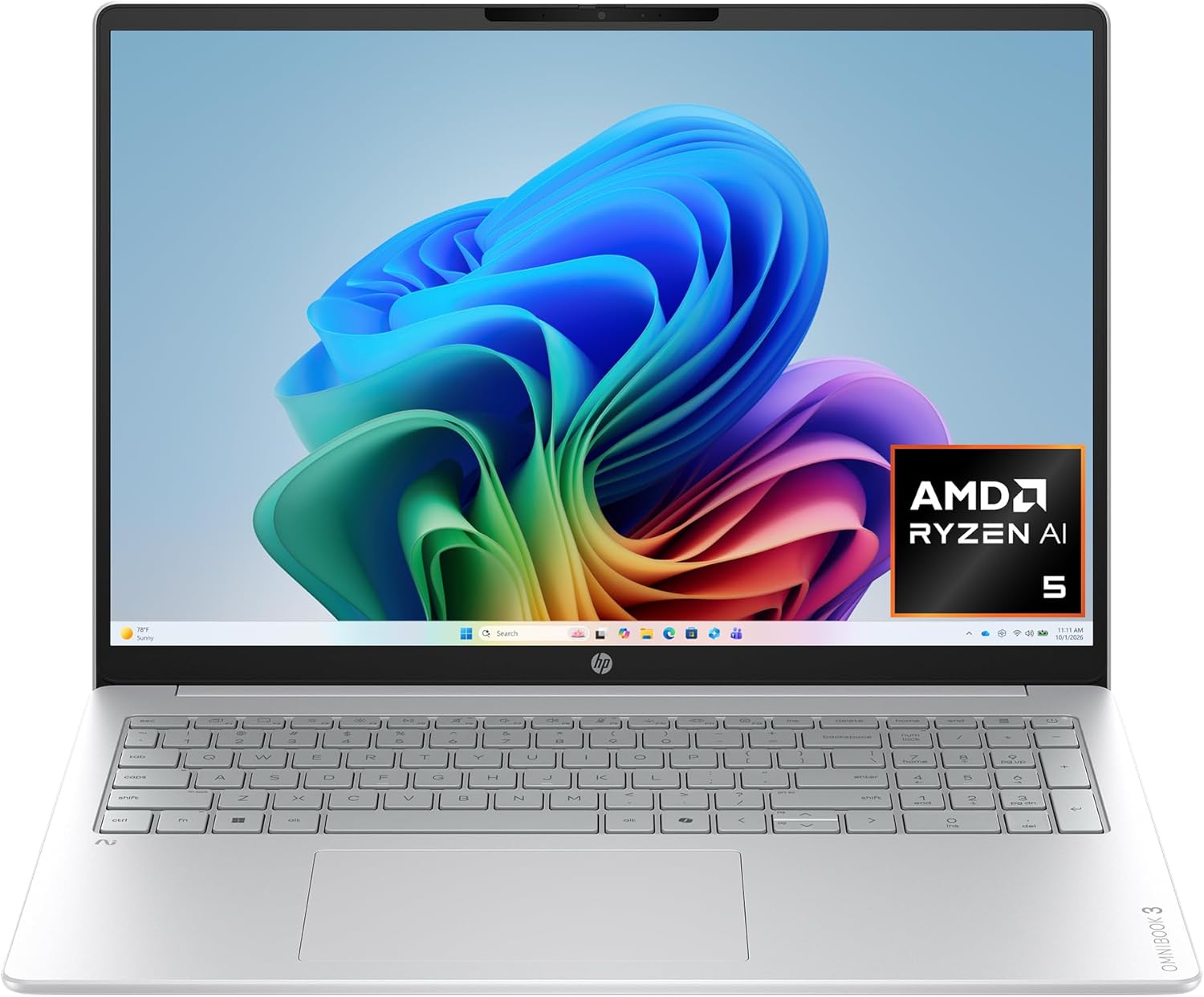
| OS | Windows 11 Home |
| Chip | AMD Ryzen AI 5 430 |
| RAM | 16GB DDR5 |
| Storage | 512GB NVMe SSD |
| Display | 16in 2K touch IPS |

| OS | Windows 11 Home |
| Chip | AMD Ryzen 5 7520U |
| RAM | 8GB LPDDR5 |
| Storage | 512GB SSD |
| Display | 15.6in FHD 120Hz IPS |

| OS | macOS |
| Chip | Apple A18 Pro |
| RAM | 8GB |
| Storage | 256GB SSD |
| Display | 13in Retina |

| OS | macOS |
| Chip | Apple M5 |
| RAM | 16GB |
| Storage | 512GB SSD |
| Display | 15.3in Retina |

| OS | macOS |
| Chip | Apple M5 |
| RAM | 24GB |
| Storage | 1TB SSD |
| Display | 13.6in Retina |
Which laptop for which need
Best business laptops 2026 – full reviews
1. Apple MacBook Air M5 13in – Best Overall Business Laptop 2026
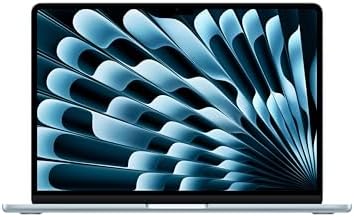
- BUILT FOR COLLEGE. AND BEYOND — MacBook Air with the M5 chip packs blazing speed and powerful AI capabilities into an in…
- TEAR THROUGH TOUGH ASSIGNMENTS — With its faster CPU and unified memory, the M5 chip delivers even more performance and …
- MAKE QUICK WORK OF YOUR TO-DO LIST — Apple Intelligence helps you write, express yourself, and get things done effortles…
The MacBook Air M5 is our pick for the best business laptop in 2026 for the majority of professionals. With the Apple M5 chip, 16GB of unified memory, and up to 18 hours of real-world battery life, it handles every standard business workload without ever needing to plug in during a full workday. At $1,254.00 on Amazon, it is a lot of laptop for the money.
Who should buy it: Professionals who want the best battery life and best value. First-time Mac buyers, remote workers, consultants, and frequent travelers.
Who should skip it: Enterprise IT environments that require Windows 11 Pro or Windows-only software.
Pros
- Best battery life on this list – up to 18 hours real-world
- Silent fanless operation – no noise ever
- Strong value at $1,254.00
- 16GB unified memory handles all business workloads
- Full compatibility with Microsoft 365, Slack, Zoom
Cons
- No Windows – not suitable for Windows-only enterprise environments
- No active cooling – sustained peak loads throttle slightly
- Only 2 USB-C ports
Looking specifically for Apple’s latest Air models? Read our complete Best MacBook Air M5 for Business in 2026 guide for a detailed breakdown of every configuration and recommendation.
2. Apple MacBook Pro M5 14in – Best Laptop for Power Users
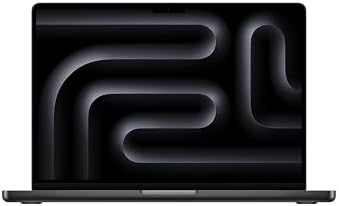
- SUPERCHARGED BY M5 — The 14-inch MacBook Pro with M5 brings next-generation speed and powerful on-device AI to personal,…
- HAPPILY EVER FASTER — Along with its faster CPU and unified memory, M5 features a more powerful GPU with a Neural Accele…
- BUILT FOR APPLE INTELLIGENCE — Apple Intelligence is the personal intelligence system that helps you write, express your…
The MacBook Pro M5 14in is the best business laptop for demanding professional workloads in 2026. Active cooling means it sustains peak performance indefinitely. The 14.2-inch Liquid Retina XDR display is the best laptop display available at any price. Battery life reaches up to 24 hours.
Who should buy it: Software developers, video editors, data analysts, and designers who regularly max out their machine.
Who should skip it: Most business users doing standard productivity work – the MacBook Air M5 is more than enough and costs significantly less.
Pros
- 14.2in Liquid Retina XDR – best laptop display at any price
- Active cooling sustains peak performance indefinitely
- Up to 24 hours battery life
- 3 Thunderbolt 4 ports plus HDMI and SD card
- 1TB SSD storage standard
Cons
- Significantly more expensive than the MacBook Air M5
- Heavier at 3.5 lbs vs 2.7 lbs for the Air
- Overkill for standard business productivity work
3. Microsoft Surface Laptop 13.8in (X Elite) – Best Windows Laptop for Business 2026

- [This is a Copilot+ PC] — A new AI era begins. Experience enhanced performance and AI capabilities with Copilot+ PC, boo…
- [Introducing Surface Laptop] — Power, speed, and touchscreen versatility with AI features. Transform your work, play, an…
- [Exceptional Performance] — Surface Laptop delivers faster performance than the MacBook Air M3[1], with blazing NPU spee…
This is the best business laptop for anyone who has to stay on Windows, and the machine we would put in front of most professionals. The 12-core Snapdragon X Elite is a genuine performance part rather than a battery-saver compromise, the 13.8-inch PixelSense touchscreen uses a 3:2 aspect ratio that shows meaningfully more of a document or spreadsheet than a 16:9 panel, and it is a Copilot+ PC, so the on-device AI features work without a subscription or a round trip to a server.
Who should buy it: Windows professionals who want a premium ultraportable and do most of their work in the browser, Office and Teams. Consultants, managers and remote workers who want a Mac-class machine without leaving Windows.
Who should skip it: Anyone running x86-only legacy software. The Snapdragon chip is ARM, and while emulation covers most things, specialist engineering, accounting or line-of-business tools can still refuse to run.
Pros
- 12-core Snapdragon X Elite, a full performance part rather than a battery-saver
- Copilot+ AI features run on the device
- 13.8in PixelSense touchscreen with a 3:2 ratio built for documents
- 16GB RAM and a 1TB SSD as standard
- Sold and shipped by Amazon, so returns and warranty are straightforward
Cons
- ARM architecture, so some x86 legacy apps will not run
- Ships with Windows 11 Home, not Pro
- Port selection is thin at two USB-C and one USB-A
4. Microsoft Surface Pro (2026) 13in – Best 2-in-1 for Business

- A PREMIUM PERFORMANCE 2-IN-1 LAPTOP & TABLET — Ready for work, school, and creativity. Built for busy days, big projects…
- WITH AI BUILT IN — With a dedicated AI chip (Qualcomm Snapdragon X2 Plus), this Copilot+ PC[5] on Windows 11 helps you w…
- A STUNNING 13″ OLED TOUCHSCREEN — Sharp colors, real detail, and smooth 120Hz scrolling on the PixelSense touchscreen[1]…
A 13-inch tablet that becomes a laptop when you clip a keyboard to it, and the only pick here that detaches. The Snapdragon X2 Plus is a Copilot+ part, so the on-device AI features run without a subscription, and the 165-degree kickstand props it up on its own for sketching or video. Two things to be clear about before you buy: the keyboard and the Surface Slim Pen are sold separately, and this is a 2026 model with only 16 owner ratings so far.
Who should buy it: Anyone who wants one device for both reading and typing – marking up contracts, note-taking, sketching – and is happy to buy the keyboard separately.
Who should skip it: Anyone who types all day on their lap, because a kickstand needs a surface, and anyone who wants a long owner track record before buying. Same ARM caveat applies.
Pros
- Detaches into a 13in tablet, with a 165° kickstand
- 16GB RAM and a 512GB SSD
- Copilot+ AI features run on the device
- Up to 15.5 hours of video playback, at 1.97 lb
- Sold and shipped by Amazon
Cons
- Keyboard and Surface Slim Pen are sold separately
- ARM compatibility limits apply here too
- A 2026 model with only 16 owner ratings so far
5. HP OmniBook 3 16in – Best Large Screen for Spreadsheet Work

- 2K IPS TOUCHSCREEN DISPLAY – 1920 x 1200 resolution delivers incredible detail, wide-viewing angles, and lifelike color …
- AMD RYZEN AI 5 430 PROCESSOR – Unlock powerful AI-driven experiences with a Copilot+ PC powered by an AMD Ryzen AI proce…
- ENJOY UP TO 19 HOURS AND 30 MINUTES OF BATTERY LIFE – HP Fast Charge restores battery from 0 to 50% in approximately 45 …
A 16-inch 16:10 panel is the practical answer to spreadsheet work on a laptop. You get the vertical room that a 16:9 screen throws away, on a 1920×1200 IPS panel with an anti-glare finish that holds up under office lighting. This one is a touchscreen as well, and it runs an AMD Ryzen AI 5 430 with 16GB of DDR5 and a 512GB NVMe SSD.
Who should buy it: Anyone who lives in spreadsheets, long documents or multi-window layouts and does not want to dock to a monitor every time. Also good as a single-machine setup for a small business.
Who should skip it: Frequent travelers, and anyone who needs Windows 11 Pro. A 16-inch laptop is a genuine commitment in a bag, and this one ships with Windows 11 Home, so there is no BitLocker and no domain join.
Pros
- 16in 2K touch IPS at 16:10 with an anti-glare finish at 1920 x 1200, the most usable work surface here
- 16GB DDR5-5600 and a 512GB PCIe Gen4 NVMe SSD
- A 2K touch panel at 16 inches, far more screen than the 13.8-inch Surface pair
- Radeon 840M graphics, a step up from entry-level integrated graphics
- Sold and shipped by Amazon, so returns and warranty go through Amazon
Cons
- Windows 11 Home rather than Pro, so no BitLocker and no domain join
- 512GB of storage, where both MacBook Pro picks carry 1TB
- Four cores and 62.5% sRGB coverage: a document machine, not one for heavy compute or color work
6. Dell 15.6in – Best Budget Business Laptop

- Effortlessly chic. Always efficient. Finish your to-do list in no time with AMD Ryzen processors built for everyday comp…
- Stay connected to what you love: Enjoy quality video chats with a built-in HD webcam that keeps you looking your best.
- Type with ease: Write and calculate quickly with roomy keypads, separate numeric keypad and calculator hotkey.
The cheapest machine on this list. A 120Hz FHD IPS panel is unusual at this price and makes scrolling and dragging windows noticeably smoother than the 60Hz screens most budget laptops ship with, and 512GB of storage at this price is more than most budget laptops give you. It is a competent machine for straightforward work.
Who should buy it: Anyone furnishing a first home office, buying a spare or second machine, or kitting out a team on a tight budget.
Who should skip it: Anyone whose work involves large files, many applications at once, or anything creative. This is a browser-and-documents laptop.
Pros
- Lowest price on this list
- 245 owner ratings behind it
- 120Hz FHD IPS panel, smoother than the 60Hz norm at this price
- 512GB SSD at a budget price
- Sold and shipped by Amazon
Cons
- 8GB of memory, the floor for comfortable multitasking
- Entry-level AMD Ryzen 5 7520U processor
- Wi-Fi 5, a generation behind the Wi-Fi 7 Macs here
Mac vs Windows for business in 2026
If you work in an enterprise IT environment with Active Directory or Windows-only software, you need Windows. If you are an individual professional, freelancer, or remote worker, the MacBook Air M5 is the stronger choice – 18 hours of battery versus 10-12 for most Windows laptops, and full compatibility with Microsoft 365, Slack, and Zoom.
How much RAM do you need?
16GB is the minimum for any business laptop in 2026. 8GB is no longer sufficient for Windows 11 with multiple apps running. Consider 32GB for large datasets, virtual machines, or video editing. Every laptop on this list has at least 16GB except the two budget picks, the Dell 15.6-inch and the MacBook Neo, which ship with 8GB.
What battery life should you look for?
Aim for a minimum of 12 hours real-world if you work away from a desk. The Apple machines here are the strongest on this measure, because the M-series chips run fanless and draw very little power, and the Surface models are the best of the Windows options. The large-screen Dell and HP are the two most likely to need a charger in the bag, since a 16 or 17-inch panel is the single biggest drain on any laptop. Pair your laptop with the right home office setup – see our Best Home Office Monitors for 2026 and Best Home Office Printers for 2026 guides. Working from a laptop at your desk? A docking station connects your monitor, keyboard and everything else through a single cable.
7. Apple MacBook Air M5 15in – Best Big-Screen Mac
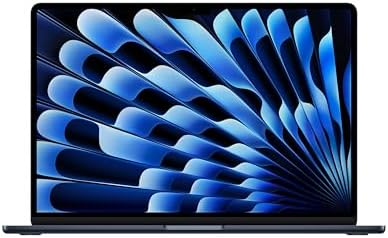
- BUILT FOR COLLEGE. AND BEYOND — MacBook Air with the M5 chip packs blazing speed and powerful AI capabilities into an in…
- TEAR THROUGH TOUGH ASSIGNMENTS — With its faster CPU and unified memory, the M5 chip delivers even more performance and …
- MAKE QUICK WORK OF YOUR TO-DO LIST — Apple Intelligence helps you write, express yourself, and get things done effortles…
The same silicon, memory and storage as our overall pick, stretched across a 15.3-inch Liquid Retina panel. If you work in two windows side by side, that extra screen is worth more day to day than any processor upgrade at this price. It stays fanless and silent, and it carries the same 12MP Center Stage camera and Wi-Fi 7 as the 13-inch.
Who should buy it: Anyone who wants a Mac as their only machine and would otherwise dock it to a monitor. The extra width pays for itself in side-by-side work.
Who should skip it: Anyone who carries a laptop every day and values grams, or who already works at a desk with an external display. The 13-inch is the better travel companion.
Pros
- 15.3in Liquid Retina display, the largest Mac screen here
- Same M5 chip, 16GB memory and 512GB SSD as our top pick
- Fanless and silent under load
- 12MP Center Stage camera and Wi-Fi 7
- Sold and shipped by Amazon
Cons
- Meaningfully heavier and wider than the 13in Air
- Costs more than the 13in for the same performance
- Still 16GB, so heavy multitaskers should look at the Pro
8. Apple MacBook Neo 13in – Best Value Mac

- AN AMAZING MAC AT A SURPRISING PRICE — With an incredibly portable and durable aluminum design, up to 16 hours of batter…
- FOUR STUNNING COLORS. ONE DURABLE DESIGN — Choose from four beautiful colors — Silver, Blush, Citrus, or Indigo — each w…
- FLY THROUGH EVERYDAY ASSIGNMENTS — Whether you’re cramming for finals, using Apple Intelligence* to summarize class note…
The cheapest way into macOS on this list by a wide margin, with a deep owner record behind it. The A18 Pro is the chip family Apple uses in its phones rather than the M-series, which is the honest reason it costs what it does. For browser work, documents, mail and calls it is entirely sufficient.
Who should buy it: Anyone who wants macOS, iPhone integration and Apple build quality without spending Air money. A strong second machine or a first Mac.
Who should skip it: Anyone doing sustained creative or technical work. 8GB of memory and 256GB of storage are the real ceilings here, and neither can be upgraded later.
Pros
- Least expensive Mac on this list
- 1,510 owner ratings behind it
- Full macOS with the usual Apple ecosystem integration
- Liquid Retina display
- Sold and shipped by Amazon
Cons
- A18 Pro is a phone-class chip, not an M-series
- 8GB of unified memory, not upgradeable
- 256GB of storage fills quickly
9. Apple MacBook Air M5 13in 24GB – Most Memory

- BUILT FOR COLLEGE. AND BEYOND — MacBook Air with the M5 chip packs blazing speed and powerful AI capabilities into an in…
- TEAR THROUGH TOUGH ASSIGNMENTS — With its faster CPU and unified memory, the M5 chip delivers even more performance and …
- MAKE QUICK WORK OF YOUR TO-DO LIST — Apple Intelligence helps you write, express yourself, and get things done effortles…
The same MacBook Air as our best-overall pick, configured with 24GB of unified memory and a 1TB SSD instead of 16GB and 512GB. On Apple silicon memory is shared between CPU and GPU and cannot be added later, so this is the one specification worth thinking hard about at purchase. If your work involves large datasets, many virtual machines or heavy creative applications, this is the configuration to buy.
Who should buy it: Developers, analysts and creative professionals who keep a lot open at once and intend to keep the machine for years.
Who should skip it: Anyone whose work is documents, browser and calls. The 16GB Air at the top of this list is the same laptop for less, and you will not notice the difference.
Pros
- 24GB of unified memory, the most on this list
- 13.6in Liquid Retina display
- 1TB SSD as standard
- Wi-Fi 7, Touch ID and a 12MP Center Stage camera
- Sold and shipped by Amazon
Cons
- You pay a clear premium for memory many people will not use
- Identical to the 16GB Air apart from the memory and the 1TB SSD
- Memory cannot be upgraded after purchase, which is the whole reason to buy it
Best business laptops: frequently asked questions
What is the best business laptop in 2026?
The best business laptop for most professionals is the Apple MacBook Air M5 13-inch: silent fanless operation, 16GB of unified memory and a deep owner record behind it. For Windows, the Microsoft Surface Laptop 13.8-inch with the 12-core Snapdragon X Elite. On a tight budget, the Dell 15.6-inch covers browser and document work for a fraction of the price.
What is the best Windows laptop for business in 2026?
The best business laptop running Windows is the Microsoft Surface Laptop 13.8-inch with the 12-core Snapdragon X Elite. It pairs Copilot+ AI features that run on the device with a 3:2 PixelSense touchscreen that shows more of a document than a widescreen panel. If you rely on x86-only legacy software, choose the HP OmniBook 3 16in with its AMD processor instead, because the Surface uses an ARM processor.
Is Mac or Windows better for business?
For individual professionals and small businesses, the MacBook Air M5 is the better choice in 2026 – superior battery life and excellent compatibility with all major business apps. For enterprise IT with Windows-dependent software, Windows is required.
What is the best laptop for remote work in 2026?
The MacBook Air M5 and the Microsoft Surface Laptop 13.8-inch. Both are quiet, handle video calls without fuss and are light enough to move around the house or carry to a client. If the laptop never leaves a desk, the HP OmniBook 3 16in gives you far more screen for the money.
What is the best lightweight laptop for business travel?
The MacBook Air M5 13-inch. It is the lightest clamshell on this list and runs fanless, so it is silent in a quiet carriage or a shared office. The Surface Pro (2026) is lighter still at 1.97 lb, though that is the tablet on its own and its keyboard is sold separately.
What is the best touchscreen laptop for business in 2026?
The Microsoft Surface Laptop 13.8in, which pairs a 13.8-inch 3:2 PixelSense touchscreen with a Snapdragon X Elite chip. The 3:2 shape shows more of a document than a widescreen panel does. If you want a much bigger touch panel, the HP OmniBook 3 16in pairs a 16-inch 2K touchscreen with 16GB of memory. If you want the screen to come off, the Microsoft Surface Pro (2026) is our 2-in-1 pick: a 13-inch PixelSense touchscreen sold and shipped by Amazon, with the keyboard and Surface Slim Pen sold separately.
What is the best AMD business laptop in 2026?
The best business laptop with AMD silicon is the HP OmniBook 3 16in, built around an AMD Ryzen AI 5 430 with Radeon 840M graphics, 16GB of DDR5 and a 2K touchscreen. The budget Dell 15.6-inch also runs AMD silicon, a Ryzen 5 7520U, but the HP carries twice the memory and a much larger screen. At 16 inches it is also the largest display here.
How much should you spend on a business laptop in 2026?
Roughly $555 to $1,839 covers everything in this guide. Around $555 buys the Dell 15.6-inch, which is fine for browser and document work. The middle of the range covers the HP OmniBook 3 16in, the Surface Laptop 13.8-inch, the Surface Pro (2026) and the MacBook Air M5 13-inch, and that is where most people should be looking. At the top you are paying for the MacBook Pro M5 14in, where the money buys its 14.2-inch Liquid Retina XDR display and active cooling rather than extra memory.
Why You Can Trust Smart Tech Buying
Every recommendation is based on extensive product research, manufacturer specifications, customer feedback, long-term reliability, value, and suitability for real-world use. When we have personal experience with a product, we include those insights. We regularly review our guides to keep recommendations current as new products are released.