

Best Webcams of 2026
Seven cameras we'd actually buy – for work calls, 4K creating, AI auto-framing, streaming, travel, and tight budgets.
Your laptop’s built-in camera is the first thing coworkers, clients, and viewers see – and it is almost always the weakest part of your setup. A dedicated webcam fixes that in minutes: sharper detail, better low-light handling, and natural color that makes you look prepared instead of washed out. The question is which one, because the gap between a budget webcam and a premium one is bigger than it has ever been.
We researched and compared the top webcams available on Amazon right now across seven categories – from premium 4K all-rounders to AI auto-framing cameras, streaming picks, a pocketable travel cam, and the reliable budget staple. Every webcam below has a verified Amazon listing and an affiliate-tagged Buy button with live pricing.
A webcam is one piece of a good home-office setup. Pair it with the right display from our Best Home Office Monitors for 2026 guide, a docking station to run your camera, monitor and everything else through a single cable, and a capable machine from our Best Business Laptops for 2026 guide.
QUICK PICKS – BEST WEBCAMS 2026
- Best overall: Logitech MX Brio – 4K, Show Mode, dual noise-reducing mics, privacy shutter, USB-C
- Best 4K for creators: Insta360 Link 2C – 1/2″ sensor, AI auto-framing, gesture control, HDR
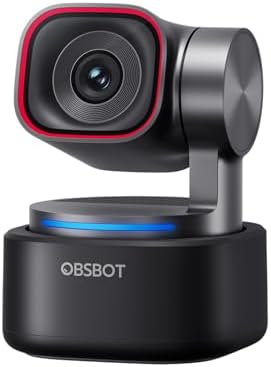
- Best AI auto-framing: OBSBOT Tiny 3 – motorized PTZ tracking, 1/1.28″ sensor, tri-mic array
- Best for streaming: Razer Kiyo V2 – Sony STARVIS sensor, ultrawide lens, free software
- Best for video calls: Elgato Facecam MK.2 – uncompressed 1080p60, HDR, privacy shutter
- Best for travel: OBSBOT Meet 2 – 40g 4K cam, AI auto-framing, dual noise-reducing mics
- Best budget: Logitech C920x – reliable 1080p, dual mics, around $69.99
Which is the best webcam for you?
| If you are… | Get this webcam |
|---|---|
| Most people who want the best all-around camera for work and calls | Logitech MX Brio |
| A creator who wants true 4K and AI framing without overspending | Insta360 Link 2C |
| A presenter or teacher who moves around and needs the camera to follow | OBSBOT Tiny 3 |
| A streamer who wants strong low-light and free, powerful software | Razer Kiyo V2 |
| Someone in back-to-back calls who wants crisp, reliable 1080p | Elgato Facecam MK.2 |
| A frequent traveler or hybrid worker living out of a laptop bag | OBSBOT Meet 2 |
| Anyone on a budget who wants a proven camera with no surprises | Logitech C920x |
All 7 webcams compared at a glance

| Resolution | 4K / 1080p60 |
| Sensor | Large, AI-enhanced |
| AI framing | No |
| Mics | Dual, noise-reducing |
| Connection | USB-C |

| Resolution | 4K 30fps |
| Sensor | 1/2″ |
| AI framing | Yes + gesture |
| Mics | Noise-canceling |
| Connection | USB-C |
| Resolution | 4K 30 / 1080p120 |
| Sensor | 1/1.28″ |
| AI framing | Motorized PTZ |
| Mics | Tri-mic array |
| Connection | USB-C |

| Resolution | 4K 30 / 1080p60 |
| Sensor | Sony STARVIS |
| AI framing | Yes |
| Mics | Built-in |
| Connection | USB-C |

| Resolution | 1080p60 (uncompressed) |
| Sensor | Sony |
| AI framing | No (PTZ digital) |
| Mics | None (use headset) |
| Connection | USB-C |

| Resolution | 4K / 1080p60 |
| Sensor | 1/2″ CMOS |
| AI framing | Yes |
| Mics | Dual noise-reducing |
| Connection | USB-C |

| Resolution | 1080p30 |
| Sensor | Full HD glass lens |
| AI framing | No |
| Mics | Dual stereo |
| Connection | USB-A |
Best webcams 2026 – full reviews
1. Logitech MX Brio – Best Overall Webcam 2026
- Compatible with Nintendo Switch 2’s new GameChat mode
- Ultra HD 4K webcam: meet or stream in 4K resolution at 30fps or 1080p at 60fps, with our most advanced webcam sensor yet…
- AI-enhanced image quality: Experience 2x better face visibility with finer image details in difficult light (2), with au…
The Logitech MX Brio is the best webcam for most people in 2026. It shoots in 4K at 30fps or smooth 1080p at 60fps using Logitech’s largest, most advanced webcam sensor yet, with AI-based image enhancement that keeps your face sharp and well-exposed even in dim or backlit rooms. A built-in privacy shutter rotates over the lens, dual noise-reducing microphones keep your voice clear, and Show Mode tilts the camera down to share notes or sketches on your desk – genuinely useful on work calls. It connects over USB-C and works with Windows, macOS, Teams, Zoom, and Google Meet.
Who should buy it: Professionals and hybrid workers who want one camera that does everything well – crisp video, good mics, privacy shutter, and easy software. The best default choice for a home office.
Who should skip it: Streamers who move around and want the camera to physically track them – see the OBSBOT Tiny 3. Budget buyers who just need reliable 1080p – the C920x is a third of the price.
Pros
- Excellent 4K detail and AI-enhanced low-light handling
- Built-in privacy shutter and dual noise-reducing mics
- Show Mode for sharing desk notes on calls
- USB-C, works on Windows and Mac
Cons
- No motorized tracking to follow you around
- Premium price versus a basic 1080p cam
- Best features need Logitech software
2. Insta360 Link 2C – Best 4K Webcam for Creators
Considering the step-up model? See our full Insta360 Link 2 review — the pricier sibling with a larger sensor and a 2-axis AI gimbal that physically tracks you.
- Premium Image Quality: Upgrade to Link 2C 4K webcam with a 1/2″ sensor. Captures true-to-life webcam 4K visuals with HDR…
- Professional Audio: Experience best-in-class audio with advanced AI noise-canceling algorithms. Filter out unwanted back…
- True Focus: Insta360 Link 2C streaming camera with Phase Detection Auto Focus (PDAF). No more blurry shots—this web cam …
The Insta360 Link 2C packs a 1/2-inch sensor and true 4K capture into a compact, affordable body, and it is the best value in 4K right now. It uses fast phase-detection autofocus, HDR for balanced exposure, and AI auto-framing that keeps you centered as you move. Hand gestures start tracking, zoom, or trigger Whiteboard mode without touching the keyboard, and DeskView tilts the camera to show your tabletop. The noise-canceling mics are solid for calls and streams alike.
Who should buy it: Creators, presenters, and remote workers who want genuine 4K, smart framing, and gesture control without paying flagship prices.
Who should skip it: Anyone who needs a physical motorized gimbal that pans across a room – the OBSBOT Tiny 3 tracks more aggressively. Note it is not compatible with ARM-based Windows or Windows Hello.
Pros
- True 4K with a large 1/2″ sensor at a great price
- AI auto-framing plus hand-gesture control
- DeskView and Whiteboard modes for presenting
- Strong noise-canceling microphones
Cons
- Not compatible with ARM Windows or Windows Hello
- Digital framing, not a full motorized gimbal
- 4K capped at 30fps
3. OBSBOT Tiny 3 – Best for AI Auto-Framing
- 【Tiny Titan】Compared to its predecessor, the Tiny 3 webcam is 48% smaller and 34% lighter, yet houses a more powerful 1/…
- 【Imaging, Upgraded】Stunning clarity and smooth motion, in 4K@30FPS or 1080P@120FPS. Dual All-Pixel PDAF keeps every fram…
- 【Tri-Mic Array, Professional Audio】An omnidirectional mic captures the full scene while two MEMS directional mics pinpoi…
The OBSBOT Tiny 3 is a motorized pan-tilt-zoom camera that physically follows you around the room – ideal for teaching, presenting, or recording while you move. It pairs a large 1/1.28-inch sensor with 4K at 30fps (or 1080p at a slick 120fps), dual all-pixel autofocus, and a three-microphone array for spatial audio. Voice and gesture commands wake it, zoom, and switch presets hands-free, and AI Tracking 2.0 keeps you perfectly framed. It is the most capable tracking webcam here.
Who should buy it: Teachers, presenters, and creators who move while on camera and want the shot to follow them automatically, plus the best built-in audio of the group.
Who should skip it: People who sit still on calls and do not need motorized tracking – the MX Brio or Link 2C give similar image quality for less. The gimbal also draws more power.
Pros
- Motorized PTZ tracking that physically follows you
- Large 1/1.28″ sensor, 4K30 and 1080p120
- Tri-mic array with spatial audio modes
- Voice and gesture control, hands-free
Cons
- Overkill if you sit still on calls
- Gimbal uses more power than a fixed cam
- More moving parts to maintain
4. Razer Kiyo V2 – Best Webcam for Streaming
- CRYSTAL-CLEAR 4K 30FPS VIDEO — Powered by a high-performance Sony STARVIS sensor, create professional content that stand…
- AI POWERED AUTO-FRAMING — This webcam catches every clip worthy moment with natural face tracking and intelligent pan, t…
- ONE-CLICK IMAGE ENHANCEMENT — Experience superior low-light performance; from low-light RGB battlestations to backlit se…
The Razer Kiyo V2 brings a Sony STARVIS sensor to the mid-tier, which means cleaner low-light footage than most cameras at this price – exactly what evening streamers need. It captures 4K at 30fps or 1080p at 60fps, adds AI-powered auto-framing, and uses an ultrawide lens so you can show your whole setup without distortion. One-click image enhancement handles exposure and white balance, while the free Razer Synapse software exposes deeper controls like ISO and shutter speed. A twist-to-close privacy shutter is built in.
Who should buy it: Streamers and content creators who want strong low-light performance, a wide field of view, and free software with real manual control.
Who should skip it: Pure video-call users who do not need streaming features may prefer the simpler Facecam MK.2 or MX Brio.
Pros
- Sony STARVIS sensor for strong low-light footage
- 4K30 / 1080p60 with AI auto-framing
- Ultrawide lens shows your whole setup
- Free Synapse software with deep manual control
Cons
- Synapse software can feel heavy for non-streamers
- Ultrawide framing needs a tidy background
- 4K capped at 30fps
5. Elgato Facecam MK.2 – Best Webcam for Video Calls
- Pro Image performance: Achieve lifelike visuals with smooth motion on camera, complemented by professional-grade image c…
- Set the shot: Features Camera Hub software, offering extensive customization options to enhance video quality, akin to t…
- HDR-enabled: Seamlessly conquer high-contrast lighting challenges with stunning clarity in 1080p30 resolution.
The Elgato Facecam MK.2 focuses on doing one thing extremely well: clean, true-to-life 1080p at 60fps with a quality Sony sensor and uncompressed output, so there are no smeary artifacts on calls or recordings. HDR handles high-contrast lighting, the Camera Hub software gives you DSLR-style control over exposure and white balance, and a slide shutter covers the lens for privacy. It deliberately omits a microphone – Elgato assumes you have a headset or dedicated mic, which most heavy callers do.
Who should buy it: Anyone in back-to-back meetings who wants crisp, dependable 1080p with deep image control and a true privacy shutter.
Who should skip it: People who want 4K or built-in microphones, or who want the camera to track them – look at the MX Brio or Tiny 3.
Pros
- Clean, uncompressed 1080p60 with no artifacts
- Quality Sony sensor and HDR
- Deep DSLR-style control via Camera Hub
- Built-in slide privacy shutter
Cons
- No built-in microphone
- 1080p only – no 4K capture
- No automatic subject tracking
6. OBSBOT Meet 2 – Best Webcam for Travel and Hybrid Work
- 【OBSBOT × EWC 2025 Official Partnership】OBSBOT is thrilled to be the 2025 Esports World Cup (EWC) Official Camera & Webc…
- 【Mini in Size, Mighty in Sight】The upgraded OBSBOT Meet 2 webcam 4K combines AI features with a sleek compact design. En…
- 【Experience Stunning 4K Clarity】The UHD 4K resolution, coupled with the bigger 1/2″ CMOS sensor, expands the Meet 2 webc…
The OBSBOT Meet 2 is a remarkably tiny 4K webcam – just 40.5 grams, about the size of a pair of earbuds – built for people who work from anywhere. Despite the size, it packs a large 1/2-inch sensor for true 4K capture (or smooth 1080p at 60fps), AI auto-framing that keeps you centered as you move, HDR for tricky cafe and window light, and dual noise-reducing microphones. It sits on a laptop or monitor via its magnetic mount, connects over a single USB-C cable, and slips into a pocket for the commute. For hybrid workers taking calls from cafes, airports, and hotel desks, nothing else here is this portable.
Who should buy it: Frequent travelers and hybrid workers who live out of a laptop bag and want a huge upgrade over the built-in camera without carrying a bulky webcam.
Who should skip it: If you sit at a fixed desk and want the largest possible sensor or motorized tracking that physically follows you across a room, the OBSBOT Tiny 3 or the MX Brio will serve you better – this one is optimized for portability, not a permanent studio.
Pros
- Pocket-sized at 40g – the most portable cam here
- Large 1/2″ sensor with true 4K capture
- AI auto-framing, HDR, and dual noise-reducing mics
- Single USB-C, magnetic mount, plug-and-play
Cons
- Tiny body can run warm during long 4K sessions
- Best framing features need the OBSBOT Center app
- Small chassis means a compact built-in mic array
7. Logitech C920x – Best Budget Webcam
- Compatible with Nintendo Switch 2’s new GameChat mode
- HD lighting adjustment and autofocus: The Logitech webcam automatically fine-tunes the lighting, producing bright, razor…
- Advanced capture software: Easily create and share video content with this Logitech camera that is suitable for use as a…
The Logitech C920x is the descendant of the most popular webcam ever made, and at around $69.99 it is still the smart budget pick. It records Full HD 1080p at 30fps through a five-element glass lens with reliable autofocus and automatic light correction, and dual mics capture clear stereo audio. It is plug-and-play on Windows and Mac, works with every meeting and streaming app, and includes a 3-month XSplit license. The image is not as sharp as the 4K cameras above, but it is dependable and looks far better than any laptop camera.
Who should buy it: Anyone who wants a proven, no-surprises webcam for calls and recordings on a tight budget, or a second camera for a spare machine.
Who should skip it: Buyers who want 4K, HDR, AI framing, or a hardware privacy shutter – step up to the MX Brio or Link 2C.
Pros
- Around $69.99 – the value pick
- Reliable 1080p30 with autofocus and light correction
- Dual stereo mics, plug-and-play
- Works with virtually every app
Cons
- 1080p only and showing its age on detail
- No hardware privacy shutter
- USB-A, no HDR or AI features
How to choose the best webcam in 2026
Do you actually need 4K?
Most video apps – Zoom, Teams, Google Meet – cap your stream at 1080p, so a 4K webcam will not make your live call look 4K. But 4K cameras usually pair bigger sensors with their high resolution, and that larger sensor gathers more light, so you still look cleaner and more detailed even when the feed is downscaled. If you record video or want to crop in tightly, 4K helps. If you only take calls, a great 1080p camera like the Facecam MK.2 or C920x is plenty.
Sensor size matters more than megapixels
The single biggest driver of image quality is sensor size, not the resolution on the box. A large 1/1.28-inch or 1/2-inch sensor (as in the Tiny 3 and Link 2C) captures more light, giving you better low-light performance, more natural depth, and less noise than a tiny sensor stretched to 4K. When two cameras list the same resolution, the one with the bigger sensor almost always looks better.
AI tracking, mics, and privacy
If you present, teach, or move while recording, motorized tracking (OBSBOT Tiny 3) or digital auto-framing (Insta360 Link 2C, Razer Kiyo V2) keeps you in shot. If you sit still, you do not need it. Built-in microphones are fine for casual calls, but a headset or dedicated mic always sounds better – which is why Elgato leaves the mic out of the Facecam. Finally, a hardware privacy shutter is worth having on a work camera; the MX Brio, Kiyo V2, and Facecam MK.2 all include one.
Building a complete home office?
A great webcam pairs best with the right monitor, a docking station to wire it all together, and a capable laptop.
Best Home Office Monitors for 2026
Best Docking Stations for 2026
Best Business Laptops for 2026
Best webcam: frequently asked questions
What is the best webcam in 2026?
The Logitech MX Brio is the best webcam for most people – 4K video, AI-enhanced low light, dual noise-reducing mics, and a privacy shutter. For the best 4K value, the Insta360 Link 2C; for the best budget pick, the Logitech C920x at around $70.
Do I need a 4K webcam or is 1080p enough?
Most video calls are capped at 1080p, so 4K will not make a live call look 4K. But 4K cameras tend to use larger sensors that look better even when downscaled. If you only take calls, a strong 1080p camera like the Elgato Facecam MK.2 is plenty; if you record or crop in, 4K helps.
What is the best webcam for Zoom and Teams calls?
For video calls, the Logitech MX Brio and Elgato Facecam MK.2 are the top picks – both deliver crisp, well-exposed video and include hardware privacy shutters. The Facecam keeps things simple with clean uncompressed 1080p, while the MX Brio adds 4K and built-in mics.
What is the best webcam for a MacBook?
The Logitech MX Brio is an excellent MacBook webcam thanks to its USB-C connection and macOS support. For travel, the OBSBOT Meet 2 is tiny, connects over USB-C, and works on macOS. The Insta360 Link 2C also works well on macOS.
Which webcam follows you around the room?
The OBSBOT Tiny 3 has a motorized pan-tilt-zoom gimbal that physically tracks you as you move, making it the best choice for presenting or teaching. The Insta360 Link 2C and Razer Kiyo V2 offer digital auto-framing, which crops to keep you centered without moving the lens.
What is the best budget webcam?
The Logitech C920x at around $70 is the best budget webcam in 2026. It delivers reliable Full HD 1080p with autofocus, light correction, and dual mics, works with every app, and looks dramatically better than any built-in laptop camera.
Our editorial methodology
- Availability: Every webcam is in stock on Amazon with a verified listing and live pricing.
- Research-led: Picks are based on hands-on reviews from trusted outlets plus aggregated user feedback across work, streaming, and creator use.
- Real-world fit: We weigh image quality, low-light performance, microphones, software, and privacy features for how people actually use webcams.
- Price accuracy: Prices are approximate and fluctuate – always confirm the current price on Amazon before buying.
- Independence: We are not paid by manufacturers to feature products and do not accept review units in exchange for coverage.
Related buying guides
- Best Home Office Monitors for 2026
- Best Docking Stations for 2026
- Best Business Laptops for 2026
- Best MacBook Air M5 for Business in 2026
- Best Desktop Computers of 2026
Smart Tech Buying participates in the Amazon Services LLC Associates Program. As an Amazon Associate we earn from qualifying purchases at no additional cost to you. Prices shown are approximate and fluctuate – always verify the current price on Amazon before purchasing.
Why You Can Trust Smart Tech Buying
Every recommendation is based on extensive product research, manufacturer specifications, customer feedback, long-term reliability, value, and suitability for real-world use. When we have personal experience with a product, we include those insights. We regularly review our guides to keep recommendations current as new products are released.