


Desktop vs All-in-One
One is a tidy single unit with the screen built in. The other is a box and a monitor that you can grow for years. They cost about the same at the entry point — so the real question is what you value: a clean desk today, or a machine that keeps up long after this one would be traded in.
You have decided the laptop days are over, at least at your desk. You want a real computer for the home office — something that boots fast, drives a big screen, and does not thermal-throttle the moment you open a spreadsheet with too many tabs behind it. And almost immediately you hit a fork in the road. On one side is the all-in-one: a single, elegant slab where the computer lives behind the display, one power cable, done. On the other is the classic desktop tower: a separate box under the desk feeding a monitor you picked yourself.
That is the whole desktop vs all-in-one decision in a sentence, and in 2026 it is closer than it has ever been. All-in-ones have grown genuinely fast and genuinely beautiful, while towers keep quietly winning on the things that matter three years down the line. Here is the honest comparison, in plain English, so you can match the right shape of computer to the way you actually work — and not regret it the first time something needs an upgrade.
THE SHORT ANSWER
- Choose an all-in-one if you want a clean, cable-free desk, a big built-in screen, and a machine you can set up in ten minutes — and your work is everyday productivity rather than heavy creative or technical lifting.
- Choose a desktop tower if you want the most performance per dollar, the freedom to upgrade parts and pick your own monitor, and the longest usable life before you have to replace anything.
- Not sure? For a tidy, good-looking desk that just works, the all-in-one is hard to beat. For a machine that grows with you and costs less to keep current, the tower wins. Both start around the same price, so let your priorities — not your budget — decide.
Desktop vs all-in-one at a glance
Before we get into the detail, here is the quick version of desktop vs all-in-one. This table sums up how a typical desktop tower and a typical all-in-one stack up on the things that actually shape your day at a home-office desk.
| Desktop PC (Tower) | All-in-One | |
|---|---|---|
| Form factor | Separate box plus a monitor you choose | Screen and computer in one slim unit |
| Desk footprint | Box on or under the desk, plus a monitor | Just a screen and a keyboard |
| Cables | More: power, monitor, peripherals | Fewest: often a single power cable |
| Everyday performance | Excellent | Excellent for office work |
| Heavy / creative work | Strong, can add a graphics card | Limited, thin chassis, rarely a real GPU |
| Upgradeability | High: RAM, storage, GPU, power supply | Low: often only RAM and storage |
| The display | Yours to pick, keep, and upgrade | Built in — you replace it with the PC |
| Typical lifespan | 6 to 8+ years with upgrades | 4 to 6 years |
| Setup time | A few connections | Plug in and go |
| Best for | Power, value, and upgraders | Tidy, good-looking, simple desks |
| Where to start | See desktops ↗ | See all-in-ones ↗ |
Desktop vs all-in-one: two machines worth starting with
To keep the desktop vs all-in-one question grounded in real machines rather than abstractions, here are two Dell machines a few hundred dollars apart — same brand, same generation — so you can see precisely what the all-in-one form factor costs you and what it buys you. Think of them as the honest midpoint of each side, not the ceiling; our full guides go deeper on both.
The tower: Dell Tower ECT1250
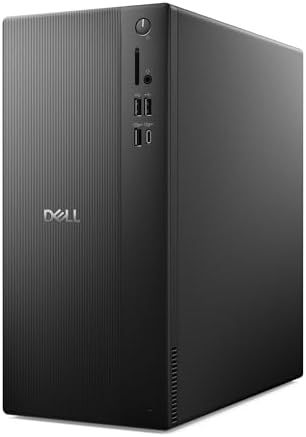
- Speed up your tasks with AI: Unlock new levels of productivity and creativity by upgrading to Intel Core Ultra processor…
- Supports multiple monitors: Connect up to four FHD monitors using DisplayPort and Daisy Chaining*. Or connect two 4K dis…
- Effortless upgrades: The tool-less entry and removable side panel let you quickly access the internal components, making…
The Dell Tower ECT1250 gives you an Intel Core Ultra 7-265, 16GB of DDR5, and a 1TB PCIe NVMe SSD in a case you can actually open. That last part is the whole point: Dell builds it with tool-less entry and a removable side panel, so when 16GB feels tight in a year or two you add more, and when the drive fills up you drop in a second one. It drives up to four FHD monitors over DisplayPort daisy chaining, or two 4K displays over HDMI 2.1 and DisplayPort — a door an all-in-one does not have at all. It ships with Windows 11 Pro, Gigabit Ethernet, Wi-Fi 6 and a wired keyboard, so it is a complete machine the moment you connect a monitor — and the monitor is yours to choose, which is exactly the freedom an all-in-one takes away. It is not the flashiest thing on the desk, but it is the one still earning its keep years from now.
The all-in-one: Dell 27

- Immersive visuals: The FHD IPS display features 99% sRGB and 50% higher contrast* within a narrow border so you can enjo…
- Eye comfort: Keep your eyes comfortable during long screen sessions with Dell ComfortView Plus, designed to reduce harmf…
- Keep your area clutter-free with an innovative stand that provides the perfect space to house your keyboard underneath t…
For a little less than the tower, the Dell 27 folds the whole computer into a 27-inch FHD display with an Intel Core 5 120U, 16GB of DDR5, and a 512GB SSD. What you are paying for is not raw power — it is the disappearance of the box, the cables, and the setup. You lift it out, plug in one cord, and your desk is finished: a clean single unit with a big screen, a 5MP infrared camera for Windows Hello, and Dolby Atmos speakers already inside. With 141 buyer ratings behind it, it is a known quantity rather than a gamble, and for someone whose day is documents, mail, browsing, and calls, it delivers all of that while looking far tidier than a tower ever will. The trade you are accepting is upgrades and longevity, which is what the rest of this guide is really about.
Desktop vs all-in-one, point by point
Here is each factor that actually changes your experience, with a straight answer on which shape of computer tends to win, and why.
Design and desk footprint
This is the all-in-one’s signature win, and it is a real one. An all-in-one is a screen and nothing else visible — the computer is tucked behind the panel, so your desk holds a display, a keyboard, and a mouse, full stop. No tower on the floor collecting dust, no box crowding the desktop, no tangle of cables snaking to a separate monitor. For a home office that doubles as a bedroom corner, a shared dining table, or any space where the desk needs to look like part of the room rather than an IT closet, that clean single-unit design is genuinely worth something. A tower, by contrast, is always two objects and the wiring between them. You can hide the box under the desk, but it is still there, still humming, still needing room and airflow. If a tidy, uncluttered desk is high on your list, the all-in-one starts ahead.
Performance and thermals
For everyday work they feel identical; for sustained heavy work the tower pulls clearly ahead. Both machines will fly through documents, spreadsheets, email, a wall of browser tabs, and video calls — in normal office use you will not sense a difference. The gap opens under load. A tower has room for larger coolers and better airflow, so it can run hard for hours without backing off, and it can house a dedicated graphics card for video editing, design, or anything that leans on the GPU. An all-in-one hides its components in a slim chassis behind the screen, which means less cooling headroom and a tendency to throttle sooner once a task gets long and demanding. Most all-in-ones also rely on integrated graphics, so heavy creative work simply is not their lane. If your day is typical office tasks, either is more than enough; if it is constant and demanding, the tower’s cooling and expansion earn their space.
Upgradeability and repair
The tower is built to be opened; the all-in-one mostly is not. Inside a tower, parts are standardized and reachable, so adding memory, dropping in a bigger or faster drive, or installing a graphics card is a quick, cheap job that can keep the machine current for years. That single trait is why a tower ages so much better than its spec sheet suggests. All-in-ones are the opposite story: many let you upgrade the RAM and the storage, some let you touch only one of those, and a few are sealed entirely. And because the computer and the screen are one unit, a repair is more involved — getting to the internals often means carefully separating the display, which is not a casual weekend task. If you like the idea of a machine you can nurse along and improve, the tower is the clear winner, and it is not close.
The display question
The all-in-one gives you a great screen today; the tower gives you screen freedom forever. This is the trade-off people underestimate. An all-in-one arrives with a genuinely nice display built in — on the Dell 27 above, a 27-inch FHD panel — and there is real convenience in having it tuned and ready out of the box. But that screen is now welded to the computer’s lifespan. You cannot upgrade to a larger or higher-resolution panel without replacing the whole machine, and if the display ever fails, you are often looking at repairing or retiring the entire unit, computer and all. A tower keeps the two separate. You choose the monitor, you keep it when you replace the PC, and you can run it alongside a second one whenever you like. If a screen dies, you swap just the screen. For anyone who cares about display quality or plans to grow their setup, that independence is a quiet but major advantage — and it is worth pairing either machine with the right home office monitor to see how much the panel shapes your day.
Cost and value
They land in the same price band, but the tower gives you more computer per dollar. As our two picks show, the tower here asks a little more than the all-in-one — and buys a faster processor and twice the storage for it. The difference is what that money buys. With the all-in-one, a slice of the price pays for integration and the built-in screen — real value, but not raw power. With the tower, more of your budget goes into the components themselves, so you generally get faster parts and more storage for the same spend, plus the option to upgrade later instead of rebuying. Factor in longevity and the value gap widens: a tower you can refresh for the price of a stick of RAM stretches its cost over more years. The all-in-one earns its keep on convenience and looks; the tower earns it on performance and staying power. Our desktop guide and all-in-one guide show exactly what each budget buys.
Lifespan and longevity
Towers last longer, because you can keep making them better. With more cooling, more room, and replaceable parts, a tower commonly serves well for six to eight years or more, and a single upgrade can buy it another couple of years of usefulness. All-in-ones run a little warmer in their compact bodies, offer fewer parts to swap, and carry that built-in screen as a second point of failure — a display fault can end the machine’s life even when the computer inside is fine. Four to six years is a realistic working life for most. Neither is fragile, but if you want to buy once and keep it current for as long as possible, the tower’s repairability and upgrade path give it a decisive edge. If you tend to replace your computer every few years regardless, the all-in-one’s shorter horizon may never bother you.
Setup and cables
Nothing beats an all-in-one for a plug-in-and-go desk. Unboxing an all-in-one is close to effortless: lift it out, attach the stand, connect one power cable, pair the wireless keyboard and mouse, and you are working. There is no separate monitor to position, no video cable to route, and far less clutter behind the desk. A tower asks a little more of you — power to the box, a cable to the monitor, peripherals plugged in — and it leaves more wiring to tidy. None of it is difficult, and cable management can make a tower look clean, but the all-in-one is simply the fastest, neatest path from box to working desk. If you value simplicity at setup and a minimal cable footprint every day after, this one goes to the all-in-one.
Noise and power
All-in-ones are quieter and more efficient; towers trade a little of both for power. Because an all-in-one leans on laptop-class, low-power parts, it sips electricity and often runs whisper-quiet, with small fans that rarely make themselves heard during office work. A tower and its larger components draw more from the wall, generate more heat, and usually have fans you can hear when the machine is working hard. Over a full work-from-home year the energy difference is modest on your bill, but the comfort difference — a cool, silent unit versus a warm, humming box under the desk — is something you notice every day. If a quiet, efficient desk matters to you, the all-in-one has the edge; if you need the performance, the tower’s extra noise and draw are the price of it.
Multi-monitor and expansion
Both can add a second screen; the tower scales higher and adds more of everything. An all-in-one already gives you one good display, and most can drive a second monitor through an HDMI or USB-C output, which makes for a tidy two-screen setup with a large primary panel. A tower goes further, comfortably running three or four displays, especially with a graphics card, and it offers more ports and internal expansion for whatever you plug in next. If your needs might grow — more screens, more drives, more connectivity — the tower has the headroom. If one built-in screen plus an occasional second is all you will ever want, the all-in-one covers it. Either way, when ports run short, a docking station is an easy way to add displays and connections through a single cable.
Desktop tower pros and cons
✓ What’s great
- More performance and storage per dollar
- Fully upgradeable: RAM, storage, graphics, more
- Choose, keep, and upgrade your own monitor
- Better cooling for sustained heavy work
- Longest lifespan and easy, cheap repairs
- Drives three or four screens with ease
✗ Watch outs
- Two objects plus cables on the desk
- Needs room and airflow for the box
- Monitor is a separate purchase
- Fans can be audible under load
- Setup takes a few more minutes
All-in-one pros and cons
✓ What’s great
- Clean single unit with the screen built in
- Fewest cables, often just power
- Plug-in-and-go setup in minutes
- Great-looking desk in any room
- Webcam and speakers already included
- Plenty fast for everyday office work
✗ Watch outs
- Limited upgrades, often RAM and storage only
- Screen is tied to the computer’s lifespan
- Rarely a dedicated graphics card
- Can throttle under long, heavy tasks
- Harder, costlier repairs
- Shorter typical lifespan than a tower
Desktop vs all-in-one: which is best for the way you work?
The easiest way to settle desktop vs all-in-one is to find your own situation below. These are the setups people ask us about most.
Best for remote workers
For most full-time remote workers, an all-in-one is the tidy, sensible choice. If your day is calls, email, documents, and a browser, an all-in-one delivers all the speed you need while keeping the desk clean and the setup effortless, with a good screen, webcam, and mic already built in for video meetings. Step up to a tower if your remote role is demanding — large data files, design, or video — where the extra power, cooling, and upgrade room pay off, and where choosing your own monitor matters. Either way, comfortable seating and a screen at eye level do more for a long remote workday than almost any spec.
Best for small business owners
All-in-ones make clean, consistent workstations; towers cover the heavy seats. For reception desks, admin, point-of-sale, and general office roles, all-in-ones are excellent: they set up fast, look professional, and take up almost no space, which makes them easy to deploy consistently across several desks. Reserve towers for the demanding seats — design, accounting with large files, anything graphics-heavy — where performance and the ability to upgrade over time protect your investment. Many businesses run a sensible mix of both. For specific models, our Best All-in-One Desktops of 2026 and Best Desktop Computers of 2026 guides are the place to start.
Best for students
An all-in-one suits most students who want a capable desk computer that barely takes up room. In a dorm or a shared flat where every inch counts, a single tidy unit with the screen built in is easy to live with and handles research, writing, and presentations without fuss. A tower makes more sense for students doing demanding, stationary work — engineering software, heavy video editing, or PC gaming on the side — where the extra power and the option to add a graphics card justify the larger footprint. For most coursework, though, the all-in-one is the practical, good-looking pick.
Best for creative and power users
Creative and power users should choose a tower, without much debate. If you edit video, render 3D, run heavy design or engineering software, juggle virtual machines, or want serious gaming on the side, a tower is the right tool. It has the cooling to sustain performance, the room for a dedicated graphics card, and the upgrade slots to grow with your work for years. An all-in-one cannot reach that ceiling, and pushing one hard will have it throttling while a tower keeps going. This is the one group where the tower’s power and expandability are exactly what you are paying for, and the all-in-one’s elegance is beside the point.
Best for a minimalist, clean desk
If a clutter-free desk is the goal, the all-in-one is the obvious answer. Nothing else clears a workspace like a computer that hides entirely behind its screen. You lose the tower, lose most of the cables, and gain a desk that looks intentional rather than technical. For a workspace on show in a living room, a studio, or a small apartment, that single clean unit is the whole appeal. The only reason to bring a tower into a minimalist space is if your work genuinely needs the horsepower — in which case a compact tower tucked under the desk keeps most of the tidy look while adding real power.
Best for a shared family desk
For a shared household computer, an all-in-one keeps things simple; a tower keeps things upgradeable. An all-in-one on the kitchen or study desk is easy for everyone to use, quick to set up, and safe from the accidental cable-tugging a floor-standing tower invites. It is a great family machine for homework, browsing, and household admin. Choose a tower instead if the family computer also has to handle a teenager’s gaming or a parent’s heavier work, where the power and the option to upgrade over the years stretch a single purchase across changing needs. For a straightforward shared desk, the all-in-one’s simplicity usually wins.
Our recommendation on desktop vs all-in-one
There is no single winner in desktop vs all-in-one, only the right fit for how you work and what you value. Here is the decision in plain terms.
Buy an all-in-one if you want a clean, cable-free desk, a big built-in screen, and a machine you can set up in minutes — and your work is everyday productivity rather than heavy creative or technical tasks. It is the choice for a tidy, professional-looking workspace that just works. Start with our Best All-in-One Desktops of 2026 guide.
Buy a desktop tower if you want the most performance per dollar, the freedom to upgrade parts and choose your own monitor, and the longest usable life before anything needs replacing. It is the choice for power users, upgraders, and anyone who likes a machine that grows with them. Our Best Desktop Computers of 2026 guide has the models worth buying.
Get the best of both if you pair an all-in-one with a second monitor for a bigger, more productive setup, or choose a compact tower with a screen you love to keep the desk tidy without giving up upgrades. And if you are still weighing form factors, our desktop vs mini PC comparison covers the third option worth knowing about.
As for value, the all-in-one gives everyday users the cleanest, most satisfying desk for the money, while the tower gives demanding users and long-term owners the most performance and life per dollar. Match the shape of the machine to the way you actually work, and either one is money well spent.
Desktop vs all-in-one: common questions
Is an all-in-one better than a desktop tower?
Neither is better overall — they win at different things. An all-in-one is better for a clean, simple, good-looking desk and fast setup, and it is plenty powerful for everyday office work. A tower is better for performance, upgradeability, choosing your own monitor, and long-term value. For most tidy home offices the all-in-one is the easy pick; for power users and upgraders the tower wins.
Do all-in-one computers last as long as desktops?
Usually not quite. All-in-ones typically serve well for four to six years, while towers often last six to eight years or more because they run cooler and let you replace parts. An all-in-one’s built-in screen is also a second point of failure that can end the machine’s life. If you upgrade every few years anyway, the difference may not matter, but for the longest lifespan a tower wins.
Can you upgrade an all-in-one computer?
Only a little. Many all-in-ones let you upgrade the memory and the storage, some allow only one of those, and a few are sealed entirely. You generally cannot add a graphics card or change the processor, and reaching the internals often means separating the display. Because upgrades are limited, it is wise to buy enough memory and storage upfront. A tower remains far more upgradeable overall.
Is an all-in-one good for a home office?
Yes, all-in-ones are a great fit for most home offices. They are fast enough for typical work, set up in minutes, keep the desk clean with minimal cables, and include a screen, webcam, and speakers ready for video calls. The main exception is heavy or creative work, where a desktop tower’s extra power, cooling, and upgrade room are worth the larger footprint.
Do all-in-ones have good performance?
For everyday work, yes; for heavy work, not as much as a tower. A modern all-in-one handles browsing, documents, email, and video calls with ease, so most people feel no difference day to day. But its slim body limits cooling and rarely fits a dedicated graphics card, so it throttles sooner under long, demanding tasks like video editing or 3D work, where a tower pulls clearly ahead.
Are all-in-ones more expensive than desktop towers?
At the entry level they start at similar prices, but you get more raw computer per dollar from a tower. Part of an all-in-one’s price pays for its built-in screen and integrated design rather than performance. Add in the tower’s cheaper upgrades and longer life, and it tends to cost less to own over time, while the all-in-one charges a modest premium for convenience and looks.
Can you use an all-in-one with a second monitor?
Yes. Most all-in-ones have an HDMI or USB-C output that drives a second display, giving you a two-screen setup with a large built-in primary panel. It is one of the easiest ways to add productivity to an all-in-one. If you need more screens or extra ports, a docking station extends the setup through a single cable, though a tower still scales to more displays overall.
Should I buy a desktop or an all-in-one in 2026?
Buy an all-in-one if you want a clean, simple, great-looking desk and your work is everyday productivity — it is the easy, modern choice for most home offices. Buy a desktop tower if you want the most power for your money, the freedom to upgrade and pick your own monitor, and the longest life. Both start around the same price, so let your priorities decide rather than the budget.
Related Smart Tech Buying guides
Ready to choose the right computer for your workspace? These detailed guides will help you compare the best options for every budget and home-office setup.
- Best All-in-One Desktops for 2026
- Best Desktop Computers of 2026
- Desktop PC vs Mini PC: Which Is Better?
- Desktop PC vs Laptop for the Home Office
- Best Home Office Monitors of 2026
- Best Docking Stations of 2026
Why You Can Trust Smart Tech Buying
Every recommendation is based on extensive product research, manufacturer specifications, customer feedback, long-term reliability, value, and suitability for real-world use. When we have personal experience with a product, we include those insights. We regularly review our guides to keep recommendations current as new products are released.