

Picture a normal Tuesday working from home. You sit down, open the laptop, and reach to plug everything in: the monitor, the keyboard, the mouse, your headset, the charger. Then you remember your laptop has exactly two USB-C ports, and one of them is already taken. Something has to give.
That little daily traffic jam is what the docking station vs USB-C hub question is really about. Both take the one or two ports on your laptop and turn them into a proper desk setup. The difference is how far each one takes you, and how much you pay to get there. A hub is the small, affordable fix. A dock is the do-everything upgrade. Below, we’ll help you figure out which one actually suits the way you work, in plain language, so you can buy once and stop thinking about it. When you want specific models, our Best Docking Stations of 2026 guide has seven picks compared, from a $50 travel hub to a top-of-the-line dock.
THE SHORT ANSWER
- Get a USB-C hub if you use one monitor, you move around a lot, or you just want a few more ports without spending much.
- Get a docking station if you want two or more monitors, you’d like to connect everything with one cable each morning, and you have a desk you never want to re-wire.
- Have a basic MacBook Air? A regular hub or dock won’t add a second screen for you. You need a specific type called DisplayLink, which we explain further down.
Docking station vs USB-C hub at a glance
| USB-C Hub | Docking Station | |
|---|---|---|
| Typical price | $30 to $80 | $150 to $500 |
| Size | Fits in a bag, no power brick | Bigger, plugs into the wall |
| Monitors it runs | Usually one | Two, often three |
| Keeps laptop charged? | Partly, shares your charger | Yes, full power of its own |
| Number of connections | About 4 to 8 | About 10 to 20 |
| Best for | Travel and simple, single-screen desks | A permanent two-monitor workstation |
| Where to start | See picks ↗ | See picks ↗ |
USB-C hub vs docking station: the difference in plain English
Here’s the easiest way to picture it. A USB-C hub is like a power strip for your laptop. It’s small and cheap, you plug it into one port, and you get a handful of extra connections back. A docking station is more like a home base. It has its own power, it lives on your desk, and it runs your whole setup, two monitors and all, from a single cable. Both plug into the same USB-C port on your laptop. They just aim at very different jobs.
One word you’ll bump into while shopping is Thunderbolt. Don’t let it trip you up. Thunderbolt is simply the faster, more capable version of a USB-C port, and you can usually spot it by a tiny lightning-bolt symbol printed next to the slot on your laptop. If your laptop has it, you have more options, especially for running two screens. If it doesn’t, you’re not stuck. You’ll just lean toward the simpler setups, and we’ll point those out as we go.
One more thing worth checking before you buy: not every USB-C port can send a picture to a monitor. Some ports, especially on cheaper or older laptops, handle only charging and data, not video. The quickest way to find out is your laptop’s spec sheet (look for “DisplayPort,” “video out,” or the lightning-bolt symbol on the port). If your port can’t output video, an external screen won’t show up no matter which hub you buy, so it’s worth confirming first.
What a USB-C hub actually does
A hub is a small adapter, often no bigger than a chocolate bar, that plugs into one USB-C port and hands you several connections in return. You typically get a slot for a monitor (an HDMI port), a couple of regular USB slots for a mouse or a flash drive, a memory-card reader, and a spot for a wired internet cable. Most have a short attached cable, and they don’t need their own wall outlet. They’re inexpensive, they disappear into a laptop bag, and they’re the quickest way to add one screen and a few accessories.
The trade-off comes from that simplicity. A hub borrows power from your laptop’s own charger and passes it along, so when you’ve got a lot plugged in, a little less charge reaches the laptop. It also runs just one external screen in most cases, and it moves files at everyday speeds. For a clean, simple desk that’s all perfectly fine. For a busy two-monitor setup, a hub starts to feel like it’s reaching its limit.
What a docking station actually does
A dock is bigger, and it has its own power brick that plugs into the wall. You connect it to your laptop with a single cable, and from there it runs everything: two or three monitors, wired internet, all your USB gear, and steady full-speed charging that doesn’t dip when you add more devices. It’s built to stay on your desk. Every morning you connect that one cable and your whole setup wakes up at once, with no hunting for ports. That convenience is what the higher price pays for. If you run a real two-screen home-office monitor setup, a dock is usually the right tool for the job.
Docking station vs USB-C hub: four questions that decide it
1. How many screens do you want?
This is the big one in the docking station vs USB-C hub decision. If you want one external monitor, a good hub handles it for well under a hundred dollars and you’re done. If you want two or more, a dock is almost always the answer, and it pairs naturally with a good pair of home-office monitors. A few pricier hubs claim to drive two screens, but it tends to be fussy and unreliable. A dock simply does it, every time.
2. Will it keep your laptop charged?
Both can usually charge your laptop through the same cable, so the real difference shows up when your desk gets busy. A dock has its own power supply and gives you a steady, full charge no matter how much you’ve plugged in. A hub shares whatever your existing charger can spare, so a loaded setup can quietly drain your battery over a long day. If you’ve ever wrapped up a video call to a low-battery warning while you were plugged in the whole time, that’s exactly the headache a dock prevents.
3. How much gear do you connect?
A mouse, a keyboard, and the odd flash drive? A hub’s handful of ports is plenty. But if you’re copying big files to an external drive, running a separate webcam for calls, and keeping several things plugged in at once, a dock gives you a lot more connections and moves data much faster, so nothing slows to a crawl when you need it most.
4. Do you stay put, or move around?
A hub is made for the bag. It’s ideal for the coffee shop, a hotel desk, or a shared workspace where you grab whatever seat is open. A dock is a fixture: heavier, tied to a wall outlet, and meant to live in one spot. Plenty of people happily own both, a dock at home and a hub for the road. If that sounds like you, our docking guide even includes a travel-friendly hub right alongside the full-size docks.
Docking station vs USB-C hub: which fits the way you work?
The docking station vs USB-C hub call gets easier when you see your own situation. Here are the setups we get asked about most.
Full-time remote worker with two monitors. You’re at the same desk every day, running spreadsheets on one screen and calls or email on the other. Get a dock. The one-cable morning routine and the dependable charging earn their keep in saved hassle within the first week.
Hybrid worker, home a couple of days a week. You float between a home desk and the office. A hub in your bag covers a single screen wherever you land. If your home setup later grows to two monitors, add a dock there and keep the hub for travel days. Best of both.
Student in a dorm or shared space. One monitor, a tight budget, and a good chance you’ll pack up and move at some point. A hub is the easy, affordable pick that won’t tie you down. Pair it with the right machine from our laptop guide and you’re set for classes and late-night papers.
Small business owner setting up a few desks. If your team runs dual monitors, docks keep each station tidy and consistent, and the one-cable handoff makes it painless when someone swaps laptops or a new hire sits down. For a simpler single-screen setup, hubs keep your costs down without anyone noticing a difference.
Whichever way you lean, your laptop has the final say on what’s possible. Look for that little lightning-bolt symbol next to your USB-C port. If it’s there, you have Thunderbolt, which opens the door to two screens and the fastest docks. If it’s not, a hub or a basic dock still works well for a single-screen desk. Choosing a new laptop anyway? Our Best Business Laptops of 2026 guide flags which models have it.
A quick heads-up for MacBook Air owners
This one catches a lot of people off guard, so it’s worth saying plainly. The standard MacBook Air models (the M1, M2, and M3 Air) can only run one external monitor on their own. That’s a built-in limit of the laptop, and no ordinary hub or dock can get around it. The only fix is a special kind of dock called DisplayLink, which uses a small free app to push the extra screens. So if you have a MacBook Air and you want two monitors, skip straight to a DisplayLink dock. We name the best one in our docking guide, and you can find the right Air for your work in our Best MacBook Air for Business guide. Newer and higher-end Mac laptops can already run several screens without any of this.
Our Pick of a Hub and a Dock to Start With
To make the price and capability gap real, here’s one well-liked pick of each type from our full docking guide. Prices on Amazon move around, so tap through to see what each costs today.
The hub: Anker 555 8-in-1
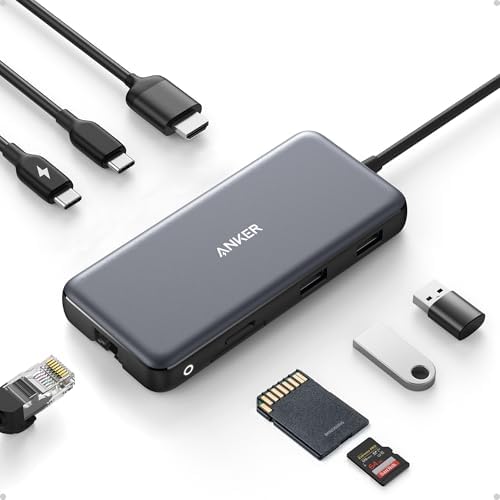
- Flawless 4K Video via HDMI: Enjoy crystal-clear visuals with 4K@60Hz output when using a DP 1.4 laptop, or 4K@30Hz with …
- Massive Expansion: Equipped with a USB-C Power Delivery input port, a built-in 7.48″ USB-C cable, a USB-C data port, 2 U…
- High-Speed, High-Def: USB-C and USB-A data ports provide file transfer at speeds up to 10 Gbps, while an HDMI port suppo…
The dock: Plugable Thunderbolt 4 Dock
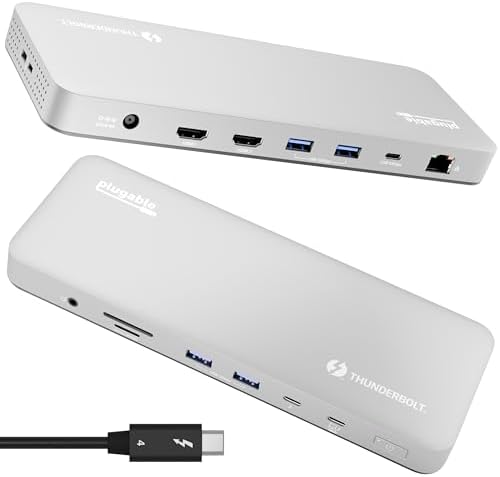
- 13-in-1 Thunderbolt Performance: Need a high-performance Mac docking station? The Plugable TBT-UDM laptop docking statio…
- Dual 4K Display: Want dual monitors without driver downloads or a dongle mess? This docking station for laptop supports …
- Make a Connection: Tired of slow docks and cable chaos? Get 13 streamlined ports, including 1x downstream Thunderbolt 4 …
Want to see the rest, including budget hubs, options built for businesses, and the DisplayLink pick for MacBooks? Our Best Docking Stations of 2026 guide lays out all seven.
Troubleshooting your hub or docking station
Most hiccups come down to three things, and they’re usually quick to fix.
Monitor not detected
First, check that your laptop’s USB-C port actually supports video (see above), then try your other port. Make sure the monitor is switched to the right input too, since it’s easy to be on HDMI 1 when your cable is plugged into HDMI 2. And remember that a basic MacBook Air needs a DisplayLink dock for a second screen, not a regular one.
Laptop not charging
With a hub, this is almost always a power issue. Plug your laptop’s own charger into the hub’s charging port, and make sure that charger is strong enough for your machine. A docking station with its own power supply sidesteps this entirely, since it doesn’t lean on your existing charger.
Second monitor not working
Running two screens usually needs a Thunderbolt port (the lightning-bolt symbol) or a DisplayLink dock. With a plain USB-C port, you may be limited to one. Our Best Docking Stations of 2026 guide flags which models handle two displays.
Docking station vs USB-C hub: common questions
Do I really need a hub or a dock to work from home?
Only once you want more than your laptop alone gives you. If you work straight off the laptop screen and have enough ports for your charger and a mouse, you’re fine without either. But the moment you add an external monitor, a proper keyboard and mouse, or want a faster wired internet connection, one of these makes your whole day smoother. Most home offices end up wanting at least a hub.
Is a docking station better than a USB-C hub?
Neither is better across the board, they’re built for different desks. A dock wins for a permanent setup with two or more monitors, lots of gear, and reliable charging. A hub wins for travel, a single screen, and a smaller budget. Match the tool to how you actually work and you’ll be happy with either.
Can a USB-C hub run two monitors?
Sometimes, but it’s unreliable. A few higher-end hubs can manage two screens, often at a lower quality or through extra software. If running two monitors matters to you, a docking station is the dependable choice. And remember, a basic MacBook Air needs a DisplayLink dock specifically for a second screen, no matter what.
Will a hub or a dock charge my laptop?
Most of both will, over the same cable that carries everything else. A dock has its own power supply and delivers a full, steady charge no matter how much you’ve plugged in. A hub passes along power from your existing charger, so a busy setup may charge a little slower. If keeping a full battery while you work matters, the dock is the safer bet.
I only use one monitor. Which should I buy?
Go with a USB-C hub. For a single screen plus a few accessories, you get everything you need, an HDMI slot, USB ports, internet, and a card reader, for well under a hundred dollars, with nothing to gain from a pricier dock. Step up to a dock later if you add a second monitor or want that one-cable convenience every morning.
Related SmartTechBuying guides
Looking for specific product recommendations? Explore our detailed buying guides below to find the best docking stations, laptops, monitors, and MacBook options for your setup.
- Best Docking Stations of 2026
- Best Business Laptops of 2026
- Best Home Office Monitors of 2026
- Best MacBook Air for Business in 2026
Why You Can Trust Smart Tech Buying
Every recommendation is based on extensive product research, manufacturer specifications, customer feedback, long-term reliability, value, and suitability for real-world use. When we have personal experience with a product, we include those insights. We regularly review our guides to keep recommendations current as new products are released.