

Buying a monitor sounds simple until you hit the wall of numbers: 24-inch, 27-inch, 32-inch, 1080p, 1440p, 4K, ultrawide – and a 120-dollar screen sitting next to a 600-dollar one that looks nearly identical in the product photo. Here is the part nobody tells you up front: size and resolution are not two separate choices. They are one choice. The right resolution depends entirely on how big the screen is. Pair them wrong and your text looks soft or your icons shrink to nothing. Pair them right and you stop thinking about your monitor altogether – which is exactly the goal.
Short on time? For most home offices, a 27-inch QHD (2560 × 1440) monitor is the sweet spot: big enough for two windows side by side, sharp enough that text stays crisp, and priced fairly. Drop to 24-inch / 1080p to save money or for a shallow desk. Step up to 32-inch / 4K if you want maximum room for spreadsheets, code, or design work. See our top monitor picks for every budget.
Monitor sizes, explained
Screen size is measured diagonally, corner to corner. Three sizes matter for a home office: 24, 27, and 32 inches.
24-inch – compact and affordable
The long-time office standard. A 24-inch screen fits almost any desk, sits comfortably at arm’s length, and is the cheapest way to get a sharp, full-size display. It is the natural pick for tight spaces and for dual-monitor setups where two screens need to sit side by side.
27-inch – the home-office sweet spot
The size most people should buy. A 27-inch screen gives you genuine room for two documents, or a browser and a video call, side by side without dominating the desk. It is the most popular size for remote work for good reason – and as you will see below, it pairs perfectly with QHD resolution.
32-inch (and 34-inch ultrawide) – maximum real estate
A 32-inch screen is a small command center: ideal for big spreadsheets, editing timelines, or anyone who likes several windows open at once. It does want a deeper desk (sit roughly 70 to 80 cm back) and, crucially, it really wants 4K resolution to look its best. A 34-inch ultrawide is a different shape entirely – think of it as two 24-inch screens fused together with no bezel down the middle.
Resolution, explained
Resolution is simply how many pixels the screen packs in, written as width × height. More pixels do two things at once: they give you more usable desktop space, and they make everything look sharper – but only when matched to the right size.
1080p – Full HD (1920 × 1080)
The baseline. Perfectly fine on a 24-inch screen, where the pixels sit tightly enough to look clean. Stretch that same 1080p across a 27-inch screen, though, and it starts to look soft and grainy. This is the single most common mistake buyers make.
1440p – QHD or 2K (2560 × 1440)
The upgrade that matters most for office work. QHD packs about 78 percent more pixels than 1080p, which means noticeably more room for windows and crisp, easy-to-read text. On a 27-inch screen it is close to perfect. If you remember only one pairing from this guide, make it 27-inch plus QHD.
4K – Ultra HD (3840 × 2160)
Four times the pixels of 1080p. Gorgeous, razor-sharp detail and enormous workspace – though you almost always run it with display scaling turned up (more on that below), and it shines most on larger 32-inch screens. Excellent for design, photo and video work, or anyone who simply wants the most desktop space possible.
The one rule that ties it all together: pixel density
Here is the concept that makes everything click – pixel density, measured in pixels per inch (PPI). The same resolution looks sharper on a smaller screen, because the pixels are squeezed closer together. That is why a 24-inch 1080p screen looks fine but a 27-inch 1080p screen looks soft: the pixels got spread too thin.
Aim for somewhere around 100 to 140 PPI and your eyes will be happy. Here is how the common pairings shake out:
| Size | Best resolution | Approx. PPI | Verdict |
|---|---|---|---|
| 24-inch | 1080p (Full HD) | ~92 PPI | Sharp and affordable |
| 24-inch | 1440p (QHD) | ~122 PPI | Very crisp – a nice bonus |
| 27-inch | 1080p (Full HD) | ~82 PPI | Soft – avoid this pairing |
| 27-inch | 1440p (QHD) | ~109 PPI | The sweet spot |
| 32-inch | 1440p (QHD) | ~92 PPI | Usable but a little soft |
| 32-inch | 4K (Ultra HD) | ~138 PPI | Excellent – the right match |
| 34-inch ultrawide | 3440 × 1440 | ~110 PPI | Great for multitasking |
The cheat sheet: 24-inch wants 1080p. 27-inch wants QHD. 32-inch wants 4K. Match those and you cannot go far wrong. Browse our tested picks by size.
Our tested, Prime-eligible picks for each pairing:
Sweet spot – 27-inch QHD
The pairing most home offices should buy: crisp QHD text on a 27-inch panel, a fast 144Hz refresh, and a full height, tilt, swivel, and pivot stand.

- Elevated entertainment: The QHD resolution and 1500:1 contrast ratio bring astounding depth and vivid detail, while a 14…
- Hear the audio difference: Immerse yourself in sound with integrated dual 3W speakers delivering a wider range of freque…
- Eye comfort: Prioritize visual comfort with this 4-star TÜV-certified display. Reduce harmful blue light emissions while…
Big screen – 32-inch 4K
Maximum desktop space for spreadsheets, code, and design work, with razor-sharp 4K detail and a single USB-C cable that also charges your laptop.
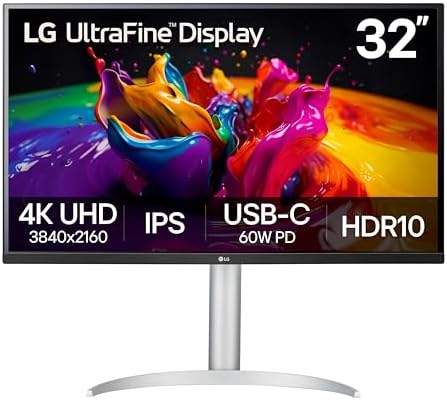
- Details Mastered – Experience the brilliance of Ultra HD with 4K UHD resolution (3840×2160), delivering over 8 million p…
- Enjoy the Latest HDR Videos and Games – HDR10 elevates picture quality for a more dynamic visual immersion experience an…
- Immersive Gaming Experience – 32UP83AK-W boosts the new era of 4K HDR console gaming experience, not only bringing unpre…
Budget – 24-inch 1080p
The value pick that still nails pixel density: crisp 1080p on a 24-inch panel, a fast 144Hz refresh, and built-in speakers to keep the desk clean.

- Elevated entertainment: The FHD resolution and 1500:1 contrast ratio bring clarity, while a 144Hz refresh rate, and 1ms …
- Hear the audio difference: Immerse yourself in sound with integrated dual 3W speakers delivering a wider range of freque…
- Eye comfort: Prioritize visual comfort with this 4-star TÜV-certified display. Reduce harmful blue light emissions while…
Match it to what you actually do
Spreadsheets, data, and code
You live and die by screen real estate. A 27-inch QHD is the sensible minimum; a 32-inch 4K is the dream, letting you see dozens of rows and several windows at once. See our best home office monitor picks for both.
Writing and everyday office work
A 24 to 27-inch QHD is plenty. Crisp text matters more than raw size here, so prioritize resolution over inches.
Design, photo, and video
Go 32-inch 4K. The detail and workspace are worth it, and color accuracy becomes the next thing to look at after resolution.
Dual-monitor setups
Two 24-inch or two 27-inch screens are the classic combo. If you would rather have one big surface with no bezel down the middle, a 34-inch ultrawide like the LG 34U650A-B does a similar job. A docking station makes running two screens off a laptop painless.
Video calls all day
Any 27-inch screen works well – the bigger factor is your camera, not the panel. See our webcam guide if calls are a big part of your day.
A few curveballs worth knowing
Ultrawide vs two monitors
An ultrawide gives you one seamless, bezel-free surface, which is lovely for wide spreadsheets and editing timelines. The trade-off: some apps do not use the extra width gracefully, and you lose the clean ability to maximize one app per screen.
Refresh rate is mostly a gaming concern
You will see monitors advertised at 120Hz, 144Hz and beyond. For office work, the standard 60Hz is completely fine. Spend your budget on size and resolution first.
USB-C can power your laptop too
Many modern monitors charge your laptop and carry video over a single USB-C cable – a real quality-of-life upgrade for MacBook and laptop users, since it turns the screen into a one-cable dock. The Dell S2725DC (27-inch QHD, 65W) is a clean example. Worth seeking out if that is your setup.
Yes, you will use scaling on 4K
On a 32-inch 4K screen you typically set display scaling to around 150 percent so text is a comfortable size. That is normal and expected – you keep the razor-sharp clarity, just at sensible sizes. Do not let it scare you off 4K.
Quick answers
Is a 27-inch monitor too big for a desk?
No – for most desks it is ideal. You want roughly 60 to 70 cm of viewing distance, which a standard desk provides. 32-inch is where desk depth starts to matter more.
Is 4K worth it for office work?
On a 32-inch screen, yes – the sharpness and space are excellent. On a 27-inch screen, QHD already looks great, so 4K becomes a smaller, optional upgrade.
1440p or 4K – which should I buy?
For a 27-inch screen, 1440p (QHD) is the value pick and looks superb. For 32-inch, go 4K. Simple as that.
Can I use a TV as a monitor?
You can, and a 4K TV can make a great big-screen display for the right tasks. We cover exactly how – plus the catches around input lag and text clarity – in our Smart TVs for home offices guide.
Ready to pick the right one?
Now that you know the size-and-resolution pairing that fits you, see our tested, Prime-eligible picks for every budget.
Why You Can Trust Smart Tech Buying
Every recommendation is based on extensive product research, manufacturer specifications, customer feedback, long-term reliability, value, and suitability for real-world use. When we have personal experience with a product, we include those insights. We regularly review our guides to keep recommendations current as new products are released.