

Building a home office on a budget is one of the most common questions remote workers, freelancers, and small business owners face in 2026 — and one of the hardest to answer without a clear framework. Should you spend $500 or $5,000? Is a $200 monitor enough, or do you need a $600 one? What should you buy first, and what can wait? This guide answers all of it with a straightforward budget breakdown across five tiers — from a functional starter setup under $500 to a full professional workstation — with verified Amazon picks at every level so you can build the right setup for your situation without overspending or leaving money in the wrong places.
Home Office Budget Breakdown: The Quick Answer
Before diving into the tiers, here’s the spending hierarchy that applies at every budget level. The rule is simple: invest first in what you touch and stare at all day, and save on what matters less to your productivity and health.
Spend most on: your chair, your monitor, and your computer. These three things determine how productive, comfortable, and focused you are for every working hour. Spend moderately on: your keyboard and mouse, webcam, and headset — these affect how others see and hear you. Spend least on: accessories, cable management, desk lighting, and decorative items — these are the last things to add, not the first.
This hierarchy holds whether you’re building a $500 starter setup or a $5,000 power station. The proportions shift, but the priority order doesn’t.
What to Buy First: The Non-Negotiables
Before you think about budget tiers, understand which categories are genuinely non-negotiable and which are optional upgrades.
Non-negotiable (buy these before anything else): a computer that runs your software reliably, a chair that won’t destroy your back by 3pm, a monitor sized appropriately for your work, and an internet connection fast enough for video calls. Without these four things working well, no amount of cable management or desk accessories will make you productive.
Important but not urgent: a proper keyboard and mouse (your laptop’s built-in versions work fine temporarily), a webcam (your laptop camera will do for the first few months), and a headset (earbuds work until you’re on calls all day). These are real productivity improvements but not blockers.
Nice to have: a standing desk or converter, a docking station, smart lighting, UPS battery backup, smart displays. These make your setup better but have no impact on getting work done from day one.
With that framework in place, here are the five budget tiers.
Tier 1: The Starter Setup ($300–$600)
A starter home office setup in this range assumes you already own a laptop — either a personal one or a work-issued machine. If you need to buy a computer at this budget, the setup cost climbs significantly (see Tier 3). At $300–$600, you’re buying the peripherals and ergonomics to turn your existing laptop into a proper workstation.
What to buy at this tier
Monitor ($120–$200): A 24-inch 1080p monitor in this range is perfectly capable for email, documents, spreadsheets, video calls, and most productivity tasks. The best home office monitors under $200 include options with IPS panels for better color and viewing angles than TN, USB-C input for easy laptop connection, and adjustable stands for proper ergonomics. Don’t buy a 4K monitor at this tier — you’re paying for resolution your computer may struggle to drive, and the productivity benefit over a good 1080p panel is minimal for text work.
Chair ($80–$150): This is the most important purchase at any budget level. An $80–$150 chair from a reputable brand won’t give you lumbar support as good as a $400 Herman Miller, but it’s night-and-day better than a dining chair. The best office chairs under $150 that are genuinely worth buying include options with adjustable seat height, basic lumbar support, and breathable mesh or fabric. Look for Amazon’s Choice picks with 4.3+ ratings and 1,000+ reviews at this price point — they’ve been stress-tested by real home office workers.
Keyboard and mouse ($20–$50): A basic wireless keyboard and mouse combo at this price point is a significant upgrade from your laptop’s built-in keyboard, especially once you have an external monitor. The best keyboard and mouse combos under $30 include Logitech’s MK270 and similar options that have sold in the millions and just work — reliable wireless, long battery life, and comfortable enough for a full workday.
Desk ($60–$150): At this tier a simple fixed-height desk is fine. Look for at least 48 inches wide and 24 inches deep to give your monitor, keyboard, and a notepad room without crowding. IKEA’s LINNMON desks and similar flat-pack options offer solid value.
Webcam ($30–$70): Your laptop webcam will do for occasional calls, but if you’re on Zoom or Teams daily, a proper webcam makes a visible difference to how you come across. The best webcams under $70 include Logitech’s C920 line, which has been the standard for a decade and still holds up for 1080p video calls with decent low-light performance.
Total Tier 1 spend: $310–$620 on top of your existing laptop. If you need to prioritize, buy the monitor and chair first — the ergonomic and productivity gains from those two items far outweigh everything else at this tier.
Tier 2: The Functional Setup ($600–$1,500)
This is the tier where most remote workers and freelancers should be aiming. At $600–$1,500 (again, assuming you already own a computer), you can build a setup that’s comfortable for long working days, looks professional on camera, and has everything you need to do focused work without friction.
What to buy at this tier
Monitor ($200–$400): Step up to a 27-inch QHD (2560×1440) monitor at this tier. The jump from 24-inch 1080p to 27-inch QHD is the single biggest visual productivity upgrade you can make. More screen real estate means fewer windows minimized, better document layout visibility, and sharper text for long reading sessions. Our monitor buying guide has several QHD picks in the $200–$350 range that include USB-C power delivery (charges your laptop through the cable), IPS panels with accurate color, and ergonomic stands with height/tilt/swivel adjustment. If you want to understand the size and resolution trade-offs before choosing, our monitor size and resolution guide breaks it down clearly.

- Elevated entertainment: The QHD resolution and 1500:1 contrast ratio bring astounding depth and vivid detail, while a 14…
- Hear the audio difference: Immerse yourself in sound with integrated dual 3W speakers delivering a wider range of freque…
- Eye comfort: Prioritize visual comfort with this 4-star TÜV-certified display. Reduce harmful blue light emissions while…
Chair ($200–$400): This is the tier where your chair becomes a serious investment rather than a stopgap. A $200–$400 chair from brands like Branch, HON, or the lower end of the Steelcase range gives you proper adjustable lumbar support, armrests that move in multiple directions, seat depth adjustment, and materials built to last years rather than months. Our office chair guide covers the best ergonomic chairs under $400 that have been independently reviewed and verified for build quality. Your lower back will know the difference within the first week.
Keyboard and mouse ($50–$120): At this tier you can afford a keyboard that you actually enjoy typing on. The best keyboard and mouse combos in the $50–$120 range include Logitech’s Signature Comfort Plus MK880, which that guide rates best for comfort, and the MK955 Signature Slim, its pick for Mac users. A good keyboard is the peripheral you interact with most hours of the day — don’t underinvest in it.
Webcam ($70–$150): Step up to a 1080p webcam with autofocus and built-in noise-filtering microphone. At this price range you’re looking at the Logitech C920x Pro, the StreamCam, or similar options that produce a noticeably better image quality than budget webcams and include glass lenses rather than plastic for sharper focus. Our webcam guide covers every option at this tier with real video quality comparisons.
Headset ($80–$150): If you’re on calls regularly, a proper headset with active noise cancellation and a directional microphone is the upgrade that most directly affects how others perceive you professionally. A muffled, echo-y audio feed on calls signals poor equipment and can undermine otherwise strong communication. The best headsets for remote work in this range include the Jabra Evolve2 30, Poly Voyager Focus 2 at sale prices, and Sony’s WH-1000XM series — all of which offer dramatically better microphone quality than laptop mics or basic earbuds.
Wi-Fi router ($80–$200): A shaky Wi-Fi connection is one of the most damaging productivity problems a home office worker can have, and it’s also one of the easiest to fix. If your router is more than 3–4 years old or you’re experiencing dropped video calls, freezing streams, or slow upload speeds, a new router pays for itself almost immediately. Our Wi-Fi router guide covers the best options from $80 upwards, including Wi-Fi 6 models that will serve you well for the next five years. If you’re not sure whether Wi-Fi 6 or Wi-Fi 7 is worth the upgrade, our Wi-Fi 7 vs Wi-Fi 6 explainer cuts through the marketing.
Total Tier 2 spend: $680–$1,420 on peripherals and ergonomics on top of your laptop. This is the tier that produces the most significant jump in day-to-day working quality relative to what you’re spending.
Tier 3: The Full Workstation ($1,500–$3,000)
At this tier you’re either building a complete setup from scratch (including buying a computer), or you’re upgrading an existing functional setup into something that handles demanding work without compromises. This is where professional content creators, developers, designers, and serious remote workers should be aiming.
What to buy at this tier
Computer ($800–$1,500): If you’re buying a computer at this budget, the best options in 2026 depend on your work type. For most remote workers who primarily use productivity apps, web browsers, video calls, and cloud software, a business laptop in the $900–$1,200 range offers excellent performance, all-day battery life, and build quality that will last 4–5 years. The MacBook Air M5 and the Dell XPS 13 Plus are the benchmarks at this price. If you need maximum processing power and don’t need portability, a desktop computer in the $700–$1,000 range delivers significantly more performance per dollar than a laptop at the same price. If you want the power of a desktop without the footprint, a mini PC like the Mac mini M4 or Dell Pro Micro is the ideal solution for a clean, compact desk setup.
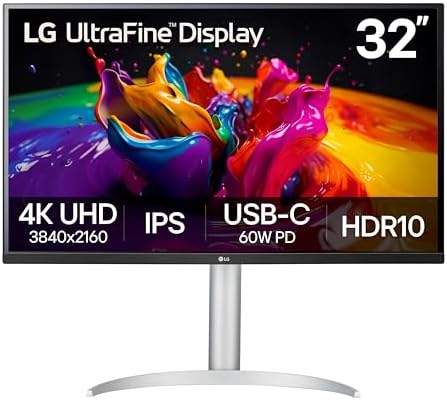
- Details Mastered – Experience the brilliance of Ultra HD with 4K UHD resolution (3840×2160), delivering over 8 million p…
- Enjoy the Latest HDR Videos and Games – HDR10 elevates picture quality for a more dynamic visual immersion experience an…
- Immersive Gaming Experience – 32UP83AK-W boosts the new era of 4K HDR console gaming experience, not only bringing unpre…
Monitor ($300–$600): At this tier, step up to a 27–32-inch 4K monitor or consider dual monitors. A single 4K display at 27 or 32 inches offers exceptional sharpness for detailed work, and at 32 inches the screen real estate approaches what you’d get from two 24-inch 1080p monitors side by side. Our monitor size and resolution guide explains exactly what you gain from 4K at different screen sizes and who benefits most. Alternatively, a dual-monitor setup with two 27-inch QHD displays and a proper docking station to power both from your laptop is one of the most effective productivity upgrades available at this tier.
Chair ($300–$600): The Steelcase Series 1, Branch Ergonomic Chair, and the entry-level Humanscale options live in this range. These are chairs built for 8–10 hour workdays, with proper lumbar curves, seat pan depth adjustment, and materials rated for years of daily use. Our office chair guide covers the best options in this range and explains what you’re actually getting for the price premium over budget chairs.
Docking station ($100–$250): If you’re running a laptop at this tier, a proper docking station transforms it into a desktop replacement. One cable connects your laptop to your monitor(s), keyboard, mouse, webcam, headset, and power supply simultaneously. The best docking stations in this range include Thunderbolt 4 docks that support two 4K monitors at 60Hz, 100W laptop charging, and 10+ USB ports. The CalDigit TS4 is the benchmark here, and the Plugable Thunderbolt 4 dock is that guide’s best-value pick.
Standing desk or converter ($200–$600): This is the tier where a standing desk starts to make financial sense. The health and focus benefits of being able to alternate between sitting and standing are real — prolonged sitting is linked to reduced focus and energy in the afternoon, and the ability to stand for 1–2 hours of your working day meaningfully improves how you feel at the end of it. Our standing desk and desk converter guide covers both full motorized desks and desktop risers — if you already have a desk you like, a $150–$250 converter is a cost-effective way to add sit-stand functionality without replacing your desk.
Headset upgrade ($150–$300): At this tier you can afford the Jabra Evolve2 75, which is the gold standard wireless headset for remote workers: exceptional ANC, all-day battery, and a microphone that makes you sound like you’re in a recording studio on calls. Our headset guide covers every option at this price point.
Total Tier 3 spend: $1,850–$3,850 for a complete, professional workstation. This is the tier that eliminates essentially all meaningful friction from a working day.
Tier 4: The Power Setup ($3,000–$5,000)
This tier is for professionals whose work demands are high enough that equipment limitations are a genuine cost: video editors, developers, designers, photographers, data analysts, and anyone running multiple clients or businesses from the same desk. At $3,000–$5,000 you’re optimizing for maximum performance, longevity, and the kind of setup that makes you more effective — not just more comfortable.
What to buy at this tier
Computer ($1,500–$2,500): The MacBook Pro M5, a high-end Dell XPS 15, or a custom-configured desktop with a powerful GPU are the right choices at this tier for creative and development work. For pure computational tasks (rendering, compiling, data processing), a desktop still delivers significantly more performance per dollar than a laptop at the same price. The best desktop computers in the $1,200–$2,000 range offer GPU power and RAM capacity that a laptop at twice the price can’t match.
Monitor ($500–$1,200): A 32-inch 4K IPS with factory color calibration, a wide-gamut display (P3 color space), and USB-C connectivity is the target at this tier. Designers, photographers, and video editors benefit enormously from accurate color reproduction. An alternative is an ultrawide 34–38-inch QHD monitor — a single ultrawide replaces a dual-monitor setup for many workflows and eliminates the gap between two screens. OLED monitors are beginning to appear in this price range and represent the pinnacle of display quality for close-range desktop work. Our OLED vs QLED vs Mini-LED explainer covers the trade-offs if you’re considering an OLED display for desk use, including the burn-in considerations unique to static desktop environments.
Chair ($600–$1,500): The Herman Miller Aeron, Steelcase Leap V2, and Humanscale Freedom are the benchmarks at this tier. These are chairs with 12-year warranties, precision-engineered lumbar systems, and seating surfaces designed to distribute weight over the longest working days without pressure points. They are expensive. They are also the chairs you’ll still be sitting in ten years from now, which changes the per-year cost calculation significantly. Our office chair guide covers both the case for and against spending this much.
Standing desk ($500–$1,000): The FlexiSpot E7 Pro, Uplift V3, and Fully Jarvis Bamboo are the motorized desks worth buying at this tier. Dual-motor lifting, programmable height presets, anti-collision sensors, and cable management systems separate the premium desks from the budget ones. Our standing desk guide covers the best options with real weight capacity and stability testing data.
Webcam ($150–$300): The Logitech MX Brio, OBSBOT Tiny 3, and 4K streaming-grade webcams live here. At this tier you’re getting 4K resolution (downscaled to 1080p for most calls but sharper for recorded content), AI-powered framing that keeps you centered automatically, and low-light performance that makes a real difference in dim home offices. Our webcam guide covers every 4K option available.
Smart home office additions ($200–$500): At this tier you can add the finishing touches that turn a workspace into a genuinely smart environment: an Amazon Echo Show for voice-controlled calendar, timers, and music; smart lighting that shifts color temperature throughout the day to match your energy; and a smart power strip for one-touch office shutdown. Our smart home office guide covers the best devices that actually earn their place on a desk rather than just adding complexity.
UPS battery backup ($100–$300): At this tier your setup is expensive enough, and your work valuable enough, that a two-second power flicker corrupting a file or crashing a render job is a real financial cost. A UPS (Uninterruptible Power Supply) gives you 5–15 minutes of battery backup during an outage to save your work and shut down gracefully. Our UPS buying guide covers the best options for home offices and small business setups.

- Elevated entertainment: The FHD resolution and 1500:1 contrast ratio bring clarity, while a 144Hz refresh rate, and 1ms …
- Hear the audio difference: Immerse yourself in sound with integrated dual 3W speakers delivering a wider range of freque…
- Eye comfort: Prioritize visual comfort with this 4-star TÜV-certified display. Reduce harmful blue light emissions while…
Total Tier 4 spend: $3,550–$7,300 for a complete power workstation. At this level you are buying equipment that will last a decade and eliminate every meaningful obstacle between you and your best work.
Category-by-Category Budget Allocations
Here’s how the budget should be allocated by category across all four tiers — useful if you’re mixing and matching rather than building a complete tier from scratch.
| Category | Starter ($300–$600) | Functional ($600–$1,500) | Full Workstation ($1,500–$3,000) | Power Setup ($3,000+) |
|---|---|---|---|---|
| Monitor | $120–$200 (24″ 1080p) | $200–$400 (27″ QHD) | $300–$600 (32″ 4K or dual) | $500–$1,200 (4K wide-gamut or OLED) |
| Chair | $80–$150 | $200–$400 | $300–$600 | $600–$1,500 (Herman Miller / Steelcase) |
| Keyboard & Mouse | $20–$50 | $50–$120 | $80–$150 | $100–$250 (MX Keys S + MX Master 3S) |
| Webcam | $30–$70 | $70–$150 | $100–$200 | $150–$300 (4K + AI framing) |
| Headset | Optional ($0–$50) | $80–$150 | $150–$300 | $200–$400 (Jabra Evolve2 75) |
| Wi-Fi Router | Optional (use existing) | $80–$200 | $150–$300 | $200–$500 (Wi-Fi 7) |
| Standing Desk | Skip | Skip or converter ($150) | $200–$600 | $500–$1,000 (motorized dual-motor) |
| Docking Station | Skip | Skip or basic ($50) | $100–$250 | $200–$400 (Thunderbolt 4/5) |
| UPS Backup | Skip | Skip | Optional ($100) | $100–$300 |
The Biggest Budget Mistakes Home Office Workers Make
After reviewing hundreds of home office setups and the buying patterns of remote workers at every budget level, these are the most common mistakes that waste money or reduce productivity.
Buying a cheap chair and an expensive monitor. The single most common home office budget mistake. A $600 monitor and an $80 dining chair is a bad trade — your back and focus will suffer within months. Invest equally in what you look at and what you sit on. If you can only afford one upgrade, the chair frequently has more impact on how you feel and how long you can focus than any screen upgrade.
Buying a 4K monitor before your computer can drive it. A 4K monitor connected to a 5-year-old laptop that can only run it at 30Hz is a frustrating experience. Confirm your computer outputs 4K at 60Hz before buying a 4K display. If it can’t, a QHD monitor is a better use of the same money. Our monitor guide covers how to check compatibility before you buy.
Underinvesting in internet and connectivity. A dropped video call in a client meeting costs more than a new router. Many home office workers tolerate bad Wi-Fi for years because the problem isn’t visible until it fails publicly. A $150–$200 Wi-Fi 6 router is one of the highest-return investments at any budget tier. If your office is far from your router, also consider a mesh Wi-Fi system or a powerline adapter.
Buying a tablet instead of a computer. For most home office work, a tablet — even an iPad Pro — is a constraint rather than a solution. It requires workarounds for multi-window workflows, doesn’t run desktop software, and the keyboard cases don’t match the comfort of a proper keyboard setup. Our tablets for remote work guide covers the situations where a tablet genuinely works as a primary work device — they exist, but they’re specific. If you are weighing one anyway, our guide to how to choose a business tablet walks the decision that actually settles it: whether your software runs natively or only in a browser tab.
Leaving the desk and chair until last. Many people buy all the tech first and then sit on a dining chair staring at a cluttered desk for months. Get the chair and a proper desk surface sorted early — they affect every hour you work, not just the hours where you’re doing demanding tasks.
Buying cheap accessories instead of one good item. Three $30 webcams bought sequentially costs more than one $70 webcam that you keep for three years. The same pattern applies to headsets, keyboard-mouse combos, and desk accessories. Buy for the next three years, not the next three months.
How to Prioritize When You Can’t Do Everything at Once
Most people don’t build their home office in a single purchase. Here’s a sequencing guide for building up over 6–12 months on a limited budget.
Month 1–2 (essentials only): Computer + chair + basic keyboard and mouse. Use your laptop’s screen, your laptop’s webcam, your phone’s internet, and whatever desk surface you have. This is uncomfortable but functional.
Month 3–4 (core productivity): Add a monitor — this is the first peripheral purchase that transforms the working experience. A 24-inch 1080p IPS display for $150 is the highest-impact single purchase for most laptop users. If your Wi-Fi is unreliable, fix that before the monitor.
Month 5–6 (communication upgrade): Add a proper webcam and headset if you’re on calls regularly. These directly affect how you come across professionally and are worth prioritizing if client or colleague perception matters to your work.
Month 7–12 (comfort and efficiency): Chair upgrade if you’re still on a budget option, keyboard upgrade, docking station if you’re laptop-based, and standing desk or converter if you want the health benefits. These are meaningful quality-of-life improvements but not production blockers.
Year 2+ (optimization): Monitor upgrade to QHD or 4K, smart home additions, UPS backup, premium headset, Wi-Fi 7 router. These are the finishing touches on a setup that already works well.
Frequently Asked Questions
How much should I spend on a home office setup?
A functional home office setup (assuming you own a laptop) costs $600–$1,500 for peripherals and ergonomics. A complete workstation from scratch including a computer costs $1,500–$3,000. A professional power setup for demanding creative or development work runs $3,000–$5,000. The most important investments at any budget are your chair, monitor, and computer — in that order of priority for your health and productivity.
What should I buy first for my home office?
Buy your chair and a reliable computer first. These two items determine how long you can work comfortably and whether your software runs without friction — everything else is built on top of them. Once those are sorted, add a proper monitor, then a keyboard and mouse, then a webcam and headset if you’re on calls regularly.
Is a $200 monitor good enough for a home office?
Yes — a $150–$200 24-inch 1080p IPS monitor is perfectly capable for email, documents, spreadsheets, video calls, and most productivity tasks. The jump to QHD at $200–$350 is worth it if you do a lot of reading, coding, or work with multiple windows, but a $200 1080p monitor is not a meaningful bottleneck for the majority of remote workers.
Should I buy a standing desk for my home office?
A standing desk is a genuinely useful addition once your core setup (computer, monitor, chair) is sorted. The health and energy benefits of alternating between sitting and standing are real, but they are not more important than having a good chair and a proper monitor. If your budget is limited, prioritize the chair. Once your core setup is solid, a standing desk or desktop converter is a worthwhile next step — desktop converters in the $150–$250 range let you add sit-stand functionality without replacing your current desk.
How much should I spend on a home office chair?
Spend as much as your budget allows, up to about $600 for most people. An $80–$150 chair is fine as a starter but will show its limitations within a year of daily use. A $200–$400 chair from a reputable ergonomic brand is the sweet spot for most remote workers — good enough to avoid back problems without requiring premium budget. A $600–$1,500 chair (Herman Miller Aeron, Steelcase Leap) is worth it if you sit for 8+ hours daily and plan to use it for 10+ years.
Do I need a docking station for my home office?
If you use a laptop as your primary computer and connect it to an external monitor, keyboard, and mouse, a docking station makes your setup dramatically cleaner and faster to use. One cable connects everything. If you only connect to a single monitor and don’t have many peripherals, a simple USB-C hub works fine for less money. If you need to drive two or more external monitors simultaneously, a proper Thunderbolt 4 docking station is essential — most laptops cannot power two displays through a standard USB-C hub.
What’s the best home office setup under $1,000?
Assuming you own a laptop: spend $200–$250 on a 27-inch QHD monitor, $200–$300 on a proper ergonomic chair, $50–$80 on a wireless keyboard and mouse combo, $70–$100 on a 1080p webcam with autofocus, and $80–$150 on a wireless headset with ANC if you’re on calls daily. That gets you a solid functional setup for $600–$880 with money left for cable management or accessories. If you need a router upgrade, factor in another $100–$150.
Is it worth buying a MacBook for a home office?
Yes, if you value battery life, build quality, and long-term software support. The MacBook Air M5 is one of the best home office laptops available in 2026 — silent, lightweight, fast, and rated for 18+ hours of battery life. It costs significantly more than comparable Windows laptops, but holds its value better and typically lasts longer before feeling slow. If you’re primarily using browser-based tools, cloud software, and communication apps, a MacBook Air is an excellent investment. If you need Windows-specific software or have a tight budget, a mid-range Windows laptop delivers more raw performance per dollar.
Why You Can Trust Smart Tech Buying
Every recommendation is based on extensive product research, manufacturer specifications, customer feedback, long-term reliability, value, and suitability for real-world use. When we have personal experience with a product, we include those insights. We regularly review our guides to keep recommendations current as new products are released.