

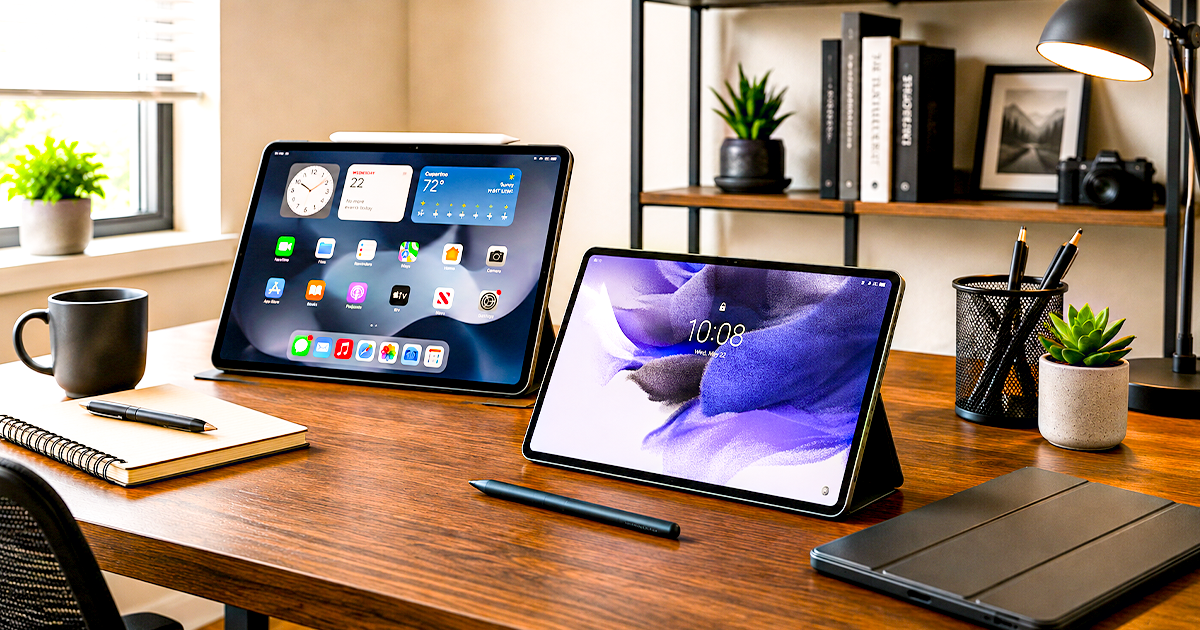
Best Tablet for Remote Work of 2026
Eight picks you can actually buy today, each a tablet for remote work we would use – for docked home offices, hybrid calls, remote students, and tight budgets.
The best tablet for remote work in 2026 is the Apple iPad Pro (M5). It drives an external monitor, docks cleanly, runs Zoom, Teams, Slack and Microsoft 365, and lasts a full workday. For Android home offices the Samsung Galaxy Tab S10+ leads; for full desktop Windows, choose the Surface Pro.
By Arthur C. Art, Founder & Lead Reviewer — Smart Tech Buying. Last updated August 2026.
Disclosure: Smart Tech Buying is reader-supported. As an Amazon Associate we earn from qualifying purchases. This does not affect our recommendations or the price you pay.
The remote-work tablet has grown up. What used to be the device you grabbed for email on the sofa is now, for a lot of people, the center of the home office: docked to a monitor by day, slipped into a bag for a café afternoon, propped on a tray table at 30,000 feet. For remote workers, hybrid employees, founders running a business from a spare room, and students juggling lectures and a side hustle, a good tablet does something a laptop cannot — it collapses into something you can hold, then expands into something you can work on all day.
But a tablet only earns a place in your home office if it plays well with everything else on the desk. Can it drive your external monitor at a comfortable resolution? Does it dock cleanly so a single cable gives you power, display and peripherals? Will it hold a steady connection on your mesh Wi-Fi, print to the family printer, and run the real apps your job depends on — Zoom and Teams calls that do not drop, Slack that pings reliably, Microsoft 365 or Google Workspace that opens your actual files, and cloud storage that syncs without fuss? Those integrations, not raw benchmark scores, are what separate a tablet that anchors a remote setup from one that merely sits next to it.
We judge tablets on exactly these conditions — docked, on mesh networks, on the road, mid-call — and this guide reflects that. You will find one clear pick per category, full specifications, honest performance notes, a plain account of who each device is wrong for, and, throughout, how each tablet fits into a complete work-from-home setup. We would rather lose a sale than send you home with the wrong tablet. Prices and live availability change often, so use the buttons throughout to check the current price before you buy.
Quick Comparison: Best Remote-Work Tablets 2026 at a Glance
| Tablet | Display | OS | Battery (rated) | Best For | Rating |
|---|---|---|---|---|---|
| Apple iPad Pro (M5) | 11″ / 13″ Tandem OLED, 120Hz | iPadOS 26 | Up to 10 hrs | Best overall remote work | 4.7 |
| Samsung Galaxy Tab S10 Lite | 10.9″ LCD, 90Hz | Android / One UI | All-day | Best budget note-taking | 4.6 |
| Microsoft Surface Pro (13″, X2 Elite) | 13″ PixelSense OLED, HDR | Windows 11 | Up to 15.5 hrs | Best Windows for remote work | 4.5 |
| Microsoft Surface Pro (13″, X2 Plus) | 13″ PixelSense LCD, HDR | Windows 11 | Up to 15.5 hrs | Best value Windows | No ratings yet |
| Apple iPad (11″, A16) | 11″ Liquid Retina LCD, 60Hz | iPadOS | Up to 10 hrs | Best value for hybrid work | 4.7 |
| Apple iPad Air (11″, M4) | 11″ Liquid Retina, P3 + True Tone | iPadOS 26 | All-day | Best mid-range iPad | 4.8 |
| Samsung Galaxy Tab S10+ | 12.4″ AMOLED 2X | Android / One UI | Long battery life | Best Android flagship | 4.7 |
| Lenovo Idea Tab | 11″ 2.5K IPS, 90Hz | Android + Google Play | Up to 12 hrs video | Best budget home office | 4.6 |
What the 8 cost, side by side
Live Amazon prices, low to high
Best budget · 4.6★ (776)$229.99on AmazonApple iPad 11" (A16)
Best value · 4.7★ (28,132)$399.00on AmazonGalaxy Tab S10 Lite
Best budget note-taking · 4.6★ (1,260)$489.99on AmazonApple iPad Air 11" (M4)
Best mid-range iPad · 4.8★ (718)$721.00on AmazonGalaxy Tab S10+
Best Android · 4.7★ (764)$1,299.99on AmazonApple iPad Pro 13" (M5)
Best overall · 4.7★ (761)$1,399.99on AmazonSurface Pro 13" (LCD)
Best value Windows · new listing$1,599.99on AmazonSurface Pro 13" (OLED)
Best Windows · 4.6★ (5)$1,649.00on Amazon
Prices fluctuate — tap any row for the live price on Amazon.
How We Picked Each Tablet for Remote Work
For a guide like this one, the shortlist for the best tablet for remote work starts with how a device behaves inside a real home-office setup, not with a spec sheet. We weigh five things in roughly this order: how cleanly it integrates with desk gear (external monitors, USB-C docks, mesh Wi-Fi and printers); the quality of its video-call and collaboration experience (Zoom, Teams, Slack — cameras, mics and a connection that holds); the maturity of its productivity apps (Microsoft 365, Google Workspace and the cloud storage you already use); keyboard, stylus and battery for working away from the desk; and total cost once you add the accessories you will inevitably need. We cross-check verified owner reports against manufacturer specifications and independent lab measurements, and we flag the compromises every device makes. Where we name a “best,” it is the clearest pick for that job.
Best Overall Tablet for Remote Work 2026: Apple iPad Pro (M5)
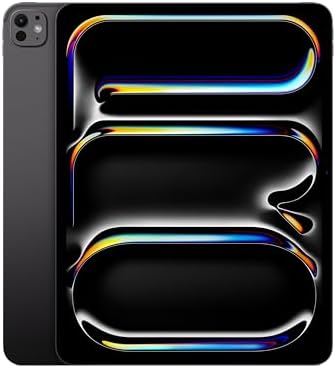
- WHY IPAD PRO — iPad Pro with the Apple M5 chip delivers extraordinary performance for effortless productivity on a stunn…
- PERFORMANCE AND STORAGE — iPad Pro with M5 brings next-generation speed and the power of on-device AI to all your tasks….
- IPADOS — Run pro apps and get more done with iPadOS 26 with Liquid Glass design and game-changing capabilities.* With an…
If you want one tablet that anchors a home office on a busy day and disappears into a bag on a travel day, this is it. The iPad Pro (M5) pairs a desktop-class chip with the best-supported app library in tablet computing, and for remote work that combination matters more than any single spec: every tool a distributed team lives in — Zoom, Teams, Slack, Microsoft 365, Google Workspace, Notion, your cloud drive — has a polished native iPad app, not just a cramped browser tab.
Key specifications:
- Display: 11″ (2420×1668) or 13″ (2752×2064) tandem-OLED Ultra Retina XDR, 120Hz ProMotion
- Chip: Apple M5 (up to 10-core CPU, 10-core GPU, 16-core Neural Engine)
- Memory: 12GB (256GB/512GB) or 16GB (1TB/2TB)
- Battery: rated up to 10 hours; fast charge to ~50% in ~30 min
- Connectivity: Wi-Fi 7, optional 5G, USB-C / Thunderbolt
- Software: iPadOS 26 with Apple Intelligence
- Configuration reviewed: 13″ Wi-Fi, 256GB — see card above for live price
Performance analysis. The M5 is far more than a video call and a spreadsheet need, and that headroom is the point — it means the iPad Pro will still feel fast in three years of remote work. A dozen browser tabs, Office, Slack, a Teams call and a reference PDF open at once never slow it down. The honest caveat: if your day is documents and meetings, you are paying for power you will not fully use.
Battery life. Roughly 10 hours of real mixed-use work, and the new fast charge is the meaningful upgrade for hybrid workers — a half-hour at a gate or in a café gets you back to about half.
Display quality. The best screen on any tablet: deep-black tandem OLED, very high brightness and 120Hz that makes long document and email sessions easier on the eyes. Excellent for back-to-back video calls, too.
Productivity features. iPadOS 26 adds proper overlapping windows and a more desktop-like multitasking model, and Stage Manager drives an external monitor — over USB-C, the Pro can power an external display at up to 120Hz, so a docked iPad Pro plus a monitor is a genuine two-screen home-office setup. Center Stage keeps you framed on calls, and the four-mic array makes you sound clear on Zoom and Teams.
Home-office integration. Thunderbolt/USB-C means it slots into a standard USB-C dock for one-cable power, monitor, keyboard and Ethernet; Wi-Fi 7 makes the most of a modern mesh system; and AirPrint handles wireless printing without drivers. iCloud, OneDrive, Google Drive and Dropbox all sync natively.
Keyboard compatibility. The Magic Keyboard adds a laptop-grade deck and trackpad — heavy and pricey, but essential for real desk work.
Stylus support. Apple Pencil Pro, with hover and barrel-roll, is the gold standard for markup, whiteboarding on calls, and signing documents.
Business use cases. The do-everything device for remote professionals, founders and consultants who want one premium tool for calls, documents, creative review and travel.
Pros
- The most capable tablet processor, with years of headroom
- Best display and the most mature remote-work app library; drives an external monitor at 120Hz
- Wi-Fi 7, fast charging and strong call hardware
Cons
- Expensive once you add the keyboard and pencil
- iPadOS still imposes limits power users occasionally hit
- More power than most remote workloads need
Who should buy it: remote professionals and founders who want one do-everything device for the desk and the road. Who should skip it: document-and-email workers who would be just as happy saving a thousand dollars on the 11-inch iPad.
Best Android Tablet for Note-Taking on a Budget: Samsung Galaxy Tab S10 Lite

- DIVE INTO THIS DISPLAY: All of your fun content pops on the 10.9″ screen. Catch up on plans for the day while you cook b…
- BATTERY FOR LONG-LASTING ENTERTAINMENT: Enjoy long-lasting fun. Finish your favorite series or book with a battery that …
- WRITE, DRAW, DO IT ALL: S Pen is mightier than your average writing tool. The responsive design and intuitive integratio…
The Tab S10 Lite is here for one reason, and it is a good one: it is the cheapest tablet in this guide that comes with a real S Pen in the box and enough memory to work properly. Apple charges $129 for a Pencil. Samsung includes the pen and still lands at less than half the price of its own flagship. If your remote day is meetings, marked-up PDFs and handwritten notes rather than video timelines, this is the honest amount of tablet to buy.
It is not a flagship and we are not going to pretend otherwise — the Galaxy Tab S10+ above it is faster, brighter and better supported. What the S10 Lite gives you is the pen, 8GB of memory, and a Samsung warranty sold directly by Amazon, for the price of the accessories on a more expensive tablet.
Key specifications:
- Display: 10.9″ LCD, 90Hz
- Chip: Samsung Exynos 1380
- Memory/storage: 8GB RAM; 256GB, microSD expandable to 2TB
- Software: Android with One UI, Galaxy AI tools, Circle to Search
- Stylus: S Pen included in the box
- Configuration reviewed: Wi-Fi, 8GB/256GB, Gray — see card above for live price
Performance analysis. The Exynos 1380 is mid-range silicon and behaves like it. Notes, documents, browsing, Office, Slack and video calls are smooth; heavy photo work and demanding games are not what this chip is for. The 8GB of memory is the part that matters more day to day — it clears our comfortable floor for business multitasking, which is exactly what separates this from the sub-$300 tier below it.
Display quality. A 10.9-inch 90Hz LCD. Sharp and perfectly pleasant for documents, reading and calls, and a clear step below the AMOLED panels elsewhere in this guide. For handwriting and marking up PDFs — the job this tablet is here to do — the panel is not the constraint.
Storage. This is quietly the best deal in the guide. 256GB on board and expansion to 2TB on a microSD card means you are not guessing at capacity up front and paying Apple’s upgrade pricing to be wrong. An iPad cannot do this at any price.
Productivity features. Samsung’s note tools with Galaxy AI, Circle to Search, and native Microsoft 365, Google Workspace, Zoom, Teams and Slack from the Play Store. Everything a remote worker actually opens runs here.
Home-office integration. Treat it as a second screen and a notepad rather than a desktop replacement. It handles a call on the desk while your laptop does the work, takes the meeting notes, and syncs them to OneDrive or Google Drive before you have closed the lid.
Stylus support. The S Pen is included, and it is the same pen experience Samsung ships across the range — low latency, comfortable for long note sessions, no charging, no separate purchase, no $129.
Buying it is simple, which is not nothing. Amazon sells and ships this directly with a two-year Samsung warranty. Several big-screen Android tablets on Amazon are gray-market imports carrying no US warranty, sold by third parties. This is not one of them.
Pros
- S Pen in the box at a mid-range price — the cheapest real pen experience here
- 8GB clears our multitasking floor; storage expands to 2TB on a card
- Sold by Amazon with a two-year Samsung warranty behind it
Cons
- Mid-range Exynos chip — fine for notes and documents, not for heavy creative work
- 10.9″ LCD rather than AMOLED; no DeX-class desktop mode
- Smaller canvas limits serious split-screen multitasking
Who should buy it: remote workers whose day is notes, PDFs, reading and calls, and who want a pen without paying flagship money. Who should skip it: anyone who needs the biggest screen, a desktop mode, or flagship performance – spend up on the Galaxy Tab S10+.
Best Windows Tablet for Remote Work 2026: Microsoft Surface Pro (13-inch, Snapdragon X2 Elite)

- Brilliant OLED Display – Incredible image quality – The 13″ PixelSense touchscreen[1], with optional OLED and HDR[2] tec…
- Up to 15.5 hours of battery life[3] – The new Surface Pro is designed for long days, late nights and everything in betwe…
- Work at the speed of your ideas – Built with the latest Qualcomm Snapdragon X2 Elite (12 Core) processors, Surface Pro d…
If your remote work lives in full desktop Windows – a VPN client IT mandates, the proper desktop Office, line-of-business apps – no iPad or Android tablet truly replaces it, and the Surface Pro does. This is the 2026 model with the Snapdragon X2 Elite and an OLED screen: a fanless Copilot+ PC that is a real Windows 11 computer in a tablet shell. It is not the cheap option here; it is the one that actually replaces a laptop.
One honest note: this is a new 2026 listing and it currently carries only a handful of ratings, so there is no deep pool of long-term owner feedback yet. We have included it because it is sold and shipped by Amazon with genuine Prime delivery, which the well-reviewed 2024 Surface listings no longer are – every one we checked was either third-party or used-only. If you want a longer track record, the Snapdragon X2 Plus model below is the same machine with a slower chip and an LCD screen.
Key specifications:
- Display: 13″ PixelSense touchscreen, OLED with HDR
- Chip: Qualcomm Snapdragon X2 Elite (12-core), Copilot+ PC What is an NPU?
- Memory/storage: 16GB RAM, 1TB SSD
- Battery: rated up to 15.5 hours
- Ports: 2x USB-C / USB4
- Software: full Windows 11 Home with Copilot
- Configuration reviewed: 13″ OLED, 16GB/1TB, Black – see card above for live price; Flex Keyboard and Slim Pen sold separately
Performance analysis. The 12-core Snapdragon X2 Elite handles mainstream remote work without effort – Office, a wall of browser tabs, Teams, light editing – and the ARM build of Windows 11 now runs the vast majority of business apps well. The fanless design throttles under sustained heavy loads, so this is a productivity machine, not a workstation. Confirm any niche or older x86 software runs under emulation before relying on it.
Battery life. Microsoft rates up to 15.5 hours; expect a genuine all-day result for office work thanks to the efficient ARM chip.
Display quality. A 13-inch PixelSense OLED with HDR – the best screen Microsoft puts in a Surface, and a match for the iPad Pro and Galaxy Tabs rather than a step below them.
Productivity features. It runs real Windows – the single biggest advantage here for many remote workers – with the full desktop Office suite, the desktop Teams/Zoom/Slack clients, Copilot on-device AI and Windows Hello sign-in.
Home-office integration. The Surface is managed exactly like a company PC. Two USB-C / USB4 ports feed a standard dock for power, displays, keyboard and wired Ethernet; Windows handles any networked printer natively; and OneDrive is built in, with Google Drive and Dropbox available as apps. It is the most “plug it into my existing PC setup” option in this guide.
Keyboard compatibility. The Surface Pro 13-inch Flex Keyboard is excellent and the device is built around it – but it is a separate purchase, as is the Slim Pen, and together they push the real cost well past the sticker.
Stylus support. The Surface Slim Pen offers tilt and low latency, with magnetic storage and charging on the back of the tablet.
Business use cases. Any Windows-dependent remote role – finance, ERP, legacy software, IT-managed fleets – that wants a tablet without leaving Windows.
Pros
- Runs full Windows 11 and your real remote-work software
- OLED HDR screen and a roomy 1TB SSD
- Rated up to 15.5 hours; Copilot+ AI and Windows Hello
Cons
- The priciest pick here, and the keyboard and pen still cost extra
- Fanless chip throttles under sustained heavy loads
- New listing with very few ratings so far; confirm x86 app support
Who should buy it: Windows-first remote workers and IT-managed teams who need desktop apps in a tablet and want the best screen and the most storage. Who should skip it: anyone whose work is web- and app-based, who will get a nicer deal from an iPad or Galaxy Tab.
Best Value Windows Tablet for Remote Work: Microsoft Surface Pro (13-inch, Snapdragon X2 Plus)

- Brilliant LCD Display – The 13″ PixelSense touchscreen[1], with LCD and enriched HDR[2] tech, unveils crisper whites, da…
- Up to 15.5hours of battery life[3] – The new Surface Pro is designed for long days, late nights and everything in betwee…
- Productivity. All Day. Every Day. – Built with the latest Qualcomm Snapdragon X2 Plus (10 Core) processors, Surface Pro …
This is the same 2026 Surface Pro chassis, kickstand and Windows 11 Copilot+ experience as the model above, with three changes that take roughly $700 off: a 10-core Snapdragon X2 Plus instead of the 12-core Elite, an LCD screen instead of OLED, and 512GB of storage instead of 1TB. For most remote workers that is the smarter buy – the things you touch every day are identical.
One honest note: this listing is brand new and has no customer ratings at all yet. We would normally not put an unrated product on a list. It is here because it is sold and shipped by Amazon with real Prime delivery at the price point the older, well-reviewed Surface models used to hold – and those listings are now third-party or used-only. Buy it for the Microsoft warranty and the return window, not on the strength of owner reviews, because there are none to read.
Key specifications:
- Display: 13″ PixelSense touchscreen, LCD with HDR
- Chip: Qualcomm Snapdragon X2 Plus (10-core), Copilot+ PC
- Memory/storage: 16GB RAM, 512GB SSD
- Battery: rated up to 15.5 hours
- Ports: 2x USB-C / USB4
- Software: full Windows 11 Home with Copilot
- Configuration reviewed: 13″ LCD, 16GB/512GB, Platinum – see card above for live price; Flex Keyboard and Slim Pen sold separately
Performance analysis. Ten cores instead of twelve is a real but narrow difference. For Office, browser tabs, Teams calls and document work you will struggle to notice it; for sustained exports or heavy multitasking the Elite pulls ahead. The same fanless design and the same ARM emulation caveats apply to both.
Battery life. Microsoft rates the same up to 15.5 hours, and the less demanding chip and LCD panel mean you are unlikely to do worse than the Elite in practice.
Display quality. This is the clearest compromise. The LCD is a good panel with HDR, but it will not match the OLED above for contrast or black levels. If you mostly work in documents, spreadsheets and browser windows, that matters far less than the price gap.
Productivity features. Identical to the Elite: full desktop Windows 11, the real Office suite, desktop Teams, Zoom and Slack clients, Copilot and Windows Hello.
Home-office integration. Also identical – two USB-C / USB4 ports for a dock, native printer support, OneDrive built in, and the same 165-degree kickstand that lets it sit at any angle on a desk.
Keyboard compatibility. The same Surface Pro 13-inch Flex Keyboard fits, and it is the same separate purchase. Budget for it.
Stylus support. Same Surface Slim Pen support, with magnetic storage and charging on the back.
Business use cases. Windows-dependent remote workers who need the software but not the flagship screen, and anyone buying more than one for a small team.
Pros
- Full Windows 11 and Copilot+ for around $700 less than the Elite
- Same chassis, kickstand, ports and rated battery life
- Sold and shipped by Amazon with real Prime delivery
Cons
- No customer ratings yet – no owner feedback to read
- LCD rather than OLED; 10 cores rather than 12
- Keyboard and pen are still extra
Who should buy it: remote workers who need real Windows in a tablet and would rather put the $700 difference toward the keyboard, a dock and a monitor. Who should skip it: anyone who wants the best screen in the guide, or who will not buy a product with no reviews yet.
Best Value Tablet for Hybrid Workers: Apple iPad (11-inch, A16)

- WHY IPAD — The 11-inch iPad is now more capable than ever with the superfast A16 chip, a stunning Liquid Retina display,…
- PERFORMANCE AND STORAGE — The superfast A16 chip delivers a boost in performance for your favorite activities. And with …
- 11-INCH LIQUID RETINA DISPLAY — The gorgeous Liquid Retina display is an amazing way to watch movies or draw your next m…
The 11-inch iPad is the most-reviewed tablet in this guide by an enormous margin — tens of thousands of ratings against a few hundred for most rivals — and that is precisely the argument for it. It is the safe pick: a fraction of the price of an iPad Pro, the same app library, and the best video-call camera here for the money. It will not replace a laptop, and it is not trying to. As the tablet you hand a hybrid worker who wants email, documents, calls and Slack to simply work, nothing at this price is more proven.
Key specifications:
- Display: 11″ Liquid Retina LCD, 2360×1640, 60Hz, 500 nits, unlaminated
- Chip: Apple A16 (5-core CPU, 4-core GPU); 6GB RAM
- Storage: 128GB, 256GB or 512GB
- Battery: around 10 hours; USB-C charging
- Connectivity: Wi-Fi 6; Bluetooth 5.3; optional 5G (eSIM only)
- Software: iPadOS — note: does not support Apple Intelligence
- Cameras: landscape 12MP front with Center Stage; 12MP rear
Performance analysis. The A16 with 6GB of RAM is a real step up from the 4GB model it replaced, and it handles email, documents, browsing, calls and Slack without complaint. It is not an M-series chip: heavy multitasking, desktop-class apps and Stage Manager are out of reach, and it does not support Apple Intelligence at all — a genuine gap in 2026 that the iPad Pro does not have.
Battery life. Around 10 hours of browsing or video, matching the iPad Pro. No charger is in the box, and it charges over USB-C at moderate speeds — slower than most Android rivals here, but a full working day is not in doubt.
Display quality. The honest weak spot. It is a 60Hz, 500-nit LCD, and unlike every other Apple tablet here it is unlaminated — there is a small air gap under the glass, which artists notice as slight parallax under the Pencil. There is no anti-reflective coating and no P3 wide color. For documents, mail and calls it is perfectly sharp; next to the iPad Pro’s tandem OLED it looks its price.
Productivity features. The full iPadOS app library — Microsoft 365, Google Workspace, Zoom, Teams and Slack all run as polished native apps, and Split View and Slide Over cover basic side-by-side work. Touch ID lives in the top button.
Home-office integration. The standout is the camera. The 12MP front camera sits on the landscape edge, so with a keyboard attached you look straight down the lens like a laptop instead of gazing off to one side, and Center Stage keeps you framed as you move. For a call-heavy hybrid role that alone justifies the pick. The limit is the desk: this iPad drives an external display by mirroring only — there is no Stage Manager and no true extended desktop, which the iPad Pro offers. It is a superb companion beside a laptop, not the hub of a multi-monitor rig. Wi-Fi 6 rather than Wi-Fi 7, and iCloud, OneDrive, Drive and Dropbox all sync natively.
Keyboard compatibility. The Magic Keyboard Folio attaches via Smart Connector and brings a trackpad and a 14-key function row in a two-piece design with an adjustable stand. It is genuinely good — and sold separately, which matters when costing this out.
Stylus support. Apple Pencil (USB-C) and the 1st-generation Pencil work; Apple Pencil Pro does not. No squeeze, barrel roll or hover here. Fine for notes and marking up documents, less so for serious illustration on an unlaminated panel.
Business use cases. Hybrid workers who live in calls and documents, teams buying in volume who need a known quantity, and anyone who wants the iPad app ecosystem without iPad Pro money.
Pros
- By far the most-reviewed and most proven tablet in this guide
- Landscape front camera with Center Stage — the best call setup here for the money
- Full iPadOS app library and Magic Keyboard Folio support at a fraction of iPad Pro money
Cons
- No Apple Intelligence support, and no Stage Manager — mirroring only on an external display
- Unlaminated 60Hz 500-nit screen; no Apple Pencil Pro support
- Wi-Fi 6 not Wi-Fi 7; keyboard and Pencil both cost extra
Who should buy it: hybrid workers who mostly need calls, email, documents and Slack, and want the safest, most proven tablet at this price. Who should skip it: anyone wanting Apple Intelligence, a real extended-desktop setup, Pencil Pro, or a laminated high-refresh screen — that is iPad Pro territory.
Best Mid-Range Tablet for Remote Work: Apple iPad Air (11-inch, M4)

- WHY IPAD AIR — iPad Air with the Apple M4 chip packs even more performance into a beautiful design, and it comes in two …
- PERFORMANCE AND STORAGE — The M4 chip delivers advanced graphics and incredible performance for smooth multitasking and …
- IPADOS + APPS — Run apps and get more done with the game-changing capabilities and intuitive design of iPadOS. The flexi…
The iPad Air exists to answer a specific complaint about the 11-inch iPad above it: that you save real money and give up Apple Intelligence, Apple Pencil Pro and a properly good screen to do it. The Air gives all three back for a few hundred dollars, and stops well short of iPad Pro money. For most remote workers who want an iPad rather than a laptop replacement, this is the one that stops feeling like a compromise.
Key specifications:
- Display: 11″ Liquid Retina, 2360×1640 at 264 ppi, P3 wide color, True Tone, ultralow reflectivity
- Chip: Apple M4 — supports Apple Intelligence
- Storage: 128GB as listed; configurable up to 1TB
- Battery: all-day; USB-C charging
- Connectivity: Wi-Fi 7 with the Apple N1 wireless chip
- Software: iPadOS, including the flexible windowing system
- Cameras: 12MP Center Stage front camera; 12MP Wide rear with 4K video
- Security: Touch ID in the top button
- Size: 9.75 x 7.03 x 0.24 inches, 1.02 lb; also sold in a 13-inch size
Performance analysis. The M4 is the headline. It is the same family of Apple silicon that powers the Pro tier, and it is what separates this tablet from the A16 model: multitasking through the flexible windowing system, heavier creative apps, and Apple Intelligence, which the 11-inch iPad does not support at all. That last point is the one to weigh in 2026 — it is the difference between a tablet that gets Apple’s ongoing AI features and one that is locked out of them for the life of the device.
Battery life. Apple rates it as all-day, in line with the rest of the iPad line here. It charges over USB-C, and as with every Apple tablet in this guide there is no charger in the box.
Display quality. The same 2360×1640 resolution as the cheaper iPad, but a materially better panel: P3 wide color, True Tone, and ultralow reflectivity. That last item is the one you feel in a real home office — it is the difference between working with a window behind you and having to move the desk. It is not the Pro’s tandem OLED, and if you grade screens for a living that gap is real, but nothing about this panel looks cheap.
Productivity features. The full iPadOS app library — Microsoft 365, Google Workspace, Zoom, Teams and Slack all run as native apps — plus the flexible windowing system for arranging real side-by-side work rather than the basic Split View arrangement you get further down the range.
Home-office integration. The 12MP Center Stage front camera keeps you framed as you move on a call, and the 12MP rear shoots 4K and handles document scanning. The bigger upgrade for a home office is Wi-Fi 7 with Apple’s own N1 chip: on a modern router, moving large files and joining calls on a congested network is where that shows up. Every other Apple tablet here is Wi-Fi 6.
Keyboard compatibility. The Magic Keyboard for iPad Air brings a trackpad with haptic feedback and a genuinely good typing experience. Sold separately — budget for it.
Stylus support. Both Apple Pencil Pro and Apple Pencil (USB-C) work. That is the clean win over the 11-inch iPad, which is capped at the USB-C Pencil: squeeze, barrel roll and hover are all on the table here, which matters if you mark up documents or sketch as part of the job.
Business use cases. Remote workers who want Apple Intelligence without Pro money, anyone doing regular annotation or light creative work, and people replacing an older iPad who want a device that will not age out of Apple’s feature roadmap in a year.
Pros
- M4 chip with full Apple Intelligence support — the cheaper iPad has none
- Apple Pencil Pro support and a P3, True Tone, ultralow-reflectivity screen
- Wi-Fi 7 with Apple’s N1 chip; the only tablet here with it
Cons
- Meaningfully more than the 11-inch iPad, which covers calls and documents perfectly well
- Liquid Retina LCD, not the iPad Pro’s tandem OLED
- Magic Keyboard and Apple Pencil Pro are both extra
Who should buy it: the remote worker who wants an iPad to last, with Apple Intelligence, Pencil Pro and a screen that holds up in a bright room. Who should skip it: anyone whose day is email, documents and calls — the 11-inch iPad does that for a lot less — or anyone who needs an OLED and the absolute top of the range.
Best Android Tablet for Remote Work 2026: Samsung Galaxy Tab S10+

- INNOVATIVE ART POWER: Turn your simple sketches into works of art instantly using Sketch to Image¹ with Galaxy AI.²
- SEARCHING MADE EASY: Quickly search for just about anything you see on your Tab — all without switching apps — using Cir…
- MAKE A LONG STORY SHORT: Capture your lecture, meeting, or daily notes and let Note Assist⁴ with Galaxy AI² do the hard …
The Galaxy Tab S10+ is the best Android tablet for remote work in 2026, and the reason is boring in the way good buying decisions usually are: it is the Android tablet here that pairs a big AMOLED panel with an S Pen in the box, half a terabyte of storage and Samsung Tab S support. Nothing else in the Android field clears all four. The 12.4-inch body is a desk tablet rather than a handbag one, and that is the trade you are making for the screen.
Key specifications:
- Display: 12.4″ Dynamic AMOLED 2X, 2800 x 1752
- Storage: 512GB
- Stylus: S Pen included in the box
- Software: Android with One UI and Galaxy AI, on the Galaxy Tab S update window
- Configuration reviewed: 12.4″ 512GB Wi-Fi, Moonstone Gray – see card above for live price
Performance analysis. This is Samsung’s large-screen flagship tablet, and it behaves like one: note-taking, research, heavy multitasking and video calls are smooth and stay smooth. The 12.4-inch panel is the real advantage over an 11-inch tablet, because two apps side by side are genuinely usable rather than a compromise.
Battery life. Samsung rates the S10+ for long battery life and it comfortably clears a day of calls and documents. We would still put a charger in the bag for a long travel day.
Display quality. A 12.4-inch Dynamic AMOLED 2X at 2800 x 1752 – bright, vivid and easily the best reading and annotation surface in the Android half of this guide.
Productivity features. Galaxy AI does real work here: Note Assist takes transcripts and summaries of meetings and lectures, Circle to Search looks up anything on screen without switching apps, and Sketch to Image turns rough diagrams into something presentable. Microsoft 365, Google Workspace, Zoom, Teams and Slack all run as native apps.
Home-office integration. The large panel makes it the Android tablet most able to stand in for a second monitor at a desk, and it syncs notes across devices through Google Drive, OneDrive or Samsung Cloud. Mopria handles wireless printing.
Keyboard compatibility. Samsung’s Book Cover Keyboard is a separate purchase, but the 12.4-inch deck is far closer to a real laptop keyboard than an 11-inch one – this is the Samsung to pick if you actually type on it.
Stylus support. The S Pen is included rather than an upsell, which is the single biggest practical difference between this and an iPad at a similar price.
Business use cases. Android-first professionals who want the largest Samsung screen, a pen in the box and storage they will not have to manage.
Pros
- Large 12.4″ AMOLED 2X – the best Android screen here for reading and markup
- S Pen in the box and 512GB of storage as standard
- Galaxy AI note tools that are genuinely useful in meetings
Cons
- Expensive – roughly three times the 11-inch iPad
- At 12.4 inches it is a desk tablet, not a pocketable one
- Keyboard sold separately
Who should buy it: Android-first remote workers who want the biggest Samsung screen with a pen included and do not want to think about storage. Who should skip it: anyone whose day is notes and PDFs rather than heavy work, or who wants something to carry all day – the Tab S10 Lite gives you the same pen in a smaller body for a fraction of the money.
Best Budget Tablet for Home Offices: Lenovo Idea Tab
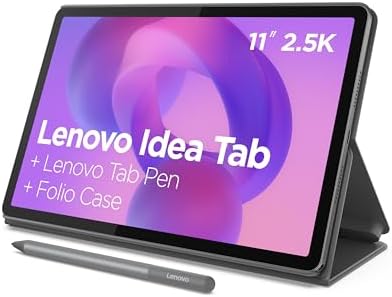
- POWER YOUR STUDY, FUEL YOUR PLAY – Discover smarter learning with the Lenovo Idea Tab. Stay campus-ready with all-day ba…
- SMOOTH, POWERFUL, IMMERSIVE – The MediaTek Dimensity 6300 processor is more powerful than ever, with the AI-enhanced mul…
- CIRCLE IT, SEARCH IT – Use your Lenovo Tab Pen or fingertip to circle items for instant search results or to translate o…
If your budget is tight and your remote-work needs are simple, the Lenovo Idea Tab is the most complete cheap tablet here. Lenovo puts the Tab Pen and a folio case in the box at a price where rivals charge extra for both, the 11-inch 2.5K screen is sharper than anything else near this money, and it runs full Android with the Google Play Store, so your actual work apps install natively rather than as browser tabs.
Key specifications:
- Display: 11″ 2.5K IPS (2560 x 1600), 90Hz, 72% NTSC, TUV Rheinland Low Blue Light
- Chip: MediaTek Dimensity 6300 with Arm Mali-G57 MC2 graphics
- Memory/storage: 8GB RAM, 256GB storage
- Battery: rated up to 12 hours of video; 20W charging
- Audio: quad Dolby Atmos-tuned speakers
- Software: Android with full Google Play and Circle to Search
- Configuration reviewed: 8GB/256GB – see card above for live price; Tab Pen and folio case included
Performance analysis. The Dimensity 6300 is mid-range silicon and we will not pretend otherwise – it is built for email, documents, web apps, reading and video calls rather than heavy multitasking or editing. Within that brief it is smooth, and split-screen works fine for a document beside a browser. Set expectations at “light remote tasks,” not “laptop replacement.”
Battery life. Lenovo rates up to 12 hours of video playback, which lines up with a full working day of documents and calls. The 20W charger is modest rather than fast, so plan on topping it up overnight rather than in a coffee break.
Display quality. The strongest part of the package. An 11-inch 2.5K IPS panel at 90Hz is genuinely sharp for the price, 72% NTSC coverage keeps colors sensible for photo and document work, and the TUV Rheinland low-blue-light certification helps on long reading days.
Productivity features. The Tab Pen and folio case are included, not upsold. Lenovo bundles four note and study apps – Lenovo AI Note, Squid, Nebo and MyScript Calculator – and Circle to Search lets you circle anything on screen for an instant lookup or translation without switching apps.
Home-office integration. Full Google Play means Microsoft 365, Google Workspace, Slack, Zoom and Teams install as real native apps. Quad Dolby Atmos-tuned speakers make it a credible call device, and Smart Connect moves files and tasks between your phone, PC and tablet without cables or emailing yourself attachments. The honest limits: there are no pogo pins and no first-party keyboard, so typing means a Bluetooth board, and it is not the tablet for a multi-monitor desk.
Keyboard compatibility. The weakest link, as with most tablets at this price. There is no first-party keyboard and no pogo pins, so you are pairing a Bluetooth keyboard alongside the folio. Workable for email and short documents, awkward on a lap.
Stylus support. The bundled Lenovo Tab Pen is the single best argument for this tablet as a note-taker at the price – handwriting is responsive, and it doubles as the pointer for Circle to Search.
Business use cases. Budget home offices, heavy readers and note-takers, students, and anyone who wants a second screen for reference documents beside a laptop.
Pros
- Tab Pen and folio case included – rivals charge extra for both
- Sharp 11″ 2.5K 90Hz screen with low-blue-light certification
- Full Android with Google Play; 8GB/256GB at a budget price
Cons
- Dimensity 6300 is mid-range – fine for light work, not heavy multitasking
- No first-party keyboard and no pogo pins
- 20W charging is slow by current standards
Who should buy it: budget remote workers, note-takers and students who want a pen and case in the box and real Google apps. Who should skip it: anyone needing serious multitasking horsepower, monitor docking or a proper laptop-style keyboard – spend more on an 11-inch iPad or a Galaxy Tab.
Buying Guide: How to Choose a Tablet for Remote Work in 2026
The right remote-work tablet is the one that runs your real software and slots into the rest of your home-office setup without friction. Here is how to weigh the decisions that matter most.
How to Choose a Tablet for Remote Work
Start with software, not specs. List the three or four tools you cannot work without — your Office or Workspace suite, your video-call app, your team chat, your cloud drive — and check each has a proper native app on the platform you are considering, or only a browser version. Then weigh portability against screen size, decide whether you need cellular for travel, and add the cost of the keyboard and pen, which are almost always extra and can add hundreds to the sticker price.
iPad vs Android vs Windows for Remote Work
iPad (iPadOS) has the deepest, most polished remote-work app library, the best call hardware and external-display support at 120Hz, but it is a mobile OS with limits and Apple-priced accessories. Android (Galaxy Tab, Lenovo) offers the best big screens, desktop modes like Samsung DeX, included pens on Samsung, and often better value — at the cost of a few specialist apps. Windows (Surface) is the only option that runs full desktop software and multi-monitor setups and is managed like a company PC, but the touch experience lags. Choose iPad for the ecosystem, Android for screen and value, Windows for desktop-software compatibility.
Setting Up External Monitors and Docking Stations
A second screen is the single biggest upgrade to a tablet-based home office. The iPad Pro extends to an external monitor via Stage Manager at up to 120Hz (the 11-inch iPad mirrors only); the Galaxy Tabs use Samsung DeX for a true desktop view with multiple windows; and the Surface drives up to three 4K displays. Pair any of them with a USB-C docking station and a single cable handles monitor, keyboard, mouse, wired Ethernet and charging at once. The Lenovo Idea Tab supports screen mirroring, but it is not built to run a wired desktop docking setup.
RAM and Storage Requirements
For light remote use, 4GB works but feels tight when multitasking; 8GB is the comfortable minimum, and the 12GB on the iPad Pro is why it juggles many open apps and an external display more gracefully. Power users should look for 12–16GB. For storage, 128GB is a sensible floor and 256GB the comfortable default; iPads cannot expand, so buy ahead, while most Android tablets take a microSD card for cheap extra capacity.
Battery Life and Charging for Travel
Manufacturer ratings are best-case figures; real mixed-use days run shorter. The iPads last a typical office day at around 10 hours; the big-battery Android tablets and the Surface push well beyond that. If you travel, also weigh charging speed — the Galaxy Tabs’ 45W refills faster than the iPads, which often matters more than a couple of rated hours at a gate or in a hotel. Note that Apple no longer includes a charger in the box.
Wi-Fi, Mesh Networks and Connectivity
A remote setup is only as good as its connection. The iPad Pro supports Wi-Fi 7 — all benefit from a modern mesh Wi-Fi system that blankets a home in stable coverage, which matters for jitter-free Zoom and Teams calls. If you work where Wi-Fi is unreliable, choose a cellular-capable model (the iPads and Galaxy Tabs offer one — the iPads are eSIM-only; the Lenovo Idea Tab is Wi-Fi only).
Video Calls and Collaboration: Zoom, Teams and Slack
For call-heavy remote roles, camera framing, microphone quality and a stable connection matter more than the chip. The iPads (Center Stage, four mics) and Galaxy Tabs are excellent on Zoom and Teams; the Surface runs the full desktop clients of Teams, Zoom and Slack; and the Lenovo Idea Tab pairs quad Dolby Atmos-tuned speakers with a sharp 2.5K screen, making it a capable call device for the money. All of them run native collaboration apps from their app stores, so notifications and screen sharing behave as expected.
Keyboard, Stylus and Note-Taking
Is note-taking your main use? If writing feel matters more to you than apps and general-purpose use, a dedicated E-Ink writing tablet may suit you better than a standard tablet — see our reMarkable Paper Pro review.
A keyboard is what turns a tablet into a work device, and it is almost always sold separately — budget for one with a sturdy hinge if you type on your lap. For notes and call markup, pen quality matters more than the chip: Samsung includes the S Pen and Lenovo bundles its Tab Pen, while Apple and Microsoft charge extra. Pair any of them with Goodnotes, Samsung Notes or OneNote, and an OLED or high-refresh screen makes handwriting feel natural.
Security, Printing and Cloud Storage
For remote work, look for biometric unlock and, for managed teams, mobile device management support — iPads and Surface integrate cleanly with enterprise MDM, and Samsung adds Knox; the iPads use Touch ID in the top button. Wireless printing is covered by AirPrint on iPad, Mopria on Android, and native printing on the Surface. And every platform here syncs the major clouds — iCloud, OneDrive, Google Drive and Dropbox — so your files follow you between the home desk, the road and the office.
Tablet for Remote Work: Frequently Asked Questions
What is the best tablet for remote work in 2026?
The Apple iPad Pro (M5) is the best overall remote-work tablet in 2026: it drives an external monitor, docks cleanly, runs Zoom, Teams, Slack and Microsoft 365 as native apps, and lasts a full workday. The Samsung Galaxy Tab S10+ is the best Android alternative, and the Surface Pro is best for full Windows software.
Can a tablet replace a laptop for working from home?
For many remote roles, yes — with a keyboard attached, an external monitor and the right apps. Calls, documents, web work and note-taking are well covered by an iPad Pro, Galaxy Tab or Surface. A tablet struggles to fully replace a laptop only when you depend on specialist desktop software or heavy multi-window workflows. The Surface Pro comes closest because it runs full Windows.
Can I connect a tablet to an external monitor and dock?
Yes. The iPad Pro extends to a monitor via Stage Manager, the Galaxy Tabs use Samsung DeX for a desktop view, and the Surface drives up to three 4K displays. All connect through a USB-C docking station so one cable handles monitor, keyboard, Ethernet and charging. The Lenovo Idea Tab supports screen mirroring, but it is not built for a full desktop docking setup.
Which tablet works best with Microsoft 365 and Microsoft Teams?
The Surface Pro runs the full desktop versions of Microsoft 365 and the desktop Teams client, so it is the most capable for power users. iPads and Galaxy Tabs run excellent native mobile 365 and Teams apps that cover the vast majority of remote work, and all support Microsoft 365 in the cloud.
Are these tablets good for Zoom and video calls?
Yes. The iPads lead with Center Stage auto-framing and a four-microphone array, the Galaxy Tabs and Surface run native Zoom and Teams clients, and the Lenovo pairs quad Dolby Atmos-tuned speakers with a sharp 2.5K screen. The 11-inch iPad is the value standout here: its front camera sits on the landscape edge, so you face the lens squarely with a keyboard attached. For the most reliable calls, pair any of them with a strong mesh Wi-Fi network.
Which tablet has the best battery life for remote work?
Among our picks, the Surface Pro is rated up to 15.5 hours, and the Samsung tablets are both rated for long battery life. The Lenovo Idea Tab is rated up to 12 hours of video playback. The iPads land around 10 hours of real use — a full working day, but not a standout. Every rated figure here is best-case video playback; assume roughly 60 to 70 per cent of it for a day of calls and documents.
Do Android tablets work with Google Workspace and Slack?
Yes. Android tablets like the Galaxy Tab S10+ run native Google Workspace, Slack, Zoom and Teams apps from the Play Store, so they integrate seamlessly into a Google-based remote workflow. iPads run the same apps too, and the Lenovo Idea Tab runs full Google Play as well, so even the budget pick installs native clients rather than falling back on web versions.
What is the best budget tablet for a home office?
The Lenovo Idea Tab is our pick — the cheapest tablet here, and it includes a stylus and flip case in the box. It runs full Android 15 with the Google Play Store, so Microsoft 365, Slack, Zoom and Teams install natively, and its matte anti-glare screen is genuinely easier on the eyes over a long working day. If you need real multitasking horsepower or monitor docking, stretch to the 11-inch iPad or a Galaxy Tab S10+.
Do I need a cellular tablet for remote work?
Only if you regularly work where Wi-Fi is unavailable or unreliable — traveling, at client sites or commuting. Cellular adds cost and a data plan but keeps you always connected. If you mostly work on home or office Wi-Fi, a Wi-Fi-only model saves money. Note that the iPads are eSIM-only, and the Lenovo Idea Tab is Wi-Fi only.
Can a tablet print to my home printer?
Yes. iPads print wirelessly via AirPrint, Android tablets use Mopria or the manufacturer’s print app, and the Surface prints to any networked printer natively through Windows. Setup is typically as simple as selecting the printer on the same Wi-Fi network.
How much RAM does a remote-work tablet need?
8GB is the comfortable minimum for remote multitasking; 12GB (standard on the iPad Pro) keeps more apps open and makes docked, external-display use steadier. Choose 16GB if you edit media or run many windows at once. Budget tablets like the Lenovo Idea Tab (8GB) handle split-screen fine but suit lighter workloads.
Which tablet is best for a hybrid worker who splits home and office?
The 11-inch iPad (A16) is our value pick for hybrid work: the full iPadOS app library, a landscape front camera that frames you properly on calls, and by far the strongest review record of anything here. For a premium experience that becomes a near-desktop at home via DeX, the Galaxy Tab S10+ is excellent, and the Surface Pro suits anyone tied to desktop Windows apps across both locations.
Which tablet is best for students working remotely?
The Samsung Galaxy Tab S10 Lite is our pick for remote students: a genuinely portable Samsung with an included S Pen at a fraction of flagship money, and Galaxy Tab S support behind it. If the budget stretches and you want the big screen, the Tab S10+ is the step up of updates. The 11-inch iPad (A16) is the equivalent best-value choice for those in the Apple ecosystem.
Key Takeaways: Picking a Tablet for Remote Work
- Best overall tablet for remote work: Apple iPad Pro (M5) — drives a monitor at 120Hz, docks cleanly, and runs every remote-work app natively.
- Best value iPad: Apple iPad (11″, A16) — the same app library as the Pro at a fraction of the price, and the best call camera here for the money.
- Best Android: Samsung Galaxy Tab S10+ – a big 12.4-inch AMOLED, S Pen in the box, DeX, and 512GB as standard.
- Best Windows: Microsoft Surface Pro (13″) — the only pick that runs full desktop software, on an OLED screen.
- Best budget: Lenovo Idea Tab — a sharp 11-inch 2.5K screen with a pen and folio case in the box, for work that is documents and calls rather than heavy apps.
- Best budget note-taking: Galaxy Tab S10 Lite — the S Pen in the box and 8GB of memory for less than half the flagship price, sold by Amazon with a warranty.
- Decide on software first, then plan your monitor, dock and Wi-Fi, and always budget for the keyboard and pen.
Final Verdict: The Right Tablet for Remote Work
For most remote and hybrid workers in 2026, the Apple iPad Pro (M5) is the safest tablet for remote work to buy once and use for years — it anchors a docked, dual-screen home office and travels light — while the 11-inch iPad (A16) is the value play that suits the majority of home-office workers just as well. If you live in the Android world, the Galaxy Tab S10+ is the big-screen flagship that becomes a near-desktop via DeX, and the Tab S10 Lite gives you the same S Pen for less than half the money if your day is notes and PDFs rather than heavy work; if the budget is tight and the work is documents, reading and calls, the Lenovo Idea Tab is the affordable way in. If your work is anchored in desktop Windows software and multi-monitor setups, the Surface Pro is the only one of these that truly replaces a laptop. Whichever you choose, prices and stock move constantly, and the gap between full retail and a good sale can be substantial. Use the buttons throughout this guide to compare the current price and availability before you buy, so you lock in the best deal at the moment you are ready.
Keep Building Your Home Office
Pairing your new tablet with the right desk gear turns it into a complete work-from-home setup. Read our companion guides next:
- How to Choose a Business Tablet in 2026
- Best Business Laptops 2026
- Best Home Office Monitors 2026
- Best Docking Stations 2026
- Best Headsets for Remote Work 2026
- Best Wi-Fi Routers 2026
Why You Can Trust Smart Tech Buying
Every recommendation is based on extensive product research, manufacturer specifications, customer feedback, long-term reliability, value, and suitability for real-world use. When we have personal experience with a product, we include those insights. We regularly review our guides to keep recommendations current as new products are released.